Read and write geospatial vector data with GeoPandas
Apply general data wrangling and summarization to vector geospatial data using Pandas methods
Work with coordinate reference systems and bounding boxes
Convert between geometry types and generate bounding geometries
Perform proximity analysis/buffering
Perform geoprocessing and vector overlay
Summarize point and line features relative to polygons
Geometry simplification, spatial sampling, and tessellation
9.2 Introduction
9.2.1 Overview of GeoPandas
In this chapter, we explore a wide variety of techniques for working with and analyzing vector geospatial data in Python. Specifically, we focus on methods made available in the GeoPandas library. GeoPandas extends Pandas (Chapter 4) by adding the GeoDataFrame, which is a DataFrame with a special column, generally named “geometry”, that stores the geometric data. If you have worked with PostgreSQL and PostGIS, you will observe lots of similarities. Both make use of an object-based vector data model where the geometry and attributes are stored in the same table. In other words, the geometric data are simply stored as another column in the table alongside feature attributes. One benefit of this structure is that we can perform the same data preprocessing, manipulation, wrangling, and querying techniques on GeoDataFrames that we have already used for Pandas DataFrames.
Each value in the geometry column is a geometry object from the Shapely library. GeoPandas and Shapely offer several geometry types, as summarized in Table 9.1. Other than Point, LineString, and Polygon features, it is possible to create MultiPoint, MultiLineString, and MultiPolygon features where multiple, and potentially noncontiguous, geographic features are treated as one record in the table. Further, it is not required that all records or features in a GeoDataFrame have the same geometry type. The GeometryCollection type allows for a single record to hold multiple geometry types. The geom_type property returns the geometry type of each feature, and the explode() method converts multipart features to single-part features. Geometric errors can be detected using the is_valid property while the make_valid() method allows for correcting geometric errors. Note that corrections may not always be successful (only certain types of geometric errors can be detected and corrected).
Table 9.1. Shapely and GeoPandas geometry types.
Geometry Type
Description
Point
Each point treated as a single record
MultiPoint
Allows multiple points to be treated like a single record
LineString
Series of coordinates connected as a line
MultiLineString
Allows for multiple lines to be treated as one record
Polygon
Series of coordinates forming a closed, areal shape
MultiPolygon
Allows multiple polygons to be treated as a single record
GeometryCollection
Allows a single record to hold multiple geometry types
GeoPandas also provides spatial predicates, or logical tests that return True or False, which can be useful for conducting spatial queries. These tests are described in Table 9.2. Each method compares each geometry in a GeoSeries or GeoDataFrame to another geometry.
Table 9.2. GeoPandas spatial predicates.
Method
Use
intersects()
Do A and B intersect?
disjoint()
Are A and B disjoint?
touches()
Do A and B touch?
crosses()
Do A and B cross?
within()
Is A within B?
contains()
Does A contain B?
overlaps()
Do A and B overlap?
geom_equals()
Are A and B identical?
covers()
Does A cover B?
covered_by()
Is A covered by B?
dwithin()
Is A within a given distance of B?
Methods are also available for obtaining or transforming the datum/projection information for a layer. For example, the crs property provides the datum/projection information while the to_crs() method allows for converting between datums/projections. This can be useful when layers being used in an analysis do not have the same projection or coordinate reference system. If a layer is missing its coordinate reference system information, but you know what it should be, it can be defined using set_crs().
When performing overlay or spatial analysis involving multiple data layers using GeoPandas, the layers should use the same datum/projection information. If they do not, you can use to_crs() for datum/projection conversion.
There are also properties and methods available for calculating geometric properties, as described in Table 9.3. These calculations are made in the units of the layer’s coordinate reference system.
It is generally best to calculate geometric properties using a projected coordinate system as opposed to a geographic coordinate system (i.e., latitude and longitude). GeoPandas will warn you if you calculate areas or lengths using geographic coordinates.
Table 9.3. GeoPandas geometric calculations.
Property or Method
Use
area
Area of each polygon in the units of the coordinate reference system
length
Length of each line, or perimeter of each polygon, in the units of the coordinate reference system
boundary
Boundary of each geometry (e.g., the outline of a polygon as a line)
distance()
Distance between each geometry and another geometry
9.2.2 Read Data
We first import the required libraries. Shapely, which is installed along with GeoPandas, is used to create new geometries. We use a variety of data layers, and all of the vector layers are stored in the vector.gpkg GeoPackage in the datasets/gisData/vector folder.
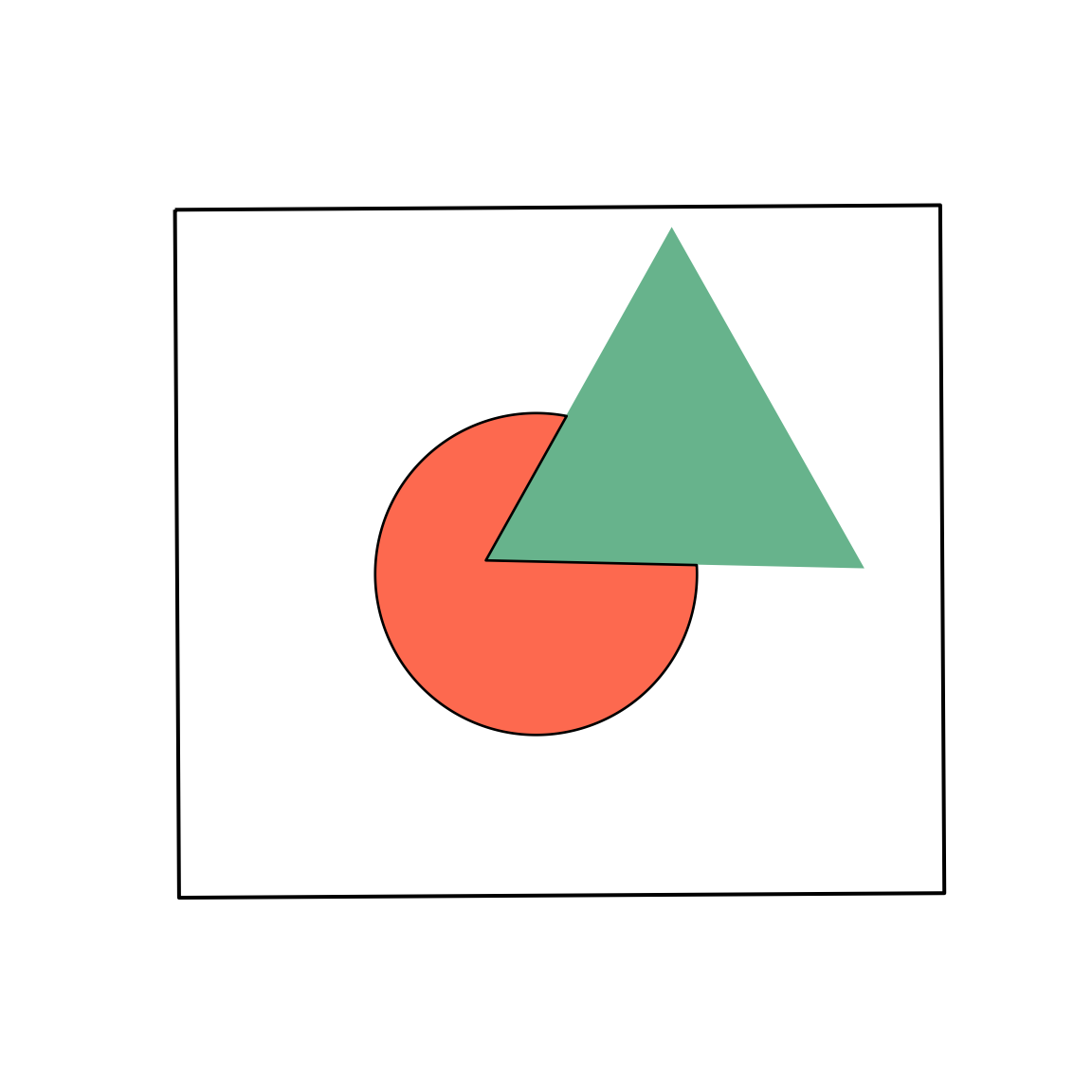
circle: a circle
triangle: a triangle
extent: bounding box extent of circle and triangle
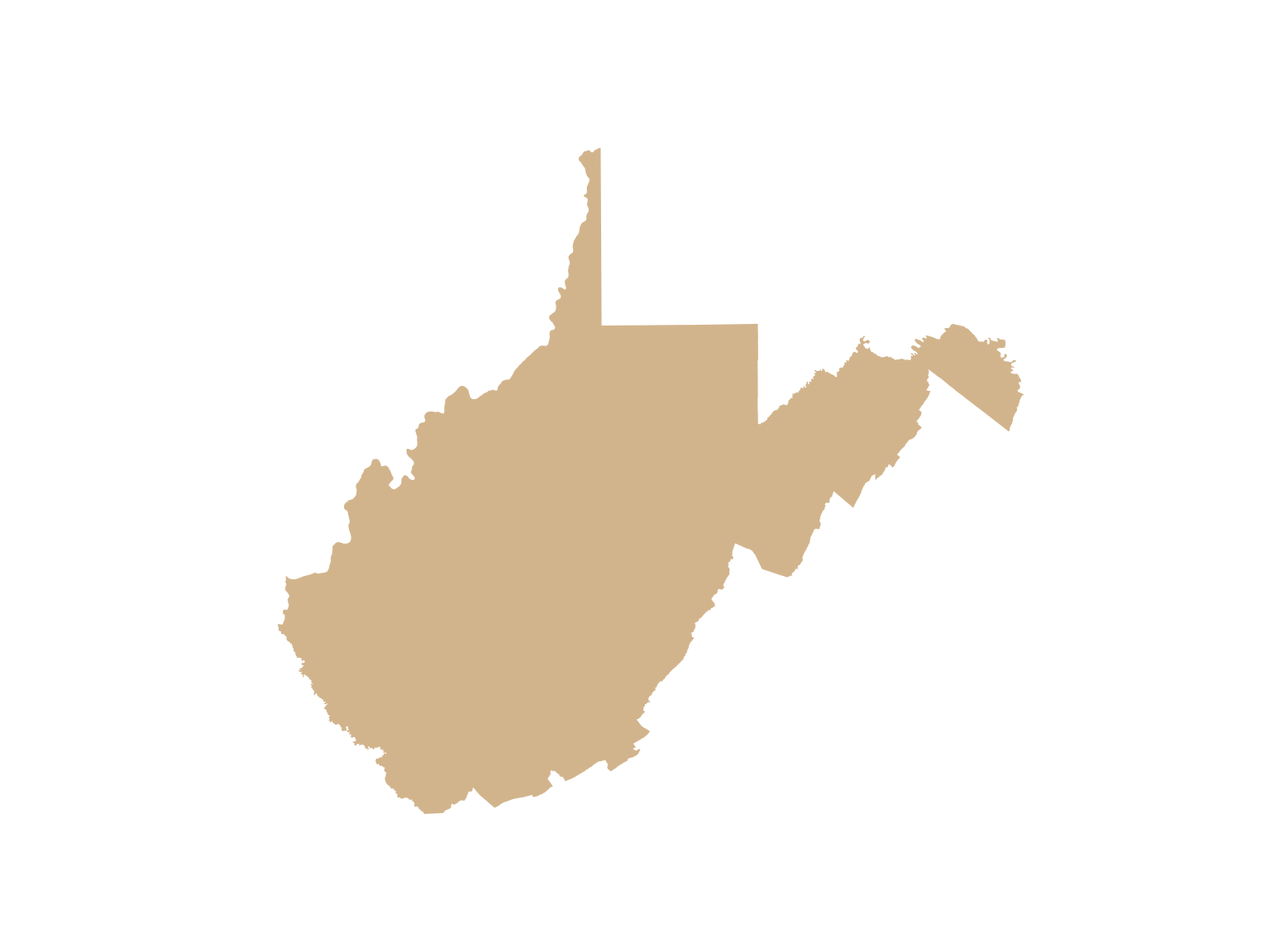
interstates: interstates in West Virginia as lines
rivers: major rivers in West Virginia as lines
towns: point features of large towns in West Virginia
wv_counties: West Virginia county boundaries as polygons
harvest.csv: CSV table of deer harvest data by county from the West Virginia Division of Natural Resources (WVDNR)
tornadoesUS: point features of tornadoes across the US
citiesUS: point features of cities in the US
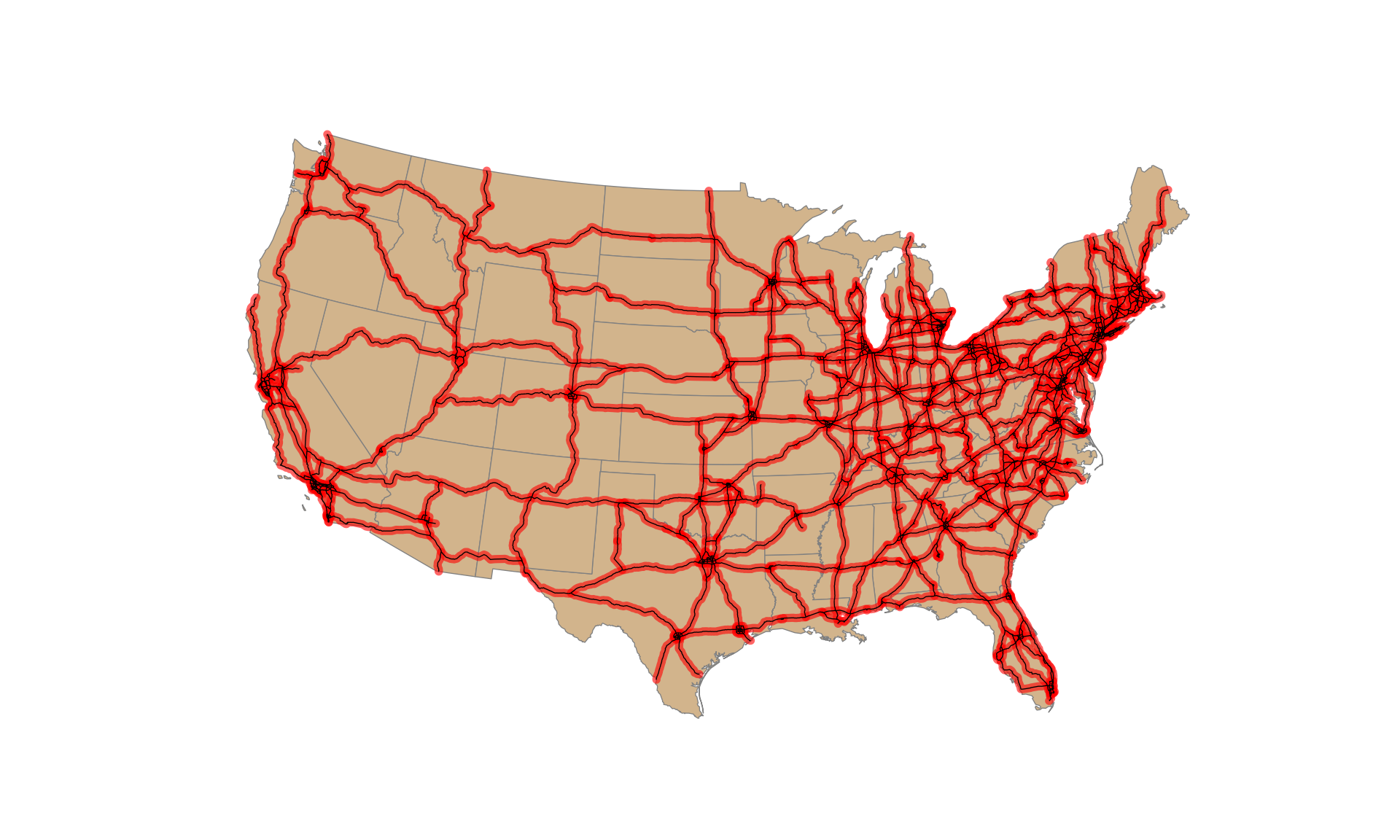
interstatesUS: interstates in the US as lines
us_eco_ref_l3US: ecological regions of the US as polygons
statesUS: US state boundaries
All vector layers are read in using the read_file() function from GeoPandas. This generates a GeoDataFrame. Tabulated data as a CSV file, harvest.csv, are read using read_csv() from Pandas.
When reading a layer from a database, such as an Esri File Geodatabase or a GeoPackage, the path to the database is provided first, and the name of the layer is provided to the layer parameter. If the file is not within a database, such as a shapefile or GeoJSON file, you only need to provide the path to the file. The list_layers() function lists the layers in a database along with their geometry types.
import numpy as npimport pandas as pdimport matplotlib.pyplot as pltimport seaborn as snsimport geopandas as gpdfrom shapely.geometry import box, Polygongpkg ="datasets/gisData/vector/vector.gpkg"print(gpd.list_layers(gpkg))
               name    geometry_type
0            circle     MultiPolygon
1            extent     MultiPolygon
2             lines  MultiLineString
3            points            Point
4         rectangle     MultiPolygon
5          triangle     MultiPolygon
6       interstates  MultiLineString
7            rivers  MultiLineString
8             towns            Point
9       wv_counties     MultiPolygon
10         citiesUS            Point
11    interstatesUS  MultiLineString
12         statesUS     MultiPolygon
13      tornadoesUS            Point
14  us_eco_ref_l3US     MultiPolygon
Printing the first set of rows from the rivers layer, we can see that the data are formatted as a table where each row represents a spatial feature and the “geometry” column stores the geometric data. All other columns are attributes associated with the spatial features. The crs property shows that these data use the WGS84 UTM Zone 17N projection.
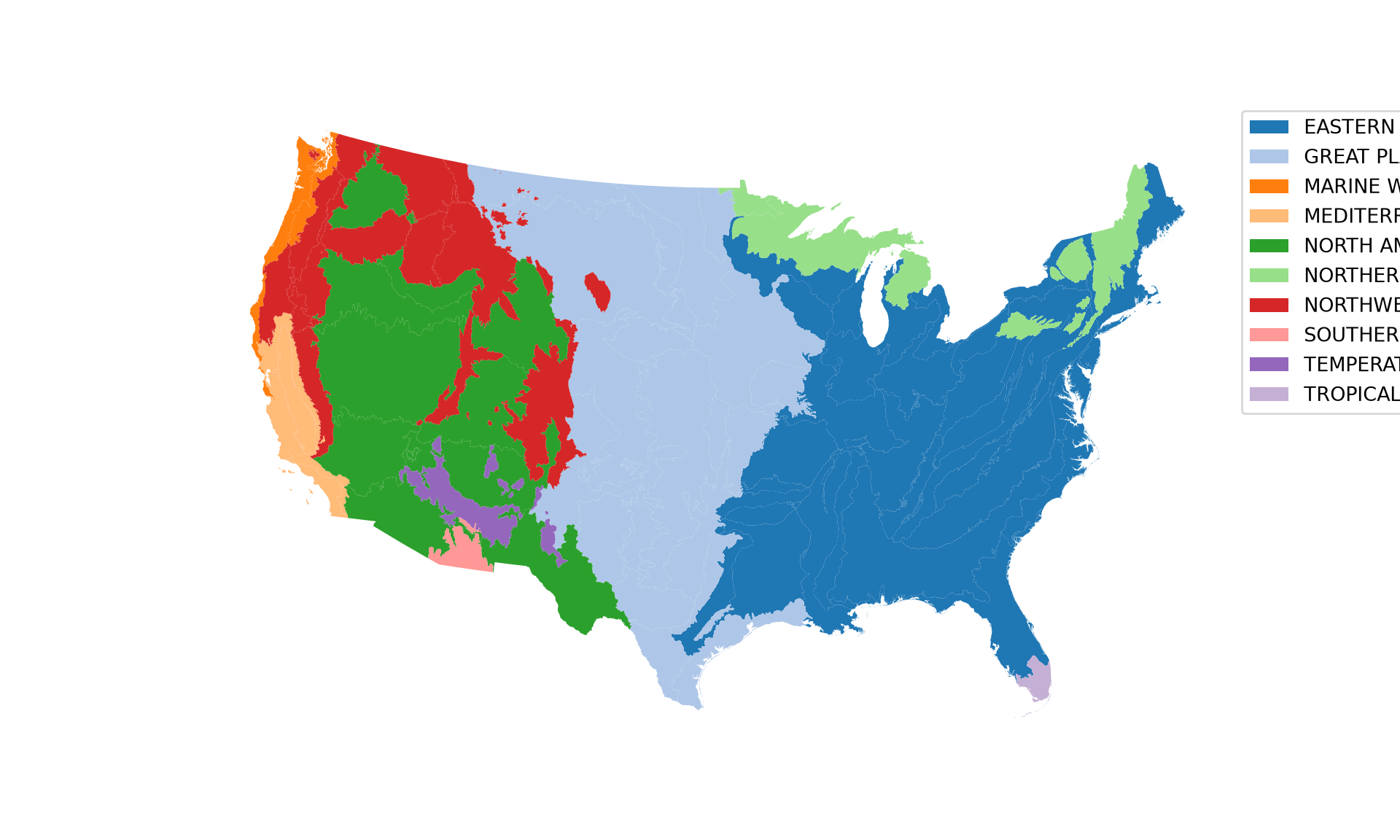
Let’s start by mapping the ecological region boundaries using the plot() method of the GeoDataFrame, which is discussed in more detail in Chapter 8. We use the fill color to show the Level 1 ecoregion name as a qualitative/categorical variable by providing the column name to the column parameter. We also plot the legend outside of the map space.
Since GeoDataFrames act as DataFrames, we can work with and manipulate them using the Pandas methods discussed in Chapter 4. In the next code block, we count the number of polygons belonging to each Level 1 ecoregion using groupby() and size(). We can confirm that the Eastern Temperate Forests ecoregion has the largest number of polygons associated with it. This process is the same as working with any DataFrame, which is one of the benefits of using GeoPandas to work with vector data in Python. Since a summary statistic is calculated for a single column, the result is a Pandas Series as opposed to a GeoDataFrame. If you need to remove the geometric information from a GeoDataFrame, you can drop the “geometry” column using drop(columns="geometry"), which returns a Pandas DataFrame.
NA_L1NAME
EASTERN TEMPERATE FORESTS          890
TROPICAL WET FORESTS                92
MARINE WEST COAST FOREST            75
GREAT PLAINS                        46
NORTHERN FORESTS                    43
MEDITERRANEAN CALIFORNIA            40
NORTHWESTERN FORESTED MOUNTAINS     38
NORTH AMERICAN DESERTS              13
TEMPERATE SIERRAS                   11
SOUTHERN SEMI-ARID HIGHLANDS         2
dtype: int64
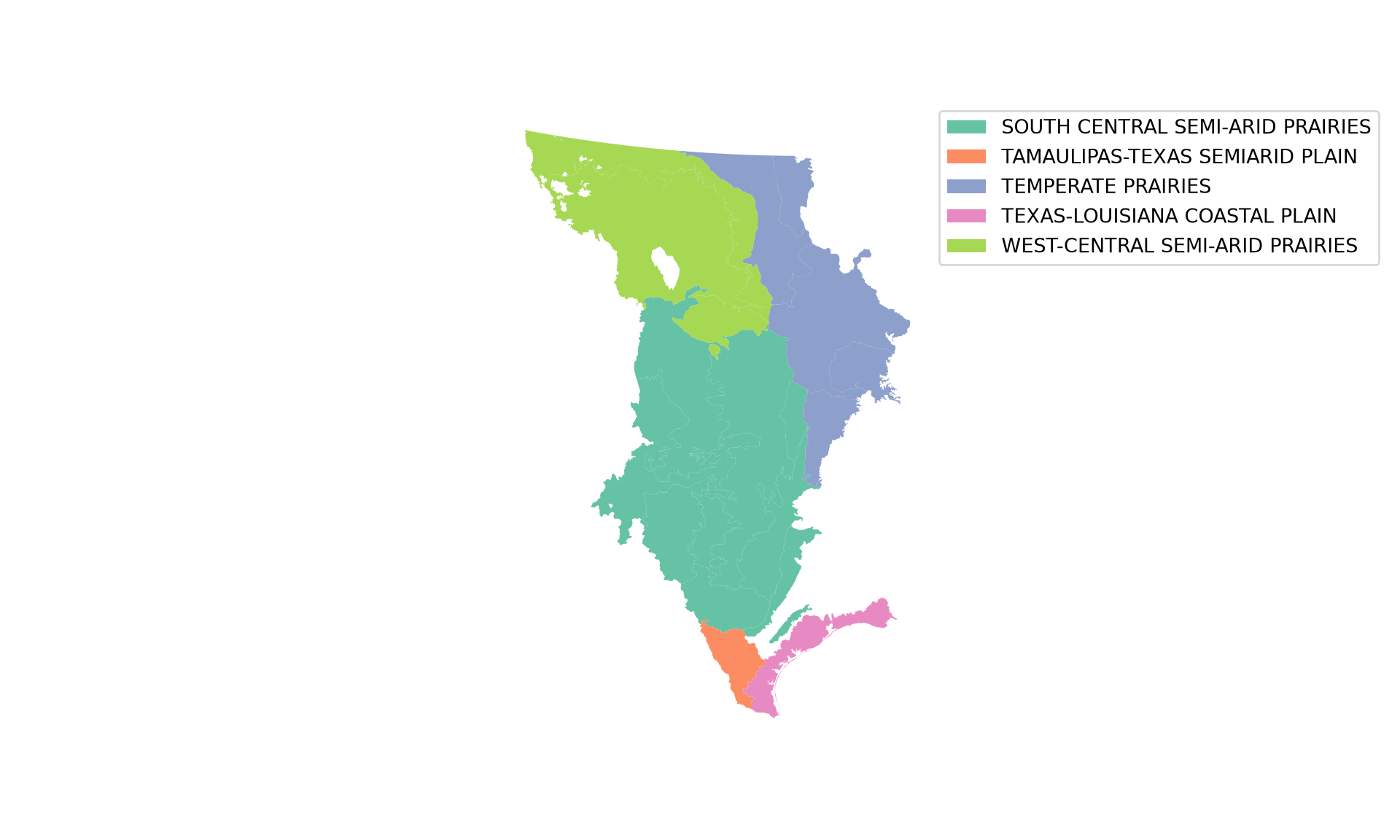
Records, rows, or geospatial features can be extracted using a Boolean query. In the next code block, we extract all features that are within the Great Plains Level 1 ecoregion. We then map the extracted features and use the fill color to differentiate the Level 2 ecoregions. Only the Level 2 ecoregions that occur in the subset are included in the legend.
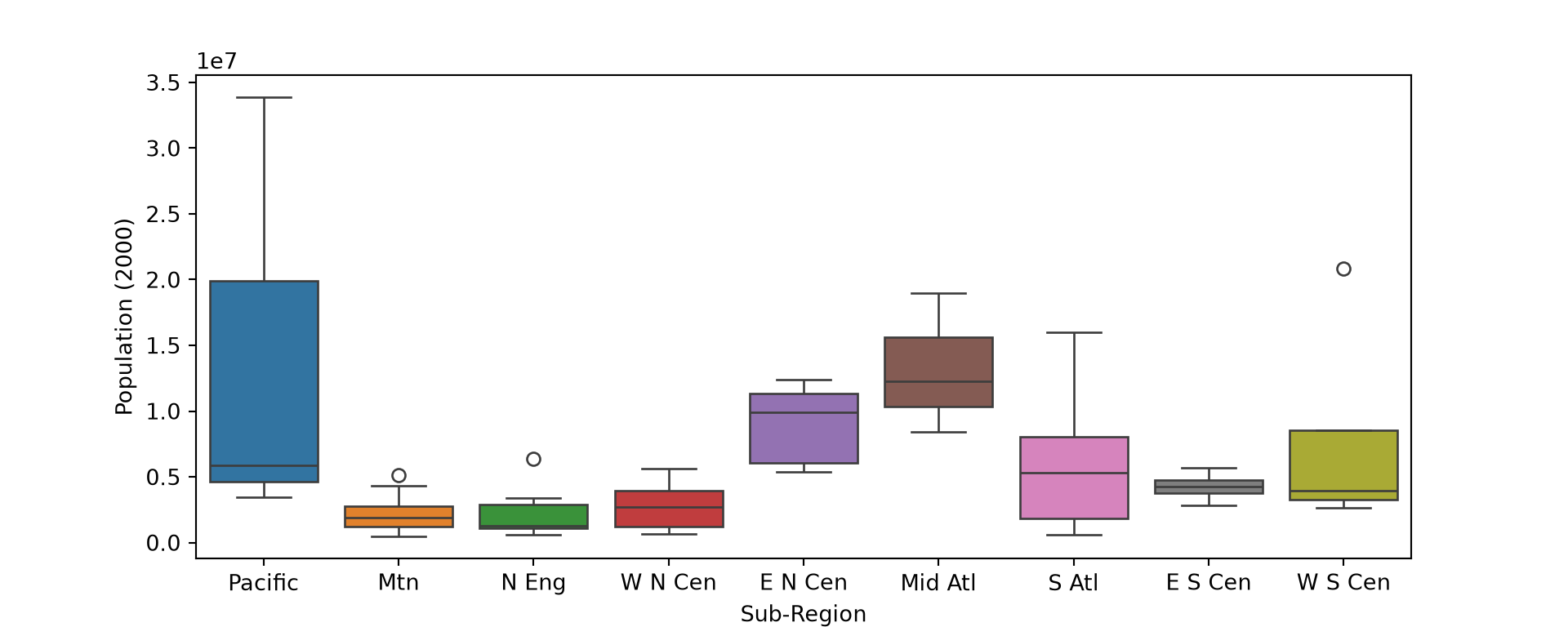
Again, since GeoDataFrames behave as DataFrames, we can explore the tabulated data using a variety of methods. As an example, we use Seaborn (Chapter 5) to compare state-level population by sub-region of the US. Since the geographic information is not needed here, it is simply ignored.
SUB_REGION
E N Cen    9.031007e+06
E S Cen    4.255702e+06
Mid Atl    1.322395e+07
Mtn        2.271537e+06
N Eng      2.320420e+06
Pacific    1.439572e+07
S Atl      5.752129e+06
W N Cen    2.748248e+06
W S Cen    7.861212e+06
Name: POP2000, dtype: float64
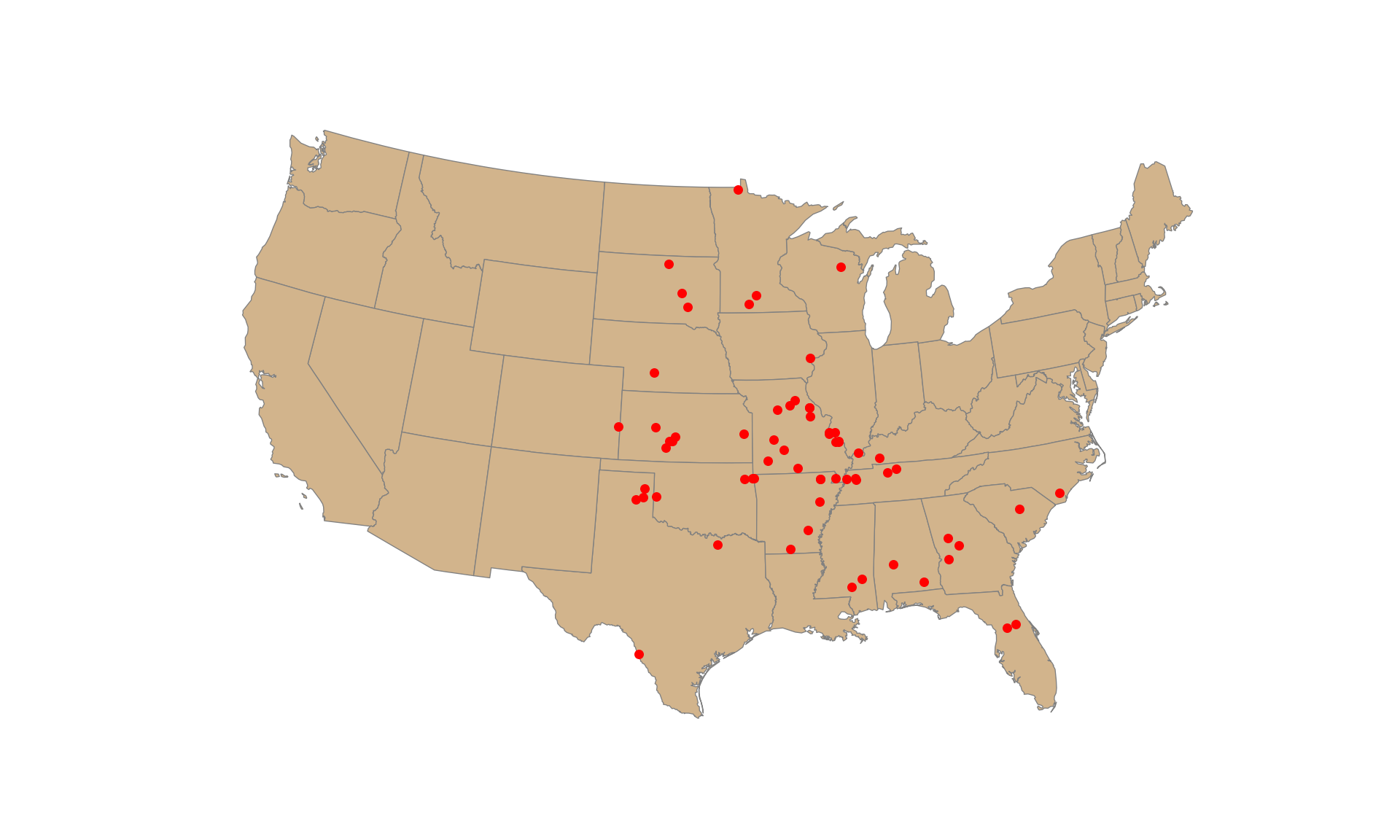
Each tornado point has a Fujita scale attribute, a measure of tornado intensity. We now count the number of tornadoes by Fujita category. As expected, severe tornadoes occur much less frequently. We next extract all tornadoes that have a Fujita value greater than or equal to 3 and plot them as points over the state boundaries. As discussed in Chapter 8, multiple layers are displayed in the same map by plotting each to the same axes.
It is also possible to subset columns or attributes using a list of column names. Using this method, we extract only the state name, sub-region, and population attributes. In contrast to R’s sf package, the geometry column is not retained automatically. If the “geometry” column is not included in the list, the result is a Pandas DataFrame as opposed to a GeoDataFrame.
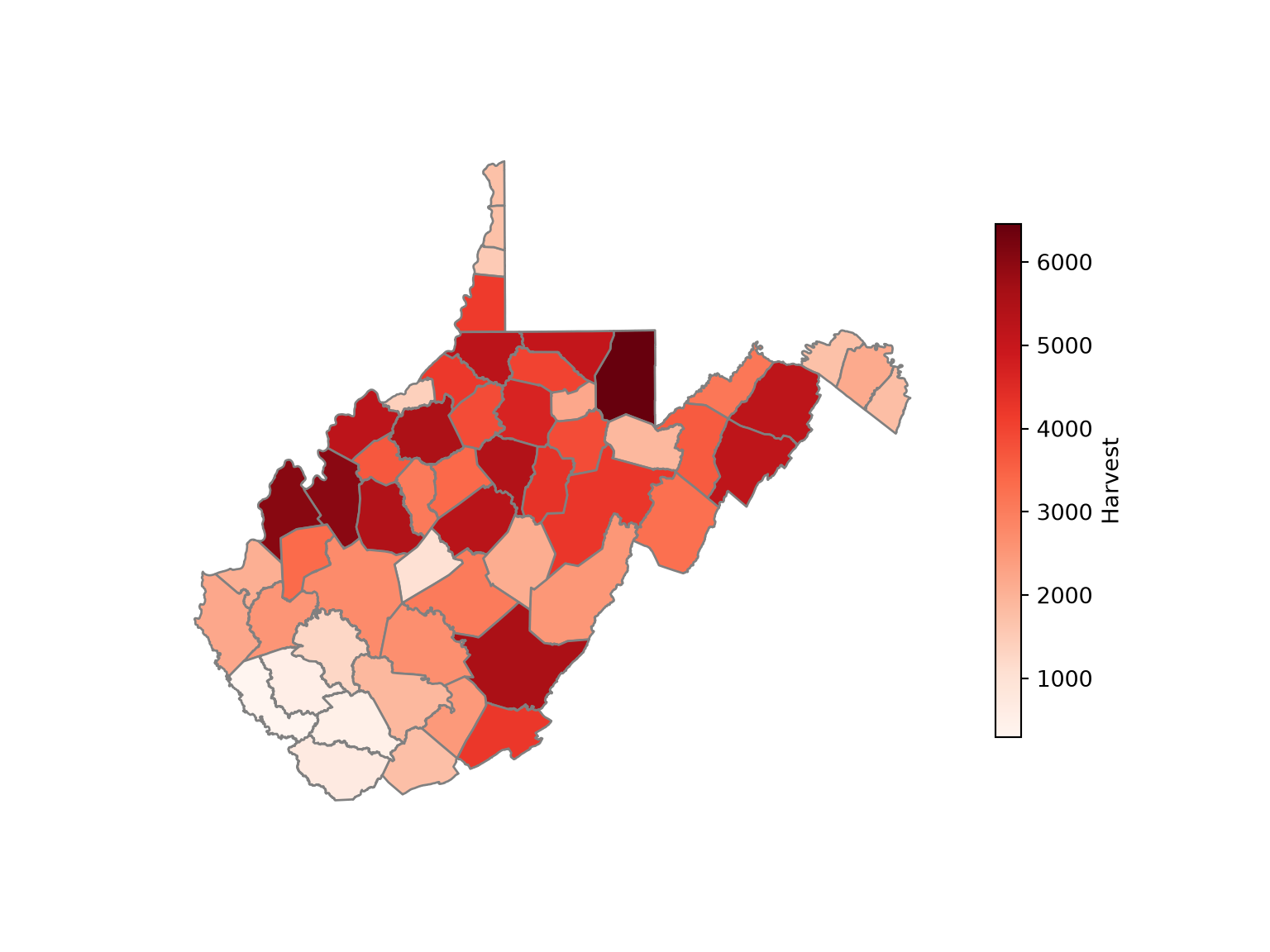
Tabulated data can be joined to spatial features if they share a common field or attribute. This is known as a table join. The goal of the next code block is to join the deer harvest tabulated data to the county boundaries. First, we change the “COUNTY” column’s name in the deer harvest table to “NAME” using rename() so that the column name matches that of the polygon features. We then use the merge() method to associate the data using the common “NAME” field. Setting how="inner" performs an inner join, in which only records that occur in both tables are retained. Since the merge() method is applied to the GeoDataFrame, the result is a GeoDataFrame. Lastly, we map the total number of deer harvested by county.
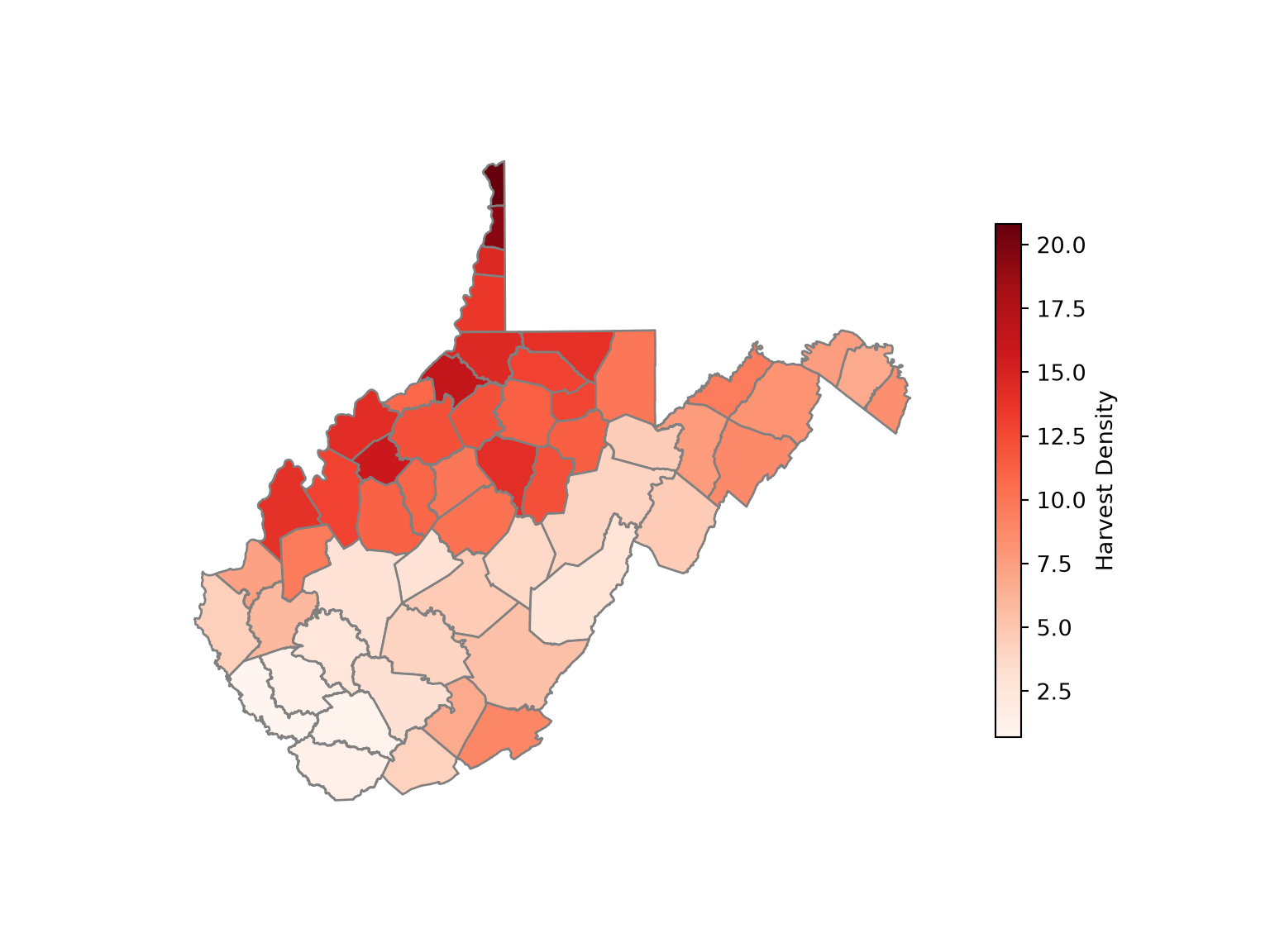
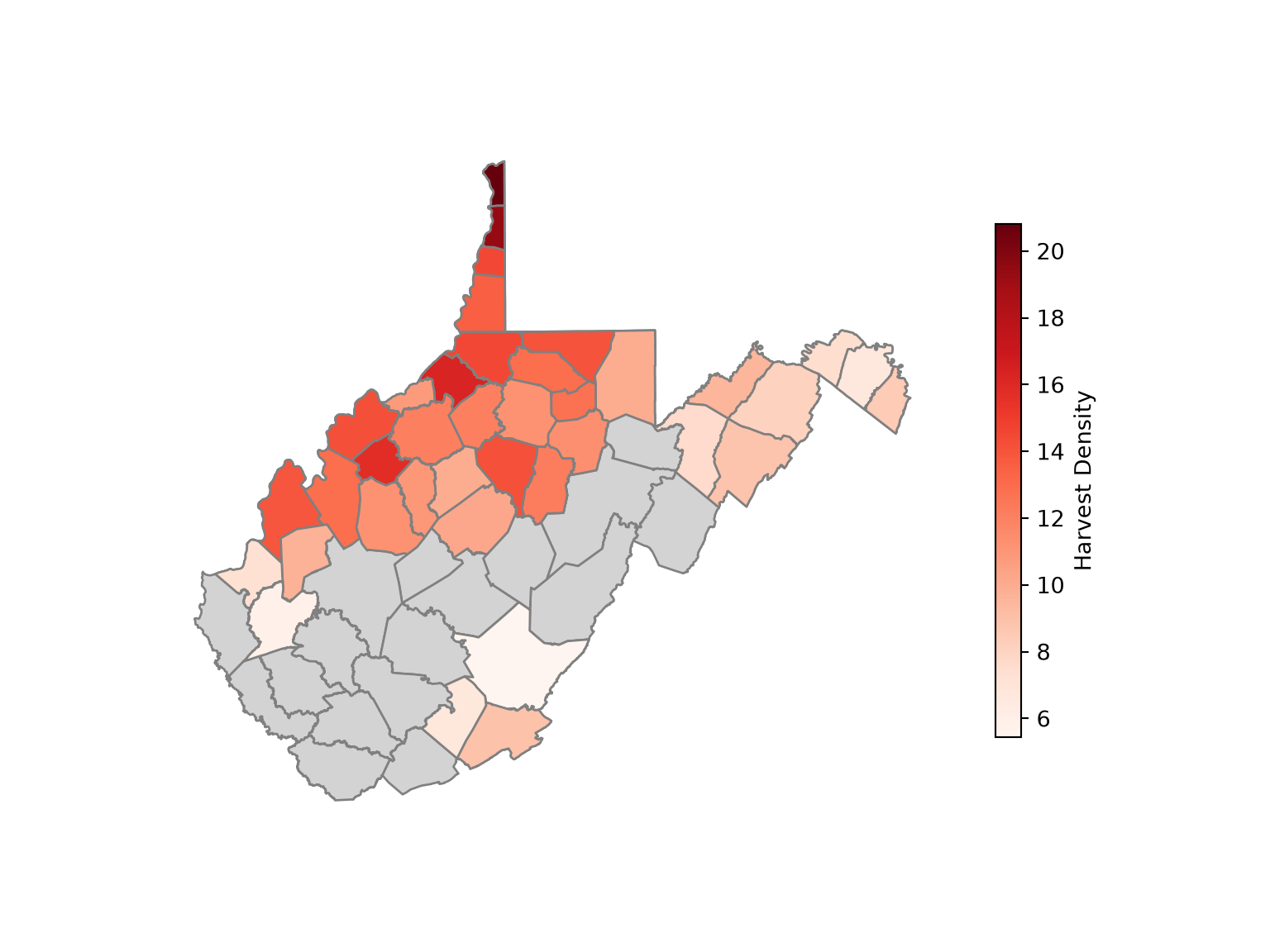
New attribute columns can be generated using basic column math. We calculate the density of deer harvested as deer per square mile using the “TOTALDEER” and “SQUARE_MIL” fields. The density is written to a new column called “DEN”, and the result is mapped. Next, we extract and map all counties that have a deer harvest density greater than five deer per square mile.
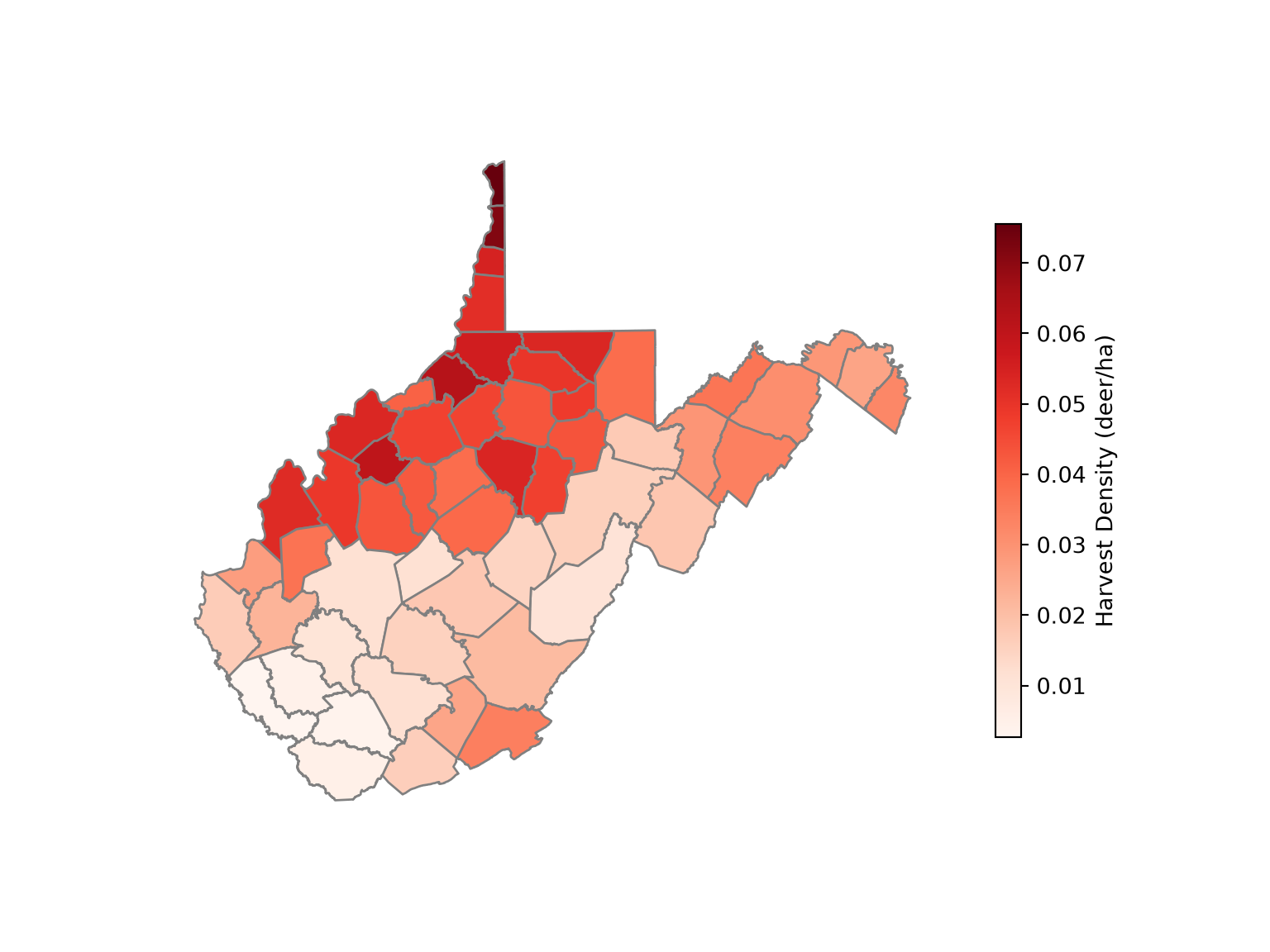
The area property returns the area of each polygon feature in the map units of the coordinate reference system. In our example, the units are square meters since the data are projected to a UTM coordinate system. In the following code block, we calculate area in hectares and write the values to a new column called “hec”. We then calculate density again using hectares as opposed to square miles.
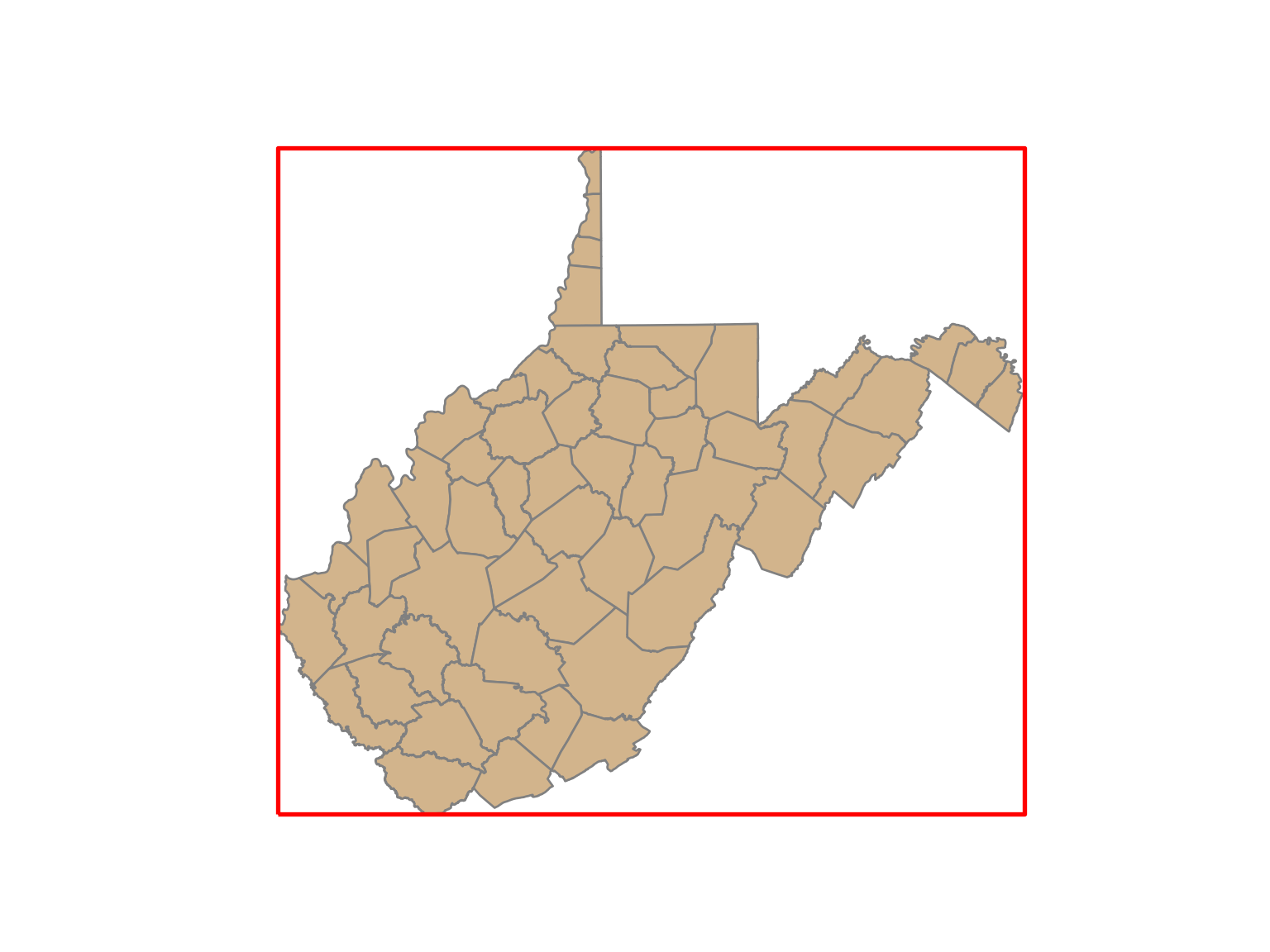
The total_bounds property returns the bounding box coordinates (minimum x, minimum y, maximum x, maximum y) for an entire layer, while the bounds property returns the bounding box of each feature. These do not create spatial features. To convert the bounding box coordinates to a polygon, we use the box() function from Shapely. The * unpacks the four coordinates into separate arguments. We then convert the result to a GeoSeries with the same coordinate reference system as the counties. In the map, the bounding box for West Virginia is shown in red. The envelope property, which is not demonstrated, returns the bounding box of each feature as a polygon.
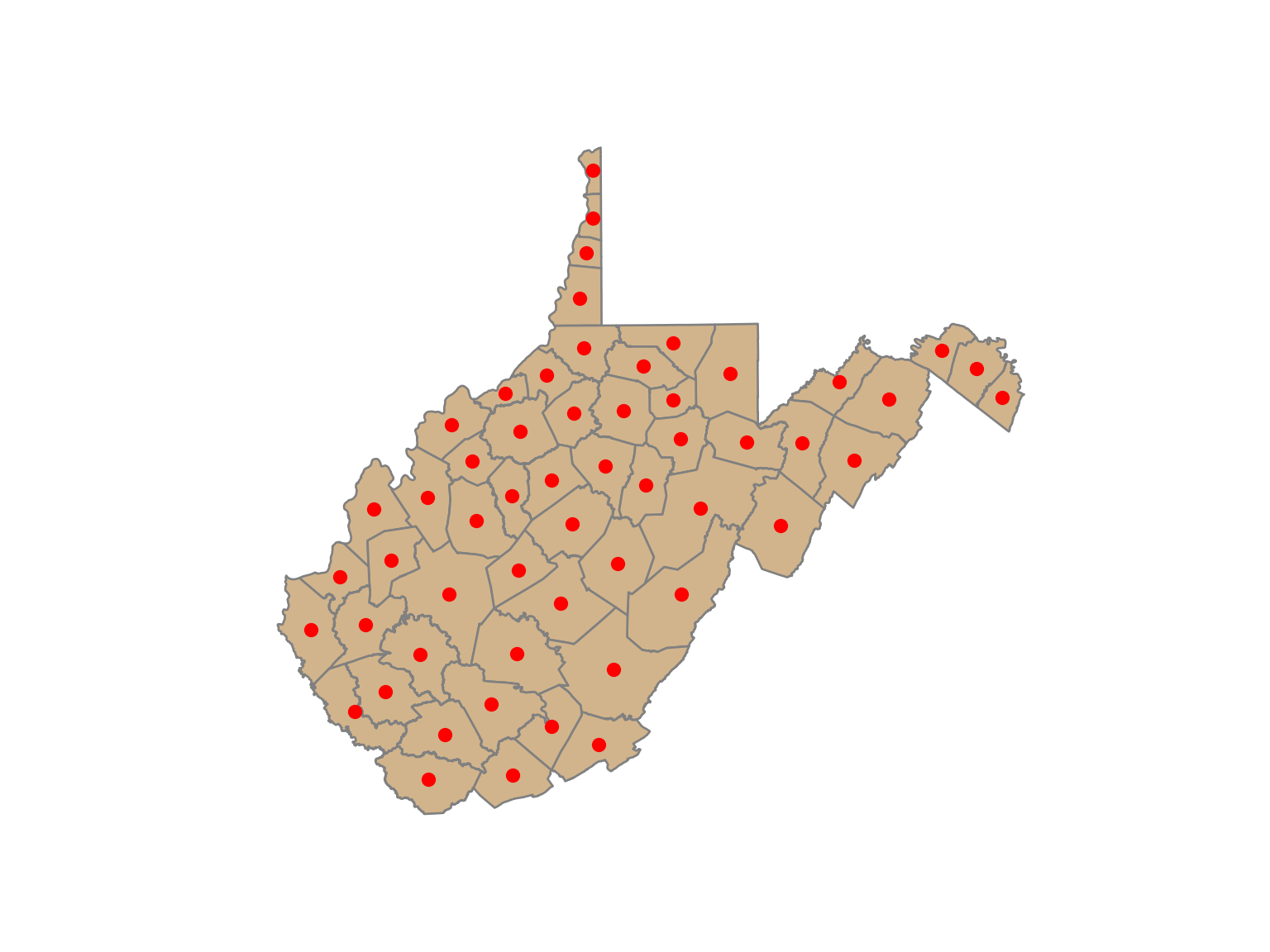
The centroid property returns the centroid of each polygon feature as a Point geometry. The centroid does not always occur inside of the polygon that it is the center of (for example, a “C-shaped” island or a doughnut). The representative_point() method provides an alternative in which a point within the polygon is returned. Note that centroid returns a GeoSeries of geometries only. To keep the attributes, we use set_geometry() to replace the polygon geometry of the counties with the centroids. As demonstrated by printing the column names, the attributes are retained.
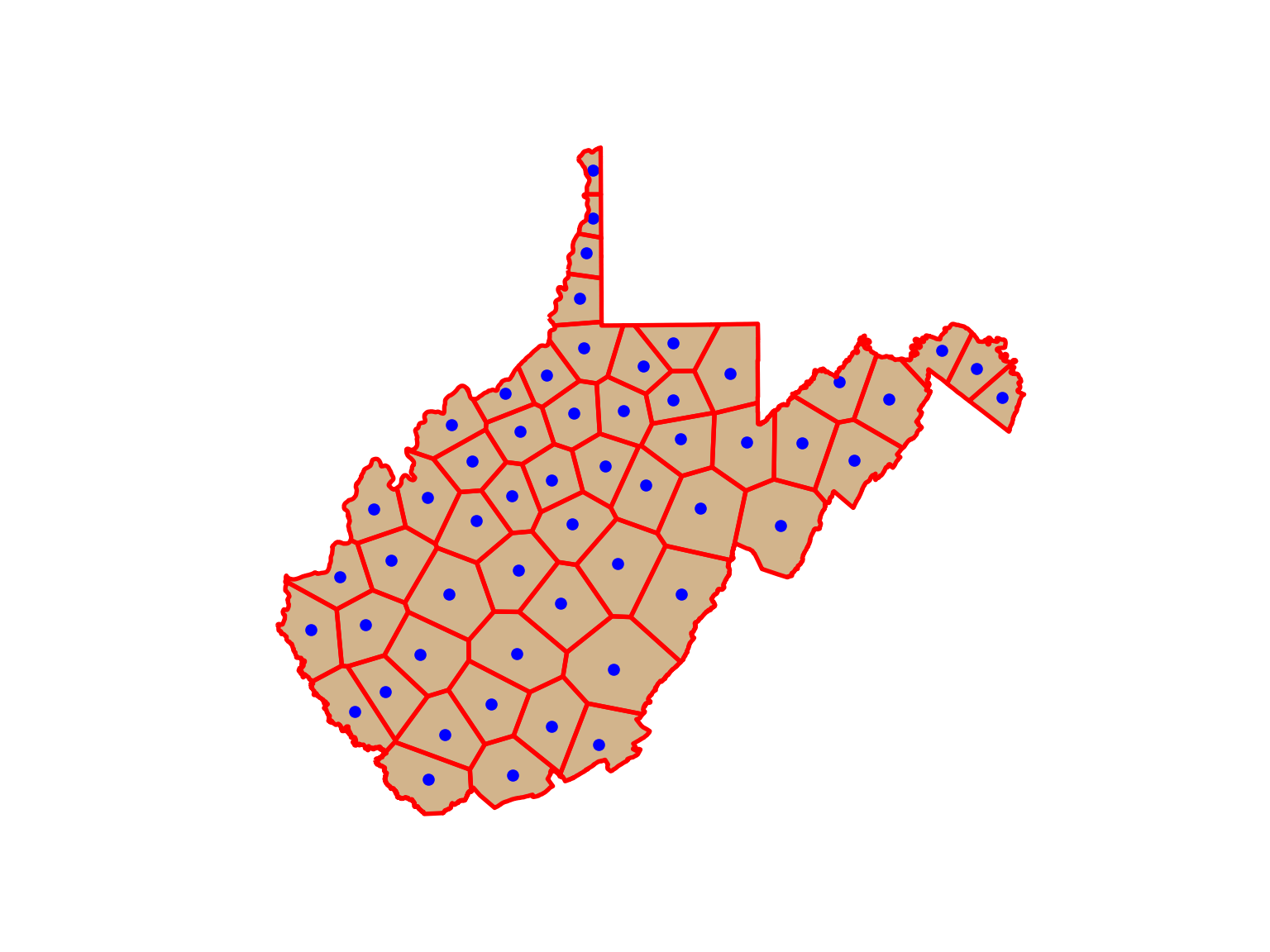
Thiessen or Voronoipolygons represent the areas that are closer to one point feature than any other feature in a dataset. The voronoi_polygons() method generates these polygons. Since the diagram is calculated from the full set of points, we first merge all centroids into a single MultiPoint geometry using union_all() and convert it back to a GeoSeries. The result is a single GeometryCollection, which is converted to individual polygons using explode().
We then extract the polygon extents within the state boundary using the clip() method. The state boundary is generated by dissolving the counties, which is explained later in this chapter. In short, this process serves as a means to convert points to polygons.
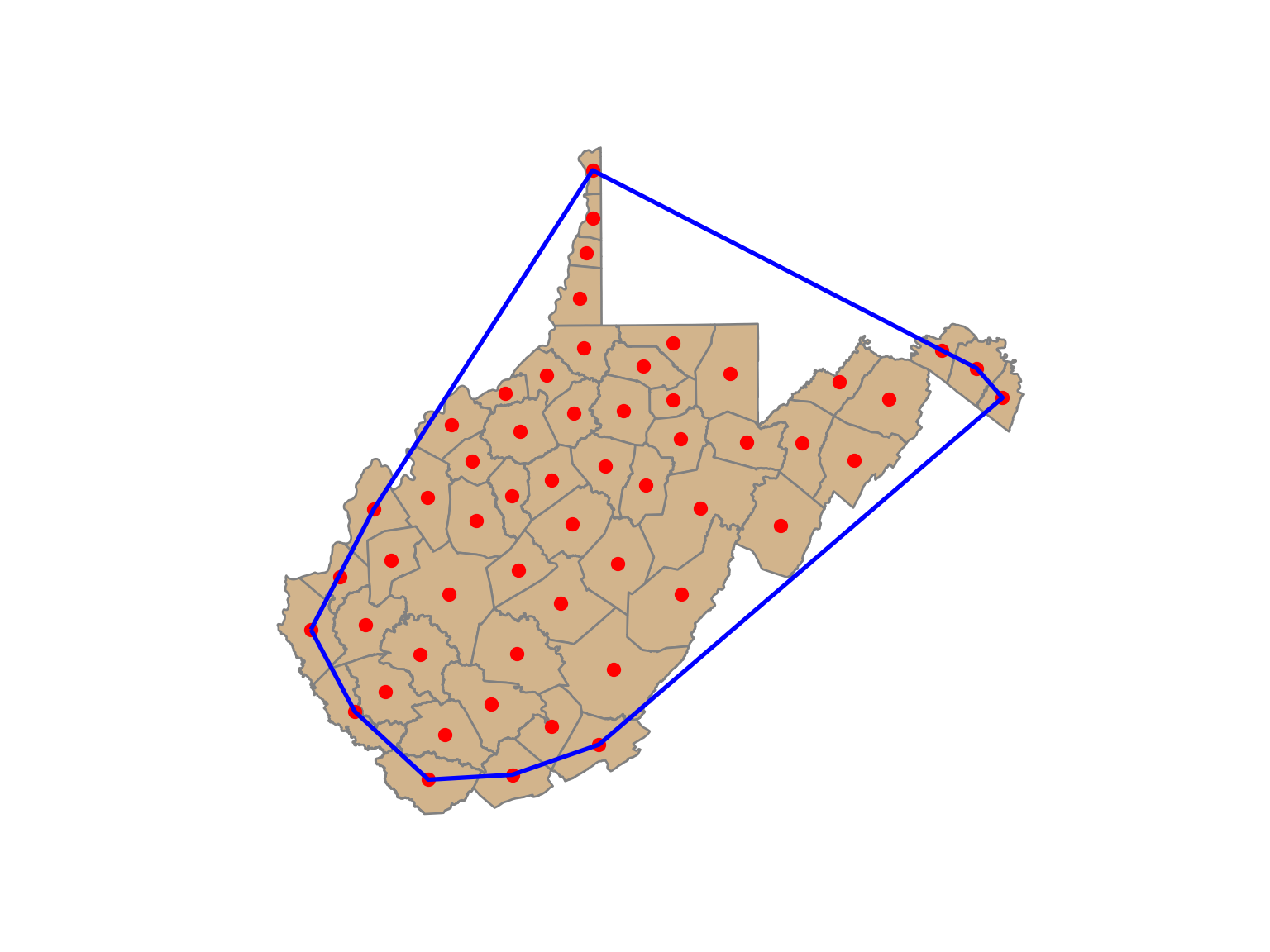
A convex hull is a bounding geometry that encompasses features without any concave angles. Think of this as stretching a rubber band around the margin points in a dataset. A convex hull can be generated using the convex_hull property. Similar to the Voronoi polygons, the Point geometries must first be merged to a MultiPoint geometry. It is also possible to generate a concave hull using the concave_hull() method, where the ratio parameter controls the degree of concavity.
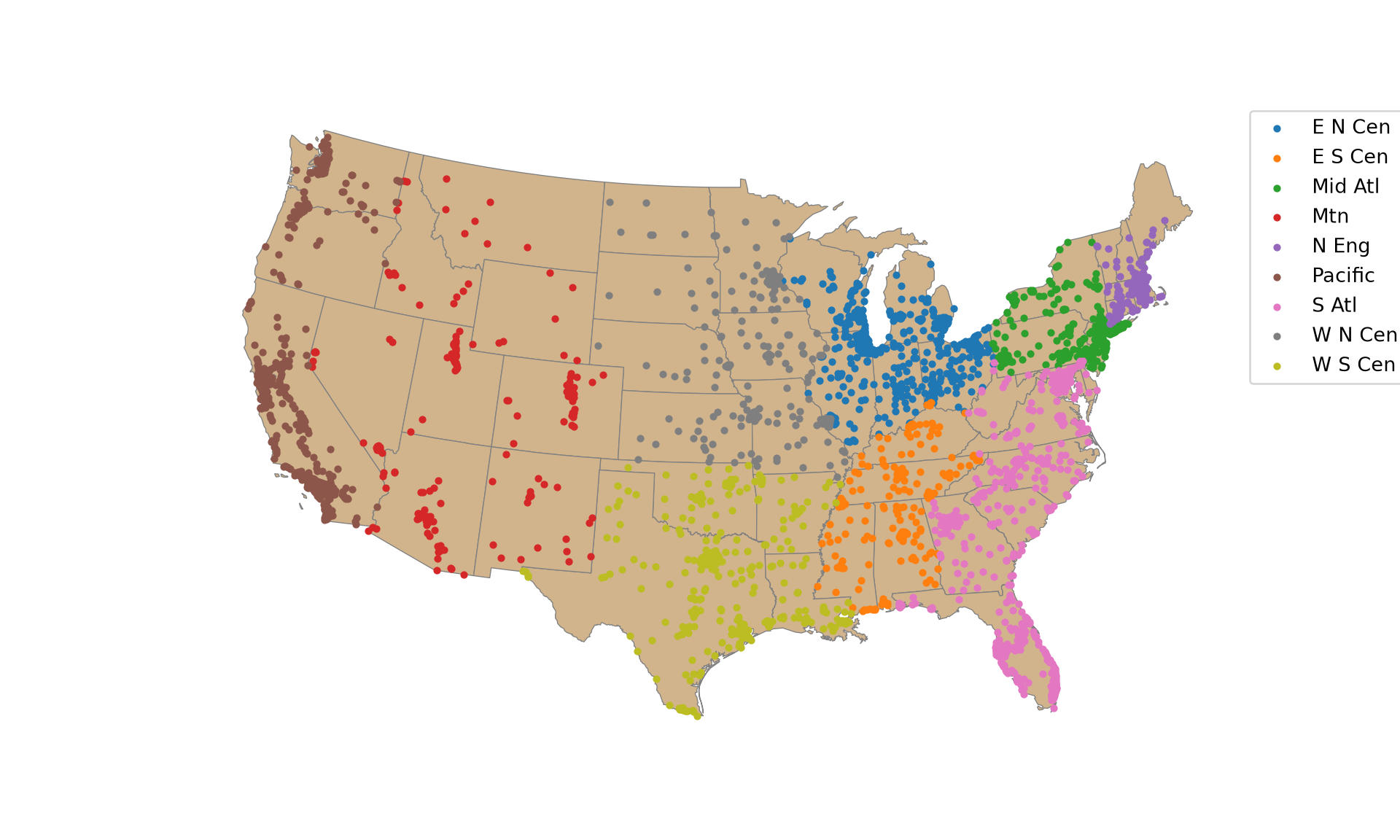
In contrast to a table join, a spatial join associates features based on spatial co-occurrence as opposed to a shared or common attribute. We use the sjoin() function to spatially join the cities and states. The predicate parameter defines the spatial relationship; here, each city is joined to the state that it is within. The result is a Point geometry with each city containing its original attributes plus the attributes for the state in which it occurs. An “index_right” column is also added, which stores the index of the matching state. To demonstrate this, we symbolize the points using the “SUB_REGION” field, which was initially attributed to the states layer. Since both layers include a “POP2000” column, the overlapping column names are given suffixes (“POP2000_left” and “POP2000_right”).
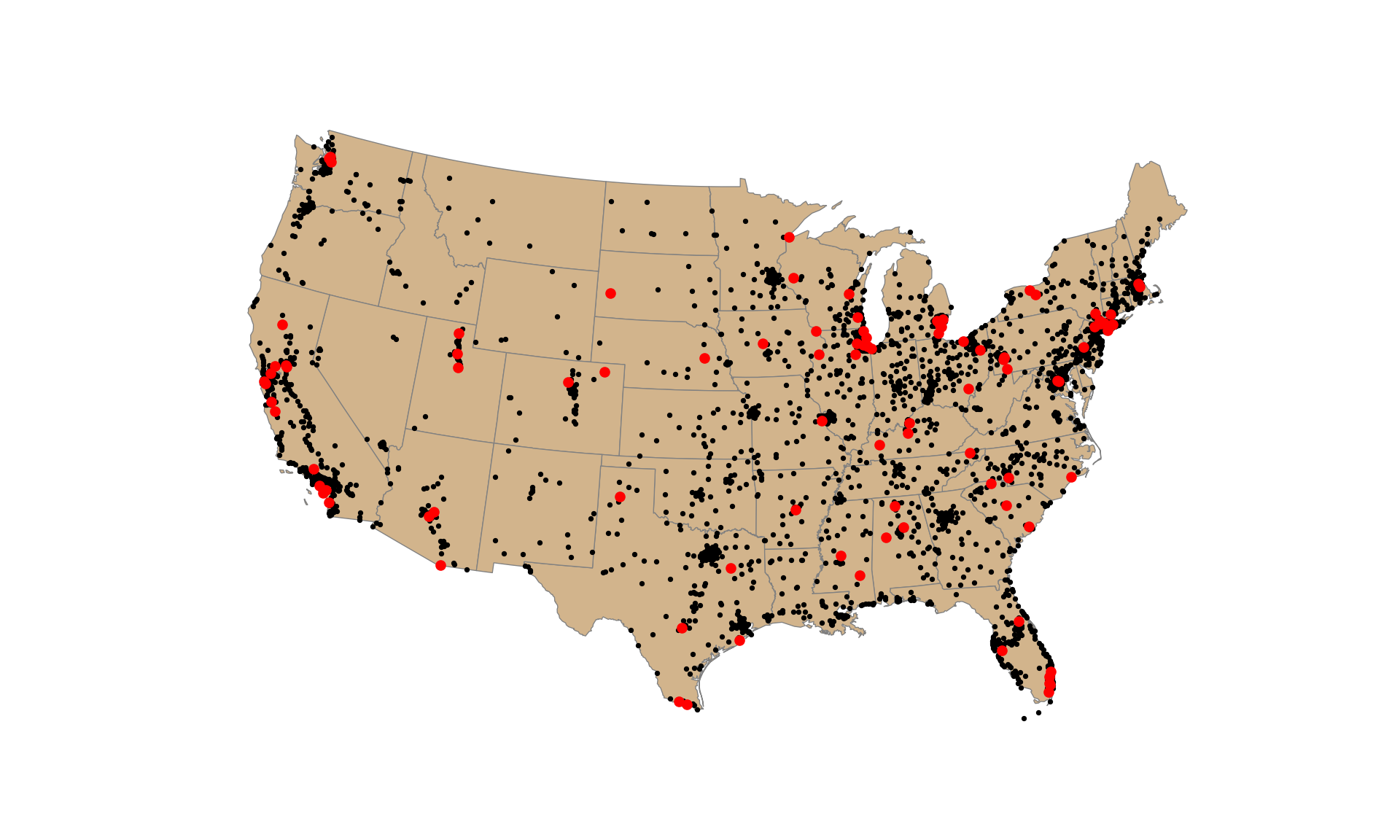
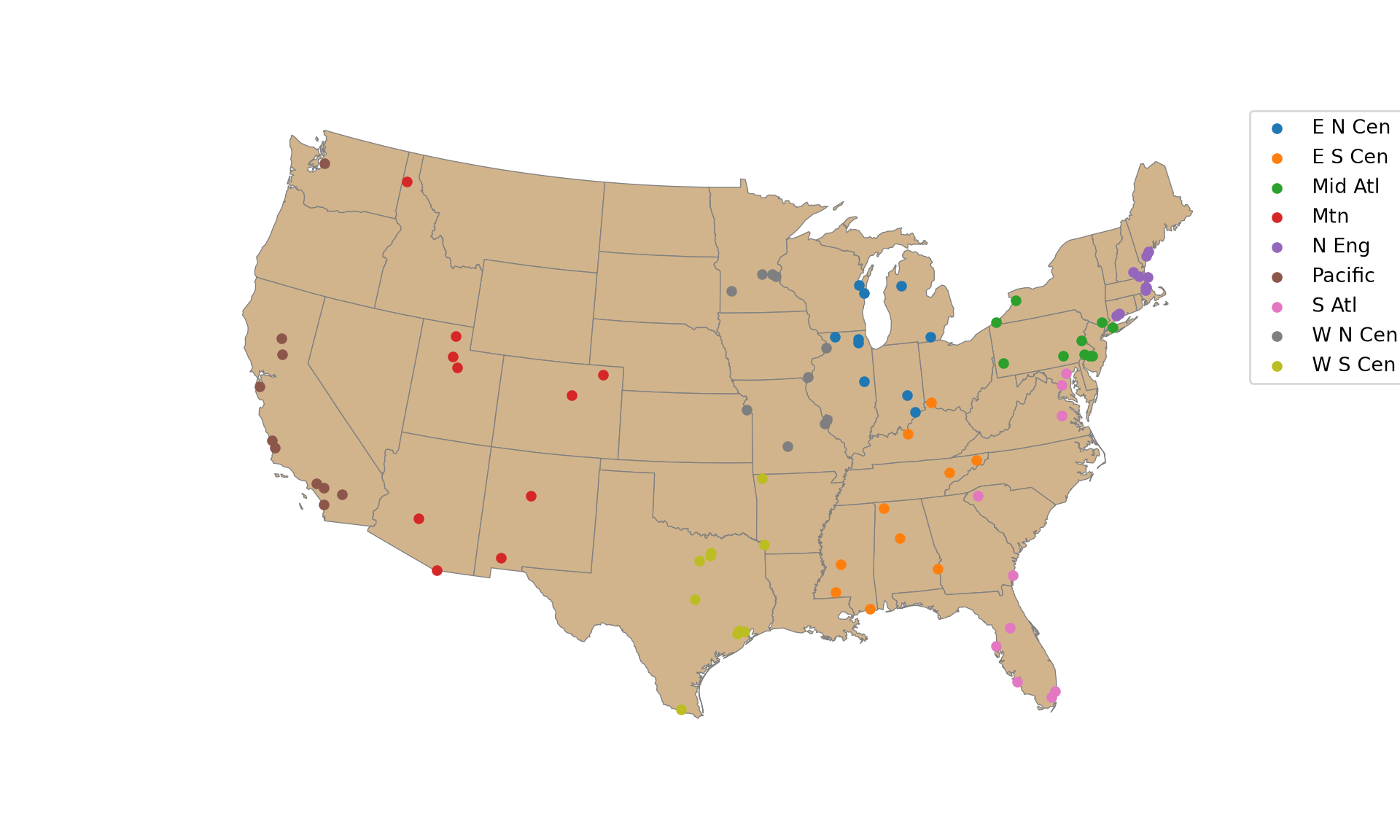
Randomly sampling spatial features is the same as randomly sampling records or rows from any DataFrame. In the first example, we demonstrate simple random sampling without replacement using the sample() method. By default, features are not selected multiple times. The result is 100 randomly selected cities. Since this is random, we will obtain a different result each time we run the code unless we set the random seed using the random_state parameter. It is also possible to stratify the sampling using groupby(). In the second example, we select 10 random cities per sub-region. To confirm that the desired result was obtained, we next count the selected cities by sub-region.
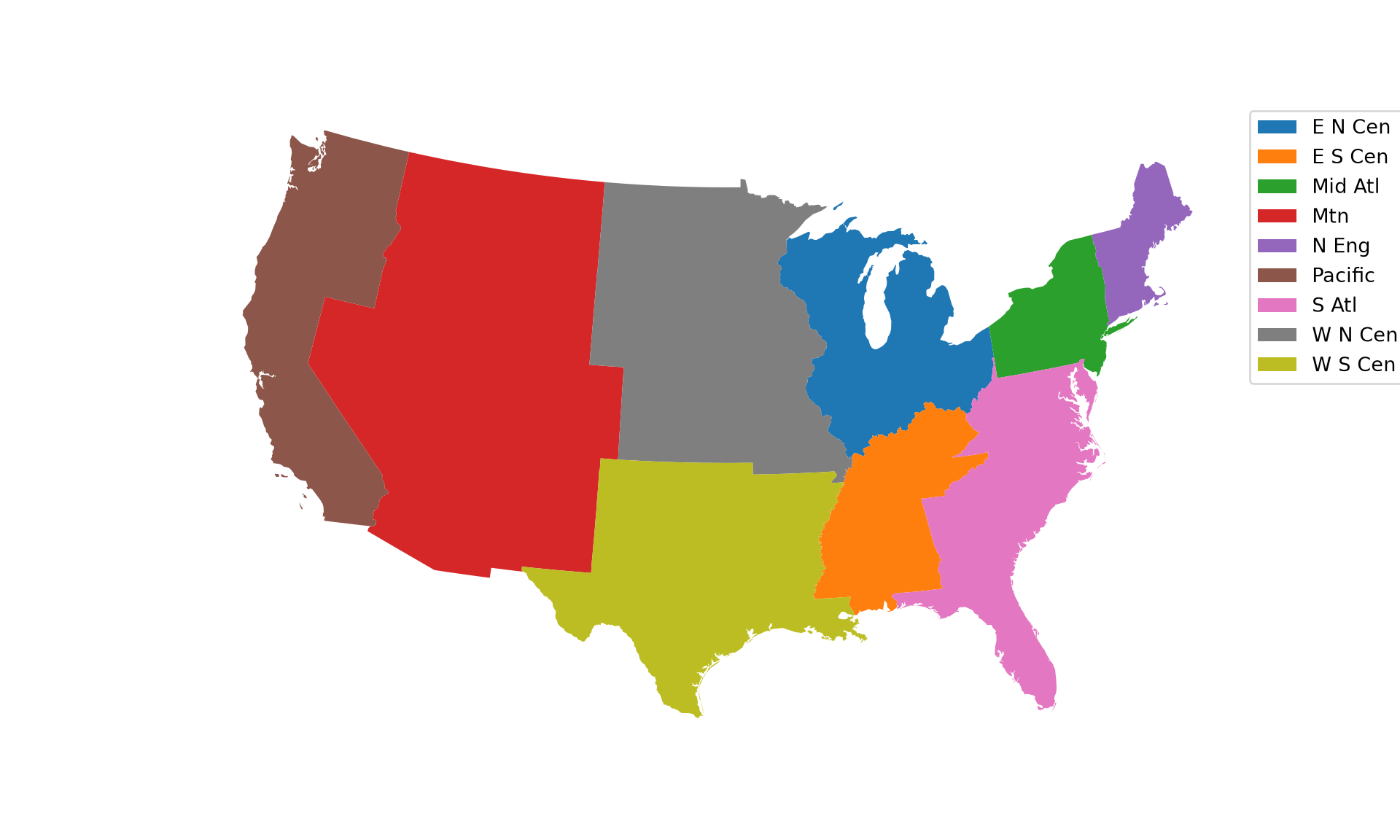
Dissolve is used for boundary generalization. For example, you can dissolve county boundaries to state boundaries or state boundaries to the country boundary. In the example, we obtain sub-region boundaries from the state boundaries using the dissolve() method. The by parameter defines the attribute used to group the features. If you would like to include a summary of some attributes relative to the dissolved features, you can provide a dictionary to the aggfunc parameter. Below, we sum the population of all the states in each sub-region and rename the result to “totpop”. In the second example, we generate the West Virginia state boundary from the county boundaries. Since all counties have the same value in the “STATE” field, a single feature is returned. We have also summed the population of the counties, which results in the total state population. Note that the grouping attribute becomes the index of the result.
              totpop
SUB_REGION
E N Cen     45155037
E S Cen     17022810
Mid Atl     39671861
Mtn         18172295
N Eng       13922517
Pacific     43187168
S Atl       51769160
W N Cen     19237739
W S Cen     31444850
Proximity analysis relates to finding features that are near to other features. A buffer represents the area that is within a defined distance of an input feature. Buffers can be generated for Points, LineStrings, or Polygons. They can also be generated for the multipart versions of these geometries. The result will always be a polygon or area. Below, we create polygon buffers that encompass all areas within 20 km of the mapped interstates using the buffer() method. The buffer distance is defined in the map units, in this case meters. Since buffer() returns a GeoSeries, we convert the result to a GeoDataFrame.
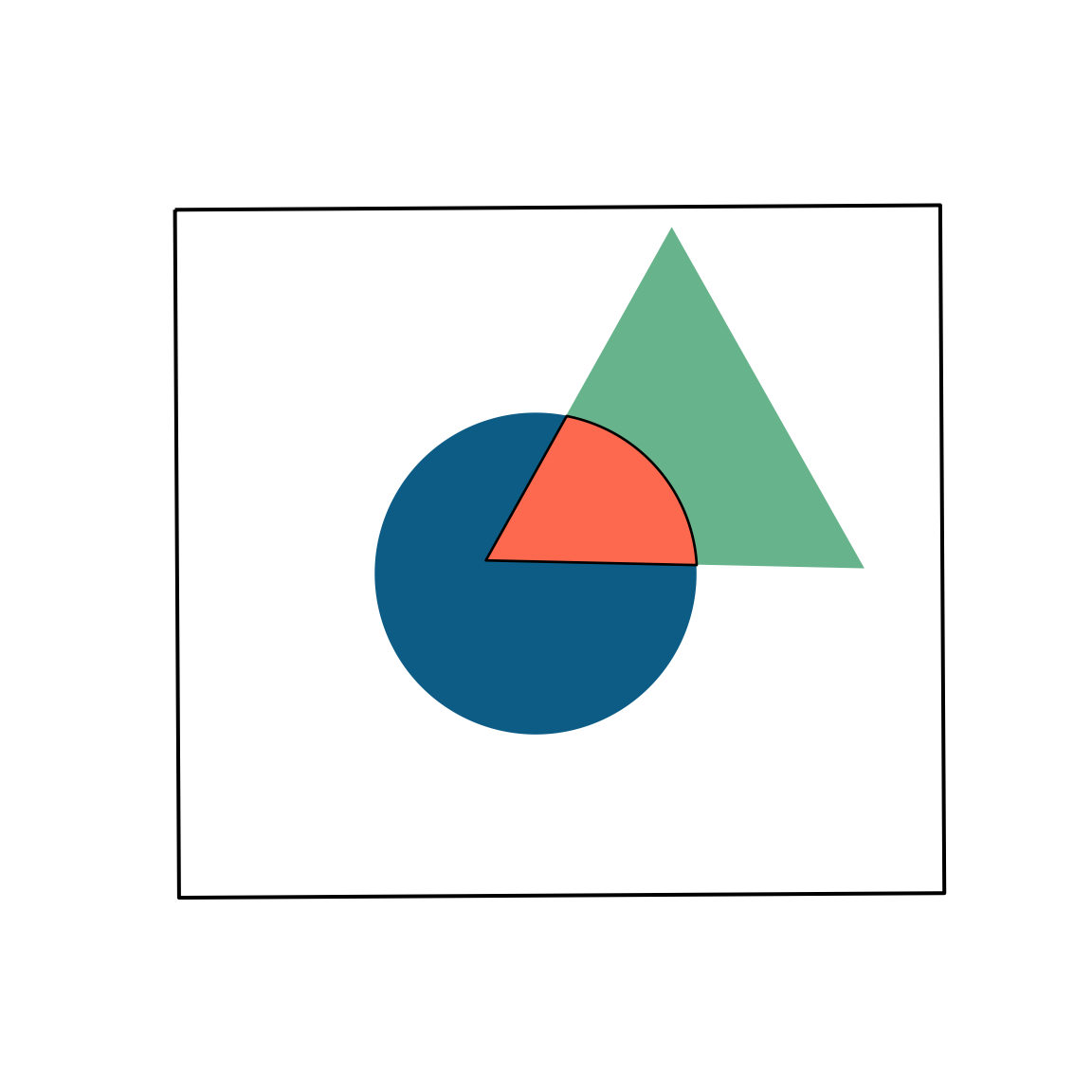
Clip and intersect are used to extract features within another feature or return the overlapping extent of multiple features. Think of this as a spatial AND. The overlay() function performs vector overlay; the type of overlay is defined using the how parameter. When we intersect the circle and triangle, the result is the area that occurs in both the circle and the triangle (shown in red). All attributes from both features are returned, as demonstrated by printing the output. The table contains both the “C” and “T” fields, which came from the circle and triangle, respectively. An intersection is equivalent to the Intersect Tool in ArcGIS Pro.
The overlay() function with how="intersection" and the intersects() method are sometimes confused. The former performs a spatial intersection to return a new geometry while the latter is a test that returns True or False. It specifically tests whether two geometries intersect.
def overlay_map(result, show_inputs=True):"""Map an overlay result (red) relative to the circle and triangle.""" fig, ax = plt.subplots(figsize=(6, 6)) ext.boundary.plot(ax=ax, color="black")if show_inputs: circle.plot(ax=ax, color="#0D5C86") triangle.plot(ax=ax, color="#67B38C") result.plot(ax=ax, color="#FD694F", edgecolor="black") ax.set_axis_off() plt.show()isect_example = gpd.overlay(circle, triangle, how="intersection")overlay_map(isect_example)
print(isect_example)
   Id_1  C  ...         area                                           geometry
0     0  C  ...  7360.590638  POLYGON ((587683.915 4395515.173, 587944.053 4...

[1 rows x 6 columns]
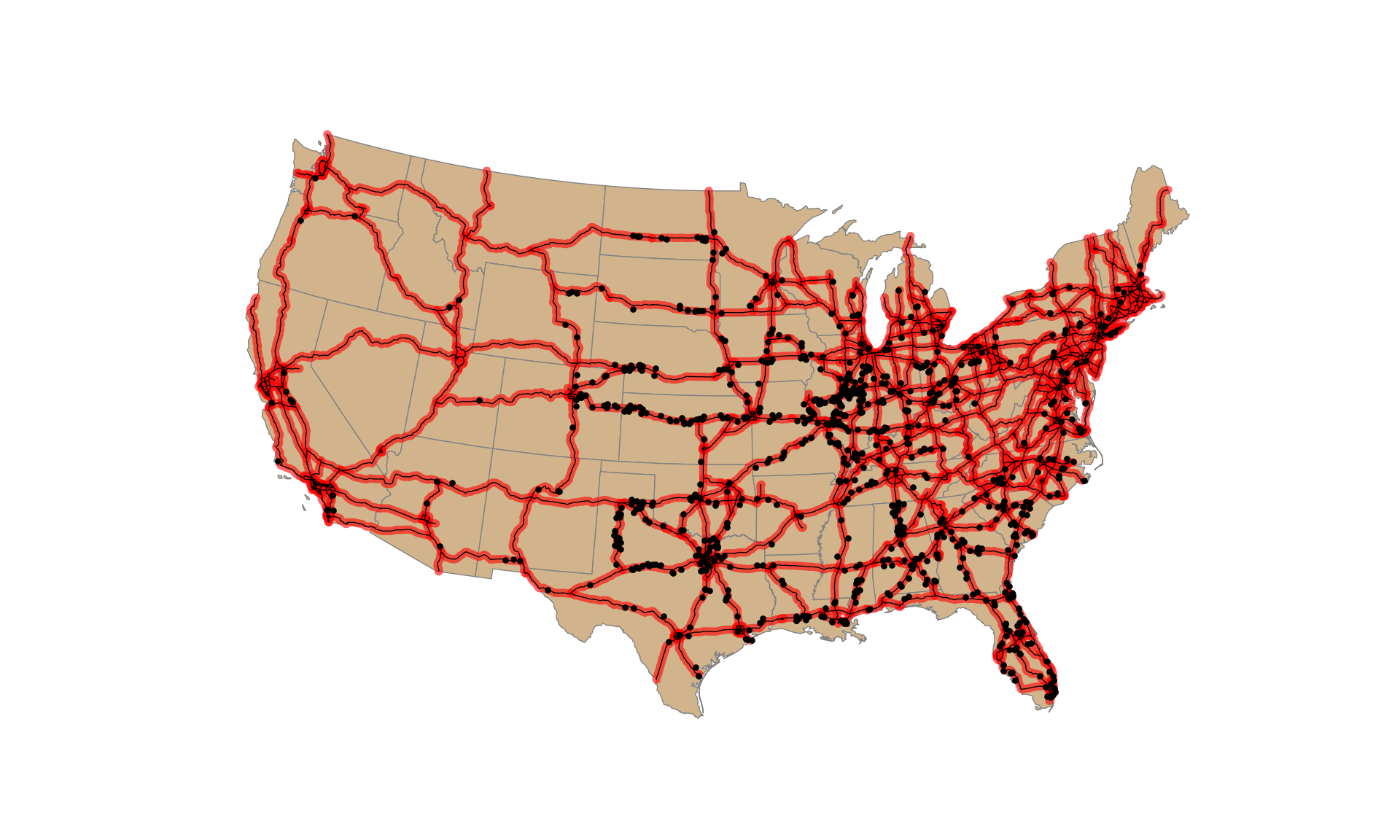
In this second example, we find all tornadoes that occurred within 20 km of an interstate. When the features being extracted are points, the clip() function is a convenient option: it returns the features, or portions of features, within the extent of the polygons. So, buffer and clip can be combined to extract features within a specified distance of other features.
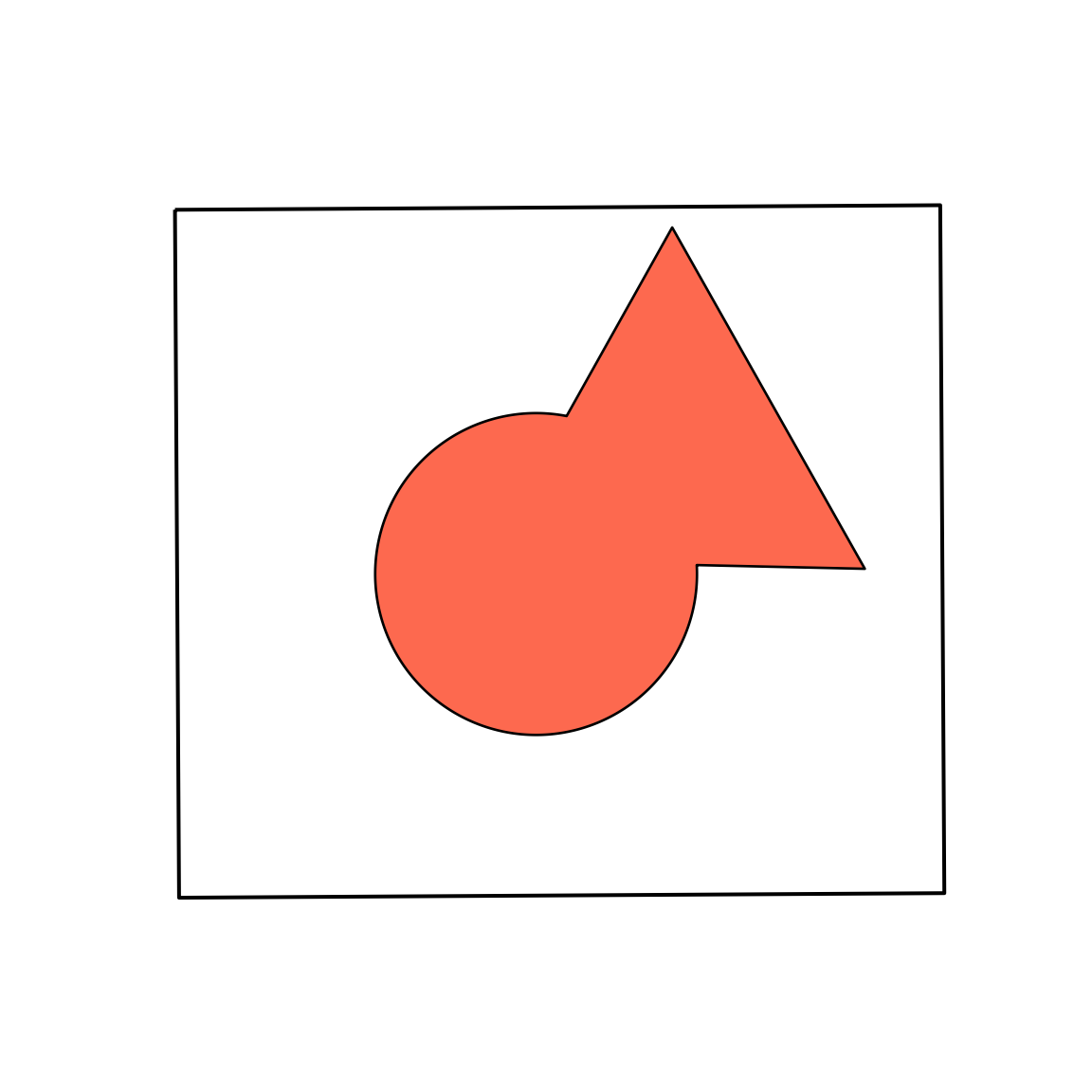
Using how="union" with overlay() is equivalent to the Union Tool in ArcGIS Pro: the full extent of both layers is returned, and the internal boundaries are maintained, so the result contains the parts of the circle and triangle that do and do not overlap as separate features. If you would like to merge the features into a single feature with no internal boundaries, the result can be dissolved. Since no by argument is provided to dissolve(), all features are merged into one. Think of this as a spatial OR.
   Id_1    C  ...         area                                           geometry
0   0.0    C  ...  7360.590638  POLYGON ((587683.915 4395515.173, 587944.053 4...
1   0.0    C  ...          NaN  POLYGON ((658593.562 4313952.621, 658607.352 4...
2   NaN  NaN  ...  7360.590638  POLYGON ((645177.84 4498574.85, 750422.638 431...

[3 rows x 6 columns]
Using how="difference" returns the portion of the first layer that is not in the second. This is similar to the Erase Tool in ArcGIS Pro. This is a spatial NOT: circle NOT triangle. The result is the portion of the circle shown in red in the map below.
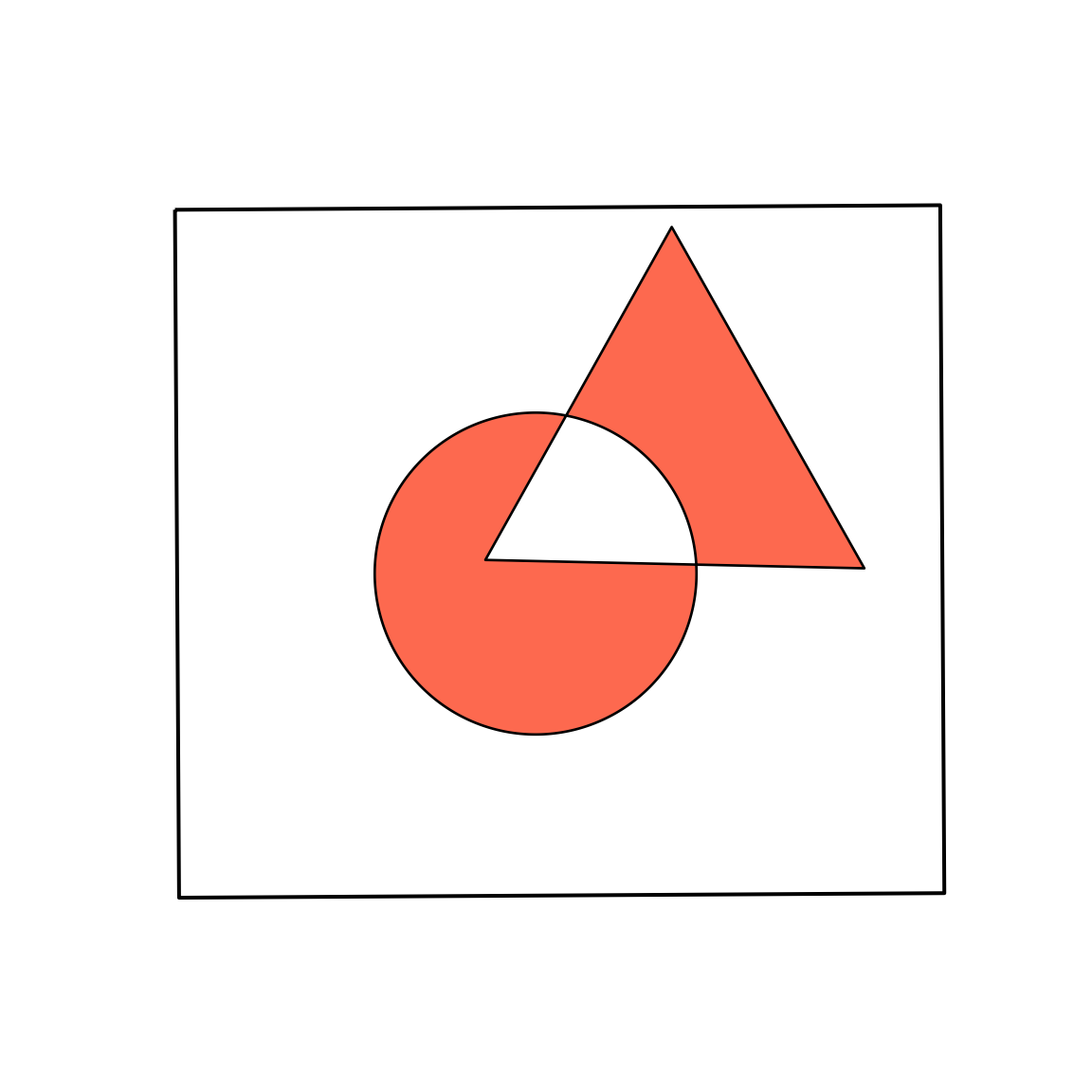
Symmetrical difference is a spatial XOR: circle OR triangle, excluding circle AND triangle. So, the result is the area in either the circle or the triangle, but not the area in both.
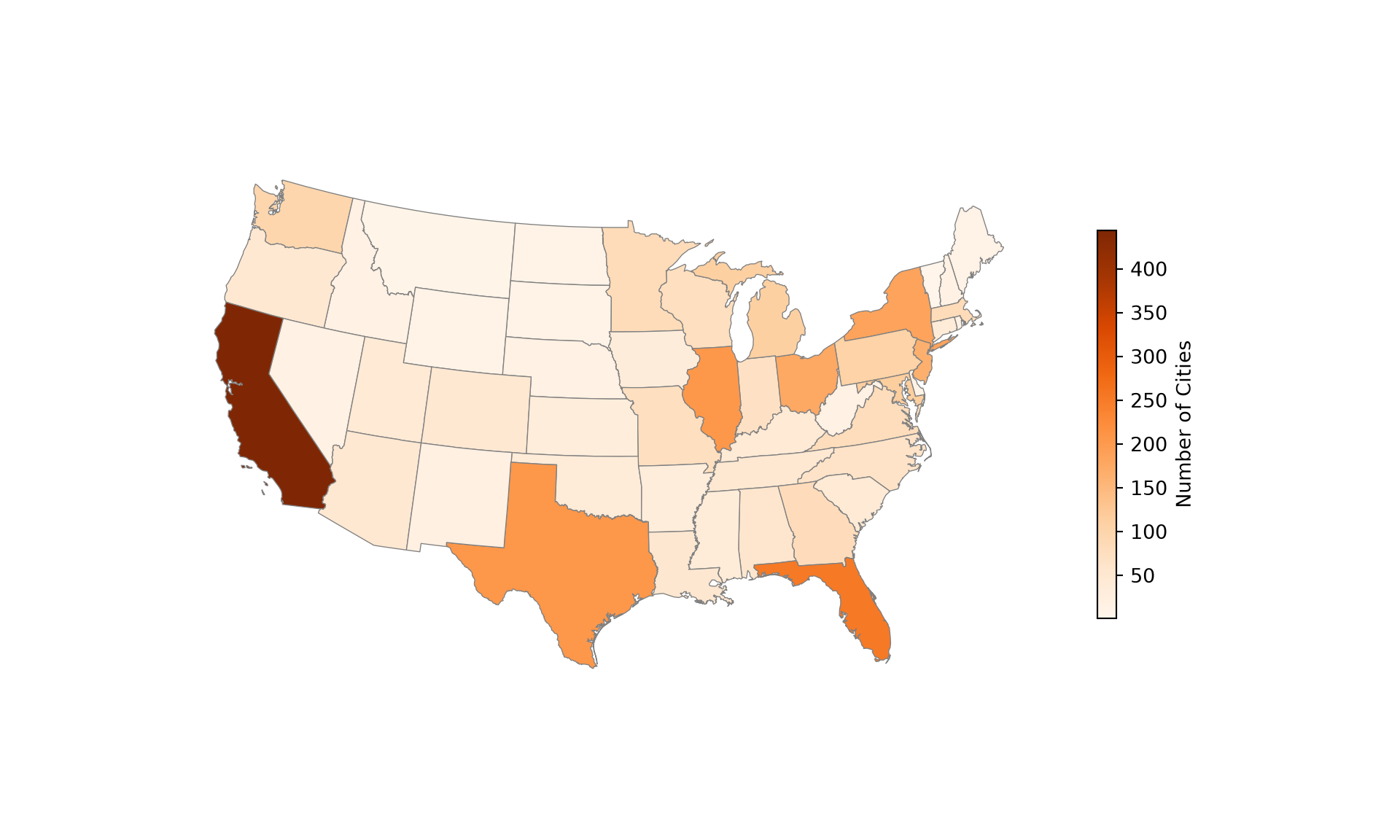
You can count the number of point features occurring in polygons using GeoPandas and Pandas. The goal of the code block below is to count the number of cities in each state. This is accomplished using the following process.
Use sjoin() to join the cities and states based on spatial co-occurrence; this results in Point geometries where each point has its original attributes plus the attributes for the state in which it occurs.
Use groupby() and size() to count the number of cities by state; the result is a Pandas Series with no geometric information.
Join the counts back to the state boundaries using the common “STATE_NAME” field and a table join (merge()). A left join is used so that all states are retained.
Once this process is complete, we then map the resulting counts.
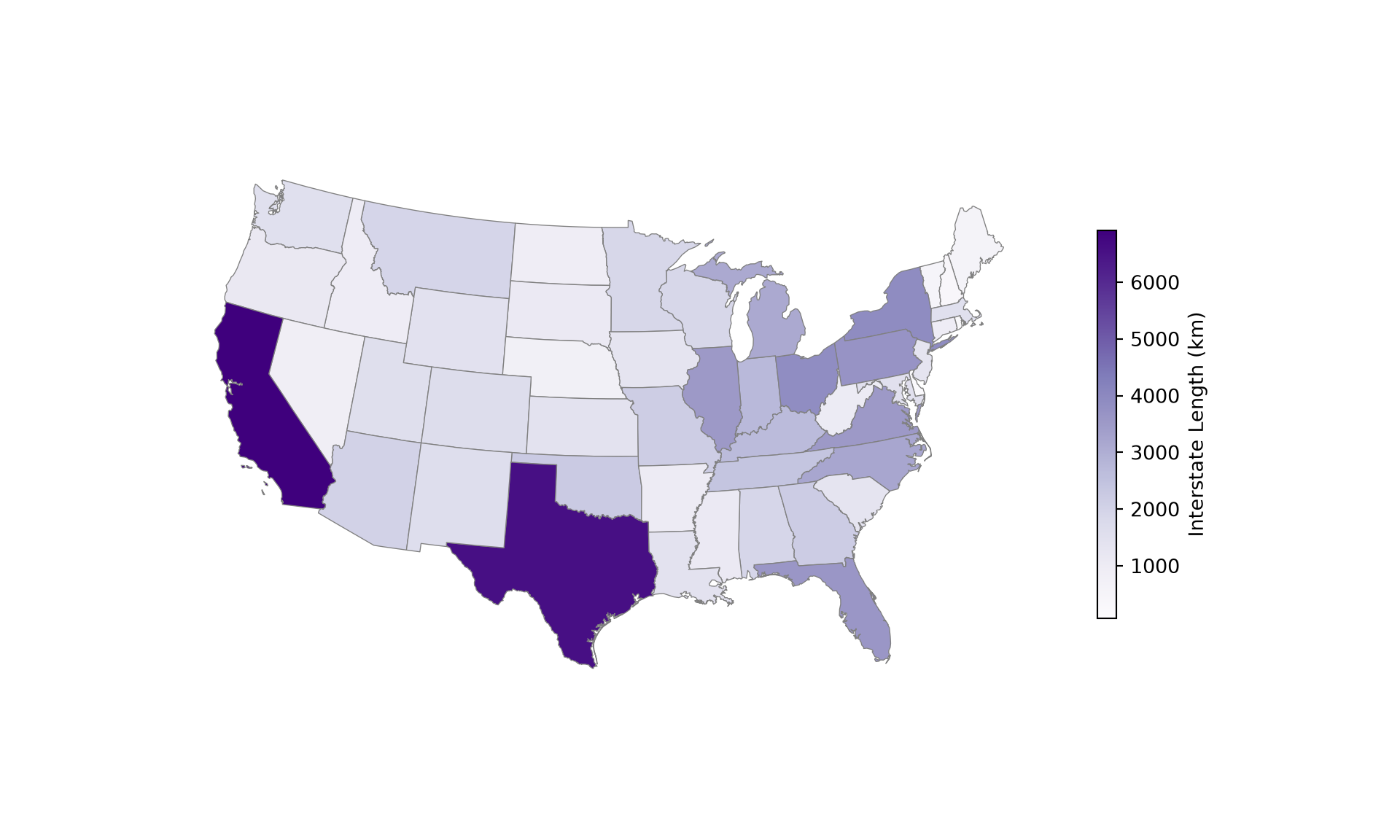
You can also sum the length of lines within polygons. The goal of the code below is to sum the length of interstates by state using the following process:
Intersect the interstates and states using overlay() to obtain LineString geometries where the interstates have been split along state boundaries and now have the attributes for the state in which they occur. Setting keep_geom_type=True returns only line geometries.
Use the length property to calculate the length of each line segment. It is not appropriate to use the original length field because it does not reflect the length if the interstate was split along a state border. We divide by 1,000 to obtain the length in kilometers as opposed to meters.
Group the lines by state and sum the length using groupby() and sum().
Join the result back to the state boundaries using merge() and the common “STATE_NAME” field.
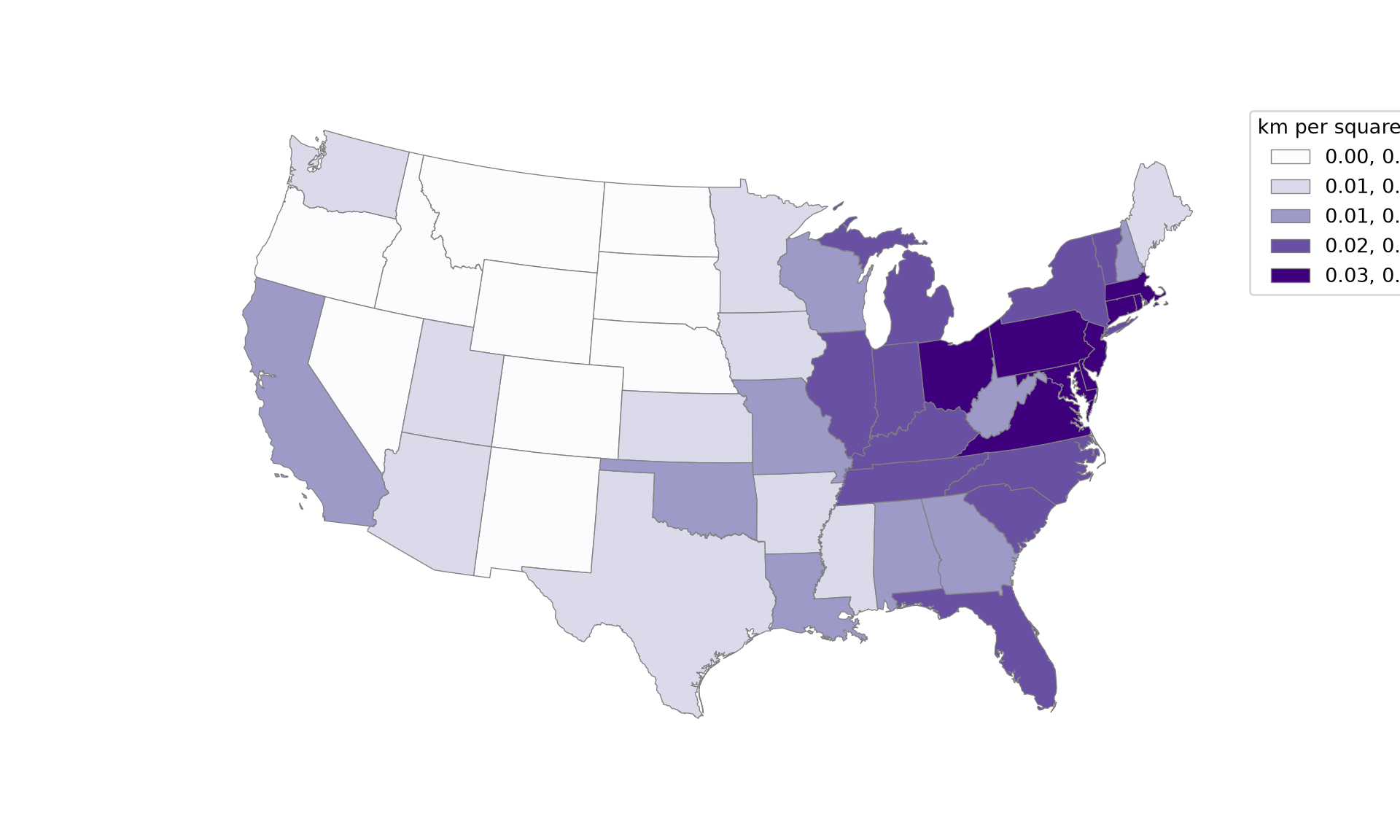
For a fairer comparison, it would make sense to calculate the density of interstates as the length of interstates in kilometers per square kilometer of state area. Again, this can be accomplished using only GeoPandas and Pandas. Here, we display the result using a quantile classification with five classes using the scheme and k parameters, which are discussed in Chapter 8.
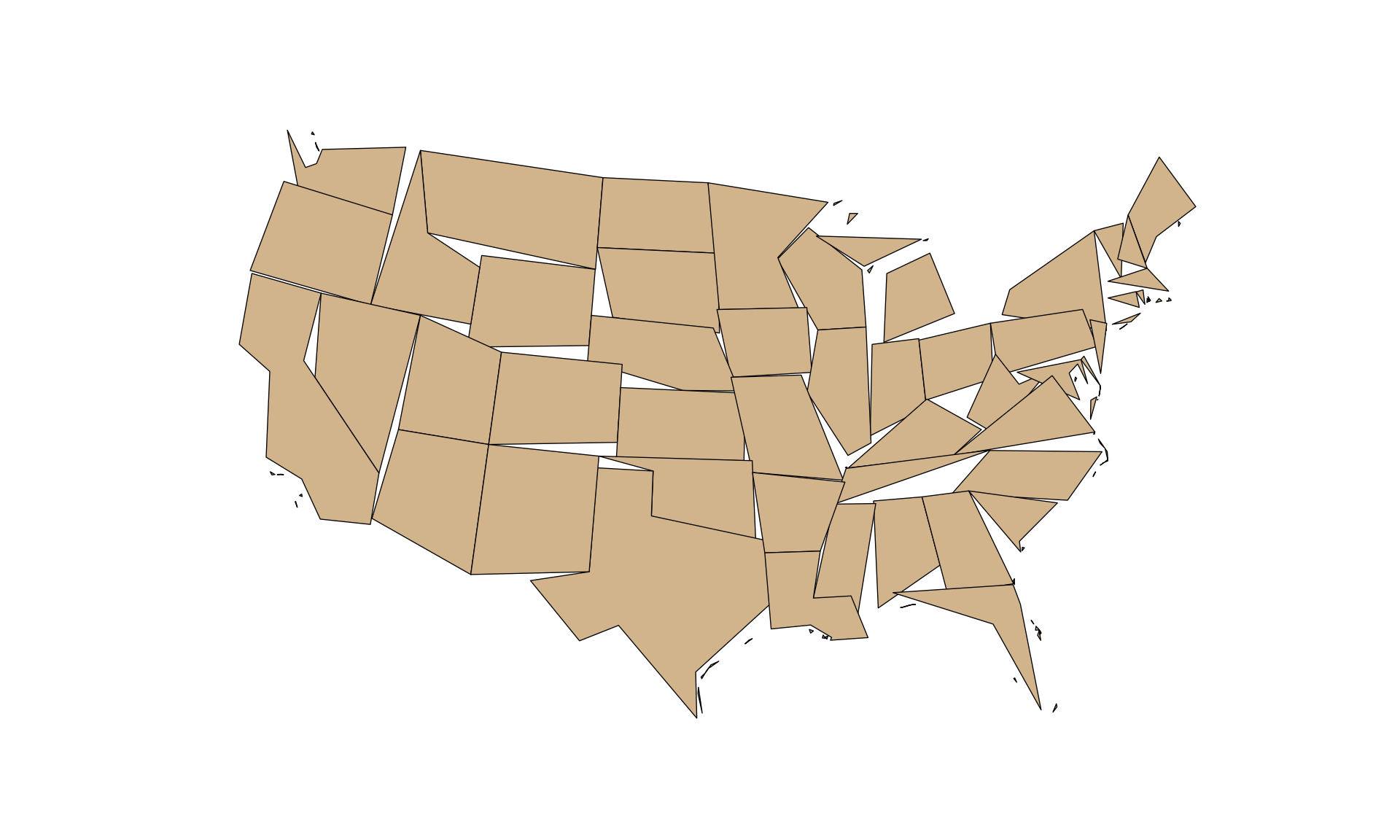
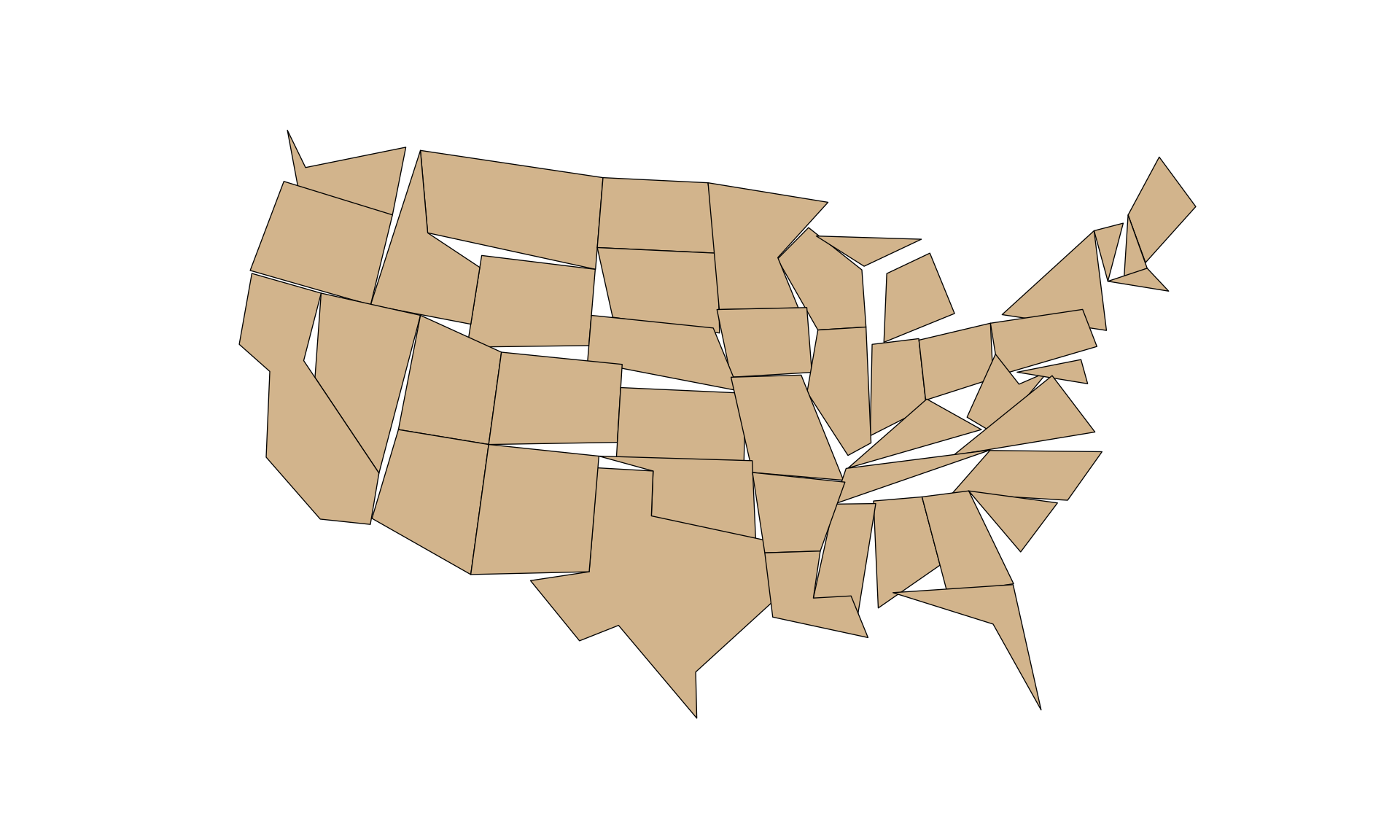
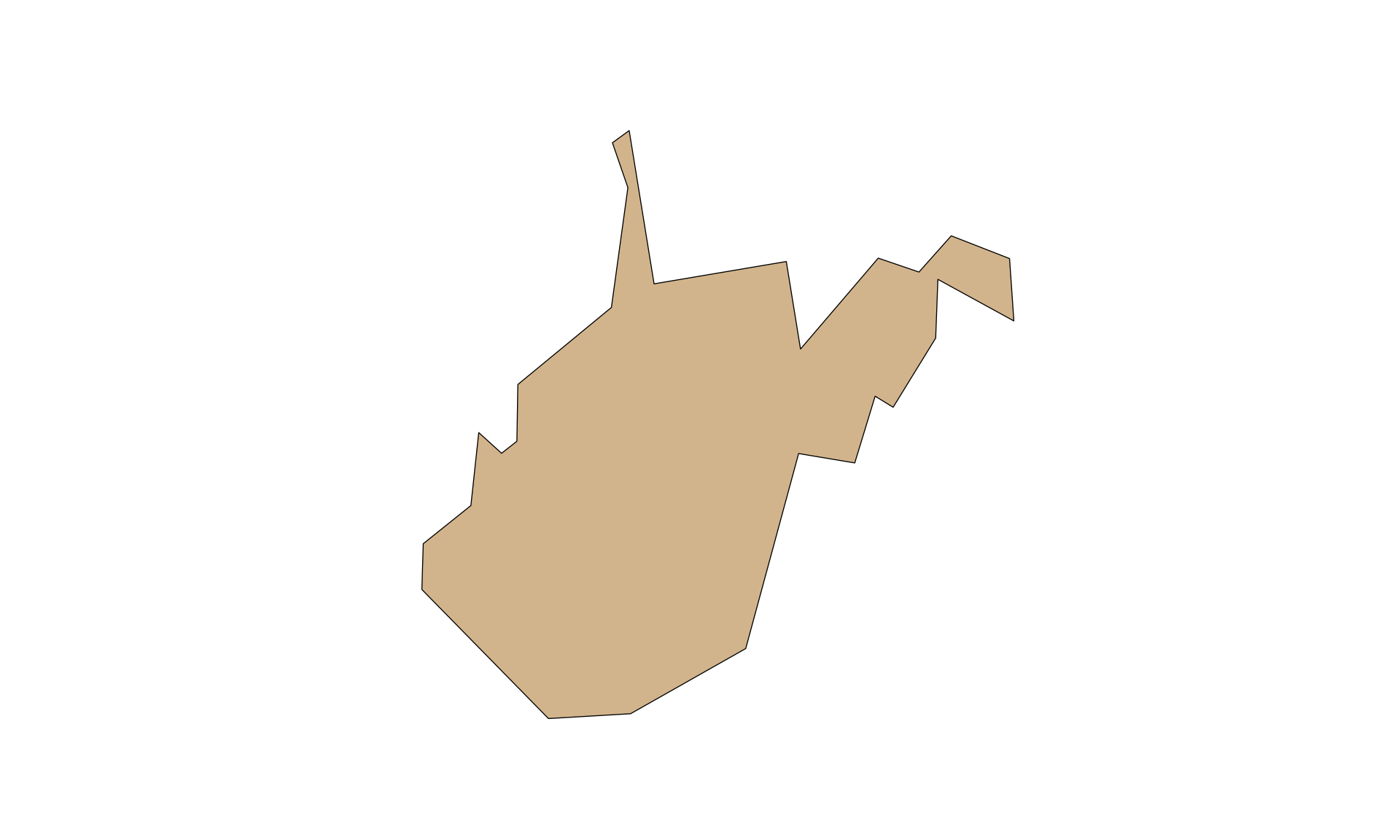
The simplify() method is used to simplify or generalize features. Higher tolerance values result in more simplification. The tolerance is defined in map units, in this case meters. Topology can be preserved using the preserve_topology parameter. For simplifying the state boundaries, topology is preserved in the first example below but not the second. Without preserving topology, the smallest states collapse to empty geometries and disappear from the map; the is_empty property indicates that this occurs for five states. In the third example, a simplification of the West Virginia state boundary is generated using a tolerance of 10,000 meters with topology preserved.
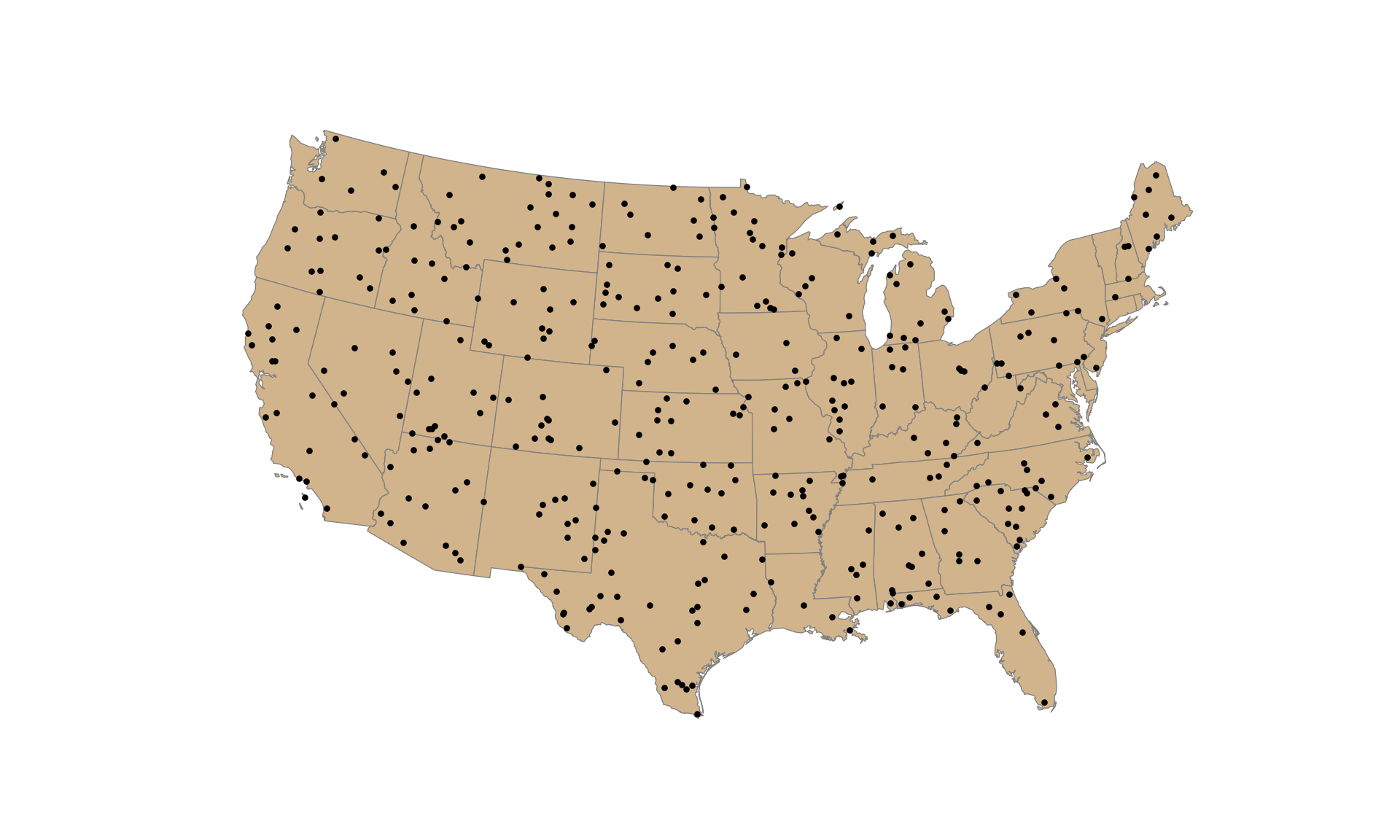
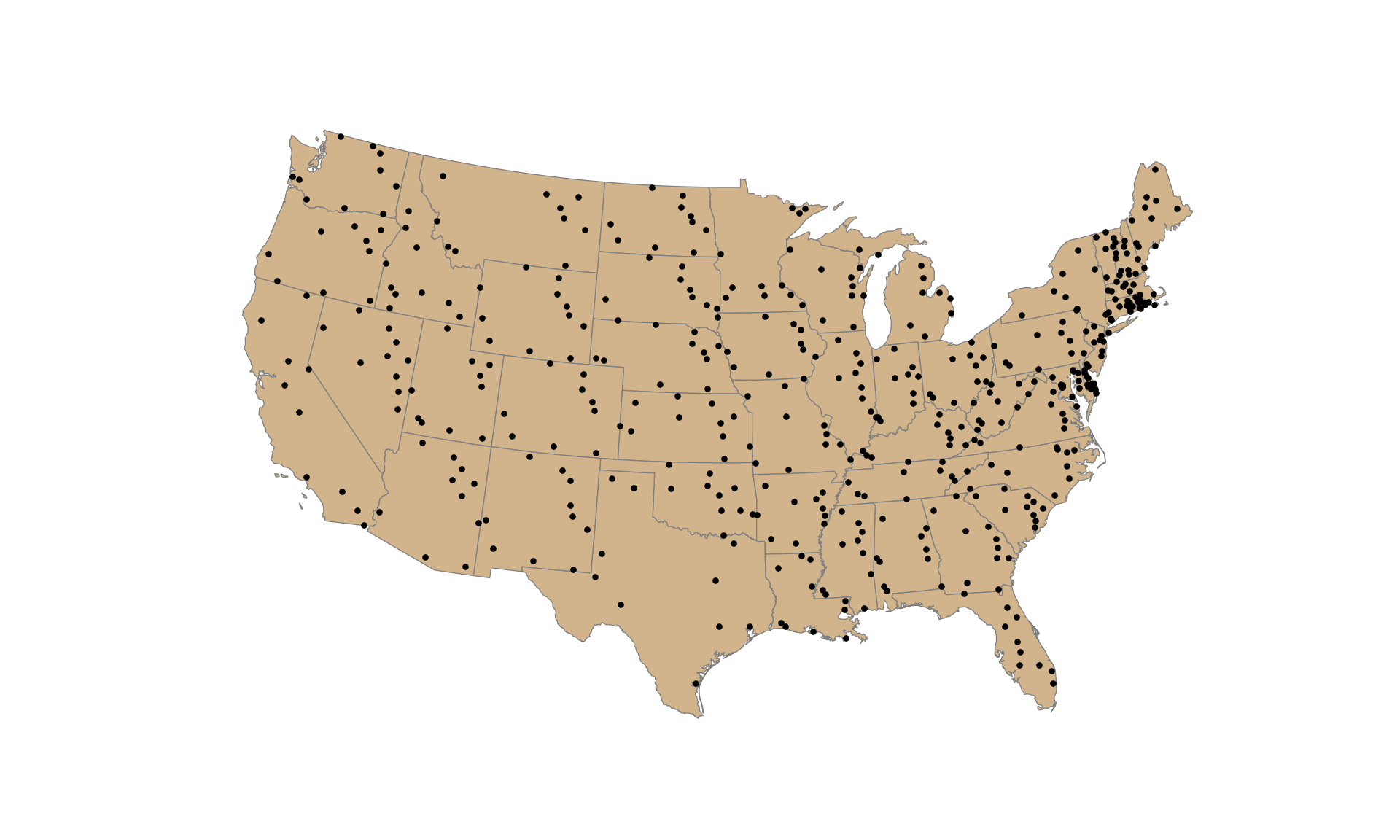
Random points can be generated within polygons using the sample_points() method. In the example, we generate 400 random points across the country. Since sample_points() generates points within each feature, we first merge the states into a single polygon using union_all(). The result is a single MultiPoint geometry, which is converted to individual points using explode(). Since this is random, a different result is obtained if the code is re-executed unless a random seed is set using the rng parameter. Applying sample_points() to the states without merging them results in a stratified sample, since points are generated separately within each state. In the second example, we generate 10 random points in each state.
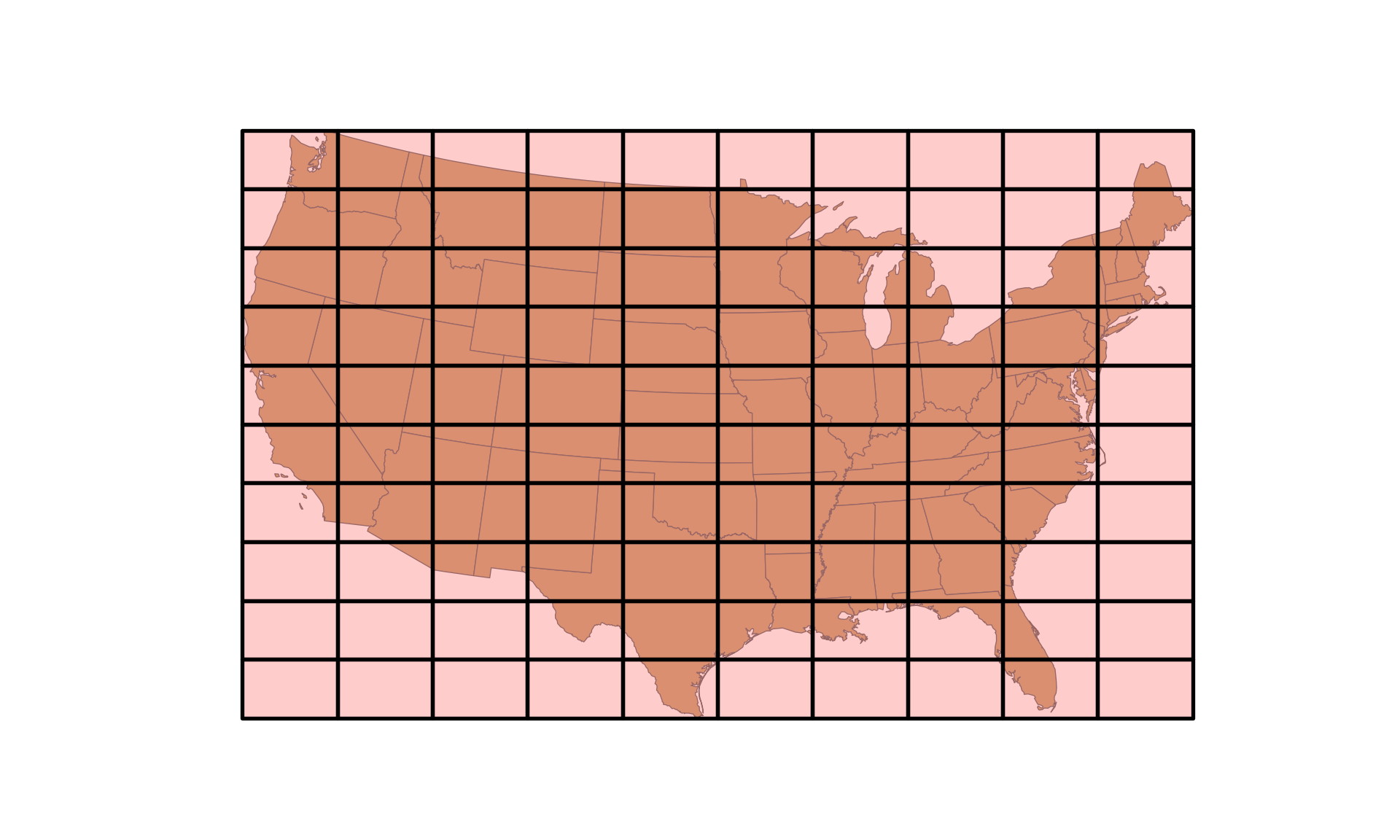
GeoPandas does not provide a function for generating a tessellation, but one is easy to build using Shapely and NumPy. Below, we write a function that generates a rectangular grid tessellation over an extent. The linspace() function from NumPy defines the x and y coordinates of the cell edges, and box() creates a polygon for each cell. We then create a grid of 10-by-10 cells within the extent of the states.
def make_grid(bounds, nx, ny, crs):"""Create a rectangular grid of nx by ny cells covering the bounds.""" xmin, ymin, xmax, ymax = bounds xs = np.linspace(xmin, xmax, nx +1) ys = np.linspace(ymin, ymax, ny +1) cells = [box(x0, y0, x1, y1)for x0, x1 inzip(xs[:-1], xs[1:]) for y0, y1 inzip(ys[:-1], ys[1:])]return gpd.GeoDataFrame(geometry=cells, crs=crs)us_grid = make_grid(states.total_bounds, 10, 10, states.crs)fig, ax = plt.subplots(figsize=(10, 6))states.plot(ax=ax, color="tan", edgecolor="grey", linewidth=0.5)us_grid.plot(ax=ax, facecolor=(1, 0, 0, 0.2), edgecolor="black", linewidth=2)ax.set_axis_off()plt.show()
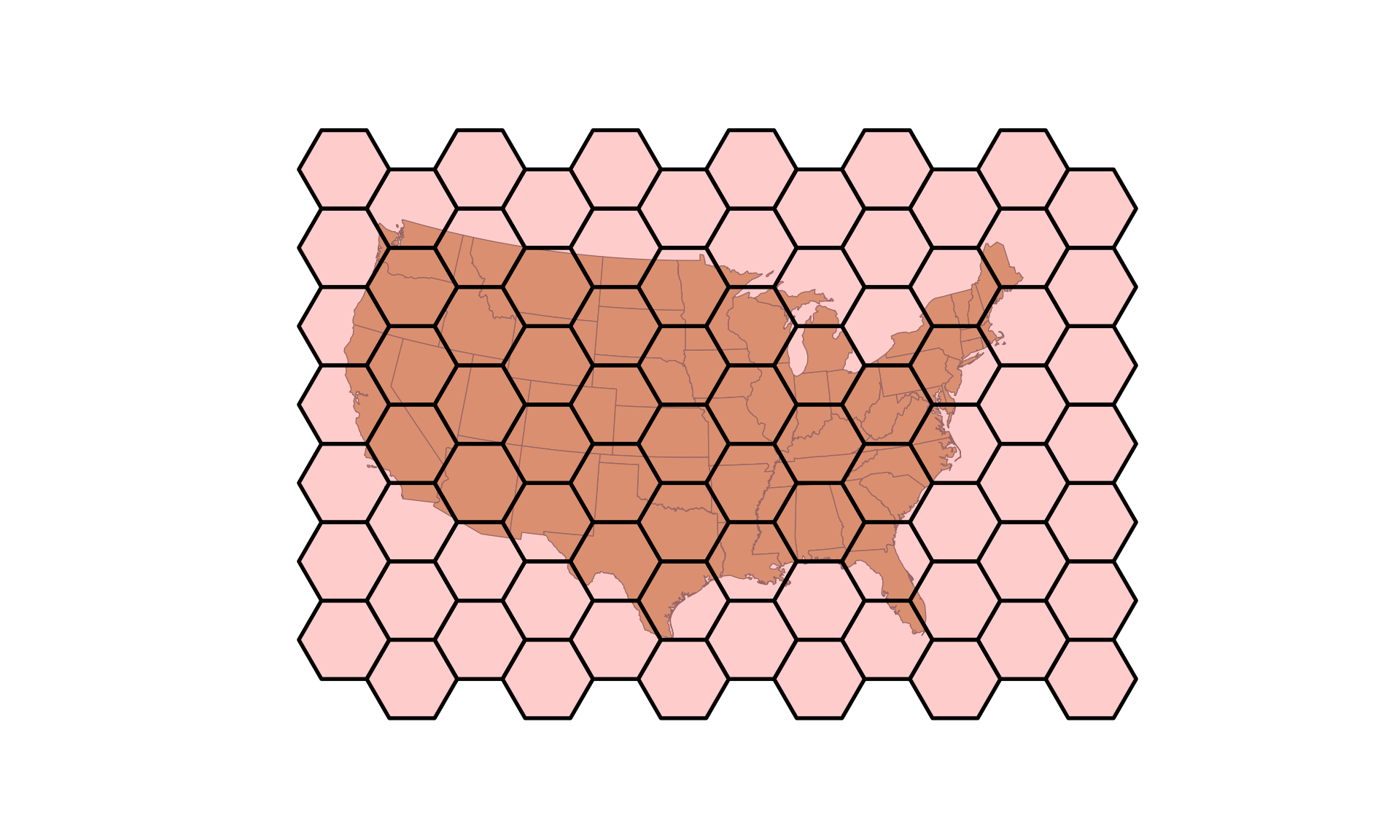
A hexagonal tessellation can be generated in a similar manner. The function below creates flat-topped hexagons by calculating the six vertices of each hexagon from its center point. The hexagon centers are offset by half a hexagon height in every other column so that the hexagons fit together without gaps.
def make_hex_grid(bounds, n, crs):"""Create a grid of flat-topped hexagons with about n columns covering the bounds.""" xmin, ymin, xmax, ymax = bounds size = (xmax - xmin) / (1.5* n) # distance from hexagon center to vertex width, height =1.5* size, np.sqrt(3) * size angles = np.radians(np.arange(0, 360, 60)) hexes = []for i, x inenumerate(np.arange(xmin, xmax + width, width)): offset = height /2if i %2else0for y in np.arange(ymin - offset, ymax + height, height): hexes.append(Polygon(zip(x + size * np.cos(angles), y + size * np.sin(angles))))return gpd.GeoDataFrame(geometry=hexes, crs=crs)us_hex = make_hex_grid(states.total_bounds, 10, states.crs)fig, ax = plt.subplots(figsize=(10, 6))states.plot(ax=ax, color="tan", edgecolor="grey", linewidth=0.5)us_hex.plot(ax=ax, facecolor=(1, 0, 0, 0.2), edgecolor="black", linewidth=2)ax.set_axis_off()plt.show()
9.10.4 Writing Data
Lastly, GeoDataFrames can be written to disk using the to_file() method. The output format is determined by the file extension, or it can be set using the driver parameter. When writing to a GeoPackage, the layer parameter defines the name of the layer. Below, we save the counties with the deer harvest data to a GeoPackage and the cities with the state attributes to a GeoJSON file. Since a GeoPackage can store many layers, it is a convenient format for organizing the data for a project.
               name geometry_type
0  counties_harvest  MultiPolygon
9.11 Concluding Remarks
We have tried to focus on common geoprocessing and vector analysis techniques here. You will likely run into specific issues that will require different techniques. However, we think you will find that the examples provided offer a starting point for other analyses. In the next chapter, we explore working with raster grids.
9.12 Questions
Explain the difference between Polygon and MultiPolygon geometries.
Explain the concept of a GeometryCollection. How is this different from other geometries?
Explain the difference between a table join, such as those implemented with the merge() method, and a spatial join implemented with sjoin().
Explain the purpose of the layer parameter of read_file(). When is it needed?
Explain the difference between using overlay() with how="intersection" and using the intersects() method.
Explain the differences between the "intersection", "union", "difference", and "symmetric_difference" options for the how parameter of overlay().
Within the simplify() method, what is the purpose of the preserve_topology parameter?
Why does selecting a subset of columns from a GeoDataFrame sometimes return a Pandas DataFrame as opposed to a GeoDataFrame?
Explain how you might calculate the area of polygons relative to other polygons (e.g., the percent of each county covered by public land) using GeoPandas. This was not demonstrated in our examples.
9.13 Exercises
Exercise 9.1: Vector Analysis of West Virginia Data
Introduction
The goal of this exercise is to work with and analyze vector data in Python using a wide variety of vector querying, analysis, and overlay methods and the GeoPandas library, as demonstrated in Chapter 9. The data layers are provided in the vector_exercise.gpkg GeoPackage in the datasets/gisData/vector/exercise folder and were obtained from the West Virginia GIS Technical Center.
springs: point locations of springs in West Virginia
towns: point locations of towns in West Virginia
interstates: line features of interstates in West Virginia
major_rivers: line features of major rivers in West Virginia
counties: polygon features of West Virginia county boundaries
geology: polygon features of geologic formations in West Virginia
Deliverables
Jupyter Notebook or Quarto document with all code and maps embedded. Answers to questions should be provided in Markdown cells or text.
Questions and Tasks
Use these data layers, Pandas, and GeoPandas to perform the following analyses and answer the associated questions.
Read in all of the required layers using read_file().
Make a map that includes the county boundaries, town points, interstates, and rivers to visualize the data.
What percentage of towns have a population (“POPULATION”) greater than 1,500?
How many towns are categorized as a village (use the “TYPE” field)?
Randomly select 25 towns from the dataset.
Randomly select three towns from each type (use the “TYPE” field).
What percentage of springs have an average flow (“AVEFLOW”) greater than 700?
What percentage of springs occur on terraces (use the “TOPO_POS” field)?
Extract Interstate 79 from the interstate line features (use the “SIGN1” field).
Dissolve the I-79 features to a single line feature and obtain the total length in kilometers (use the “KM” field, which provides the length in kilometers). What is the total length?
Extract all towns within 10 km of I-79. How many towns are within 10 km of I-79?
Create a map to visualize the results from the analysis that includes the county boundaries, I-79 line, I-79 buffer, and the extracted town points.
Extract all springs in limestone geology (use the “TYPE” field in the geology layer). What percent of all springs occur in limestone?
Create a table of counts of springs by rock type. Which rock type has the largest number of springs?
Create 5 random points per county in the state.
Create a map to visualize the randomly sampled points that includes the county boundaries and sampled points.
Calculate the length of major rivers by county. Which county has the longest length of major rivers? (Note that the major_rivers layer does not include a length field, so you will need to calculate the lengths.)
Create a map to visualize the length of rivers by county using color.
Calculate the density of towns by county. Which county has the largest density of towns? (Note: both layers have a “NAME” field, so you will need to rename one of these fields to eliminate the overlap and confusion.)
Create a map to visualize the density of towns by county using color.