import numpy as np
import pandas as pd
import matplotlib.pyplot as plt
plt.rcParams['figure.figsize'] = [10, 8]5 Visualize Data with matplotlib, Seaborn, and Pandas
5.1 Topics Covered
- Preparing data for use in a graph
- Making basic graphs using matplotlib, Seaborn, and Pandas
- Plotting images using matplotlib
- Using figures and axes or subplots
- Refining graphs using matplotlib
- Saving graphics to vector or raster graphic files
5.2 Introduction
The goal of this chapter is to provide an overview of methods for graphing and visualizing data using Python. Specifically, we investigate matplotlib. We further explore Seaborn and Pandas, which make use of matplotlib.
5.3 matplotlib
5.3.1 Preparation
As the name implies, matplotlib is based on the graphing functions available in MATLAB. It allows for the generation of a wide variety of graph types and data visualizations. Further, graphs can be edited, customized, and saved using Python code.
Here is a link to the matplotlib documentation.
In order to use matplotlib, you will need to install it into your conda environment; it is included in the pybook environment. To make graphs, you will work with the pyplot module specifically, so it is common to import that specific module and assign it an alias. To have the graphs plot in a Jupyter Notebook, you may need to include %matplotlib inline in your code. You can also change default parameters. In the example below, we change the default plot size.
In order to provide examples of a wide variety of graph types, we read in several datasets using Pandas:
-
mov(matts_movies.csv): List of movies with name, director, release year, genre, Matt’s rating, and whether or not Matt owns a copy. -
cnty(us_county_data_2.csv): US county-level demographic and socioeconomic data. Data were derived from the US Census. -
hp(high_plains_data.csv): Environmental and climate data for counties in the high plains states. The climate data were derived from PRISM, and the land cover data were derived from the National Land Cover Database (NLCD). -
maple(maple_leaf.csv): Spectral reflectance data for a maple leaf at different wavelengths. Data are from the United States Geological Survey Spectral Library.
All datasets are read in as Pandas DataFrames. We also remove any spaces in the column names using list comprehension.
mov = pd.read_csv("datasets/matts_movies.csv", sep=",", header=0, encoding="ISO-8859-1")
mov.columns =[column.replace(" ", "_") for column in mov.columns]
print(mov.head(10))
Movie_Name Director ... Genre Own
0 Almost Famous Cameron Crowe ... Drama Yes
1 The Shawshank Redemption Frank Darabont ... Drama Yes
2 Groundhog Day Harold Ramis ... Comedy Yes
3 Donnie Darko Richard Kelly ... Sci-Fi Yes
4 Children of Men Alfonso Cuaron ... Sci-Fi Yes
5 Annie Hall Woody Allen ... Comedy Yes
6 Rushmore Wes Anderson ... Independent Yes
7 Memento Christopher Nolan ... Thriller Yes
8 No Country for Old Men Joel and Ethan Coen ... Thriller Yes
9 Seven David Fincher ... Thriller Yes
[10 rows x 6 columns]cnty = pd.read_csv("datasets/us_county_data_2.csv", sep=",", header=0, encoding="ISO-8859-1")
cnty.columns =[column.replace(" ", "_") for column in cnty.columns]
print(cnty.head(10)) STATE COUNTY FIPS winner12 ... med_income per_pov STATE_NAME SUB_REGION
0 AL Autauga 1001 republican ... 51622 10.7 Alabama E S Cen
1 AL Barbour 1005 democrat ... 30896 24.5 Alabama E S Cen
2 AL Bibb 1007 republican ... 41076 18.5 Alabama E S Cen
3 AL Blount 1009 republican ... 46086 13.1 Alabama E S Cen
4 AL Bullock 1011 democrat ... 26980 33.6 Alabama E S Cen
5 AL Butler 1013 republican ... 31449 22.3 Alabama E S Cen
6 AL Chambers 1017 republican ... 35614 18.7 Alabama E S Cen
7 AL Cherokee 1019 republican ... 38028 17.7 Alabama E S Cen
8 AL Chilton 1021 republican ... 40292 17.1 Alabama E S Cen
9 AL Choctaw 1023 republican ... 30728 22.9 Alabama E S Cen
[10 rows x 16 columns]hp = pd.read_csv("datasets/high_plains_data.csv", sep=",", header=0, encoding="ISO-8859-1")
hp.columns =[column.replace(" ", "_") for column in hp.columns]
print(hp.head(10)) GEOID10 ID NAME_1 ... temp precip precip2
0 8053 8053 Hinsdale County ... 1.410638 800.246066 8.002461
1 8061 8061 Kiowa County ... 11.159492 384.201797 3.842018
2 8063 8063 Kit Carson County ... 10.179698 435.414037 4.354140
3 8071 8071 Las Animas County ... 10.439925 424.757731 4.247577
4 8073 8073 Lincoln County ... 9.573578 376.228555 3.762286
5 8075 8075 Logan County ... 9.749204 425.278696 4.252787
6 8079 8079 Mineral County ... 1.830405 856.293446 8.562934
7 8085 8085 Montrose County ... 8.327253 447.202160 4.472022
8 8087 8087 Morgan County ... 9.731422 369.794908 3.697949
9 8089 8089 Otero County ... 11.780972 338.015001 3.380150
[10 rows x 13 columns]maple = pd.read_csv("datasets/maple_leaf.csv", sep=",", header=0, encoding="ISO-8859-1")
maple.columns =[column.replace(" ", "_") for column in maple.columns]
print(maple.head(10)) wav reflec
0 0.353 0.0296
1 0.357 0.0295
2 0.361 0.0288
3 0.364 0.0289
4 0.367 0.0293
5 0.370 0.0284
6 0.373 0.0290
7 0.376 0.0285
8 0.379 0.0288
9 0.381 0.02905.3.2 Basic Graphs
Before you can create complex and well-refined graphs, you need to know the basics. In this section, our goal is to show you how to generate simple graphs using the basic matplotlib syntax.
In the first example below, we produce a basic scatter plot to visualize the relationship between mean elevation and mean annual temperature at the county level in the high plains states as an example of a bivariate graph. The first argument, elevation, is plotted to the x-axis and the second argument, temperature, is plotted to the y-axis. Here, we use dot notation; however, bracket notation is also acceptable. The show() function from the pyplot module is then used to display the graph. No argument is needed since the most recently created figure is displayed.
Although this graph is adequate to simply visualize the data and the relationship between the two variables, it is still a bit rough to include in a presentation or report. We cover refining the output later in this chapter.
sp1 = plt.scatter(hp.elev, hp.temp)
#plt.scatter(hp["elev"], hp["temp"])
plt.show()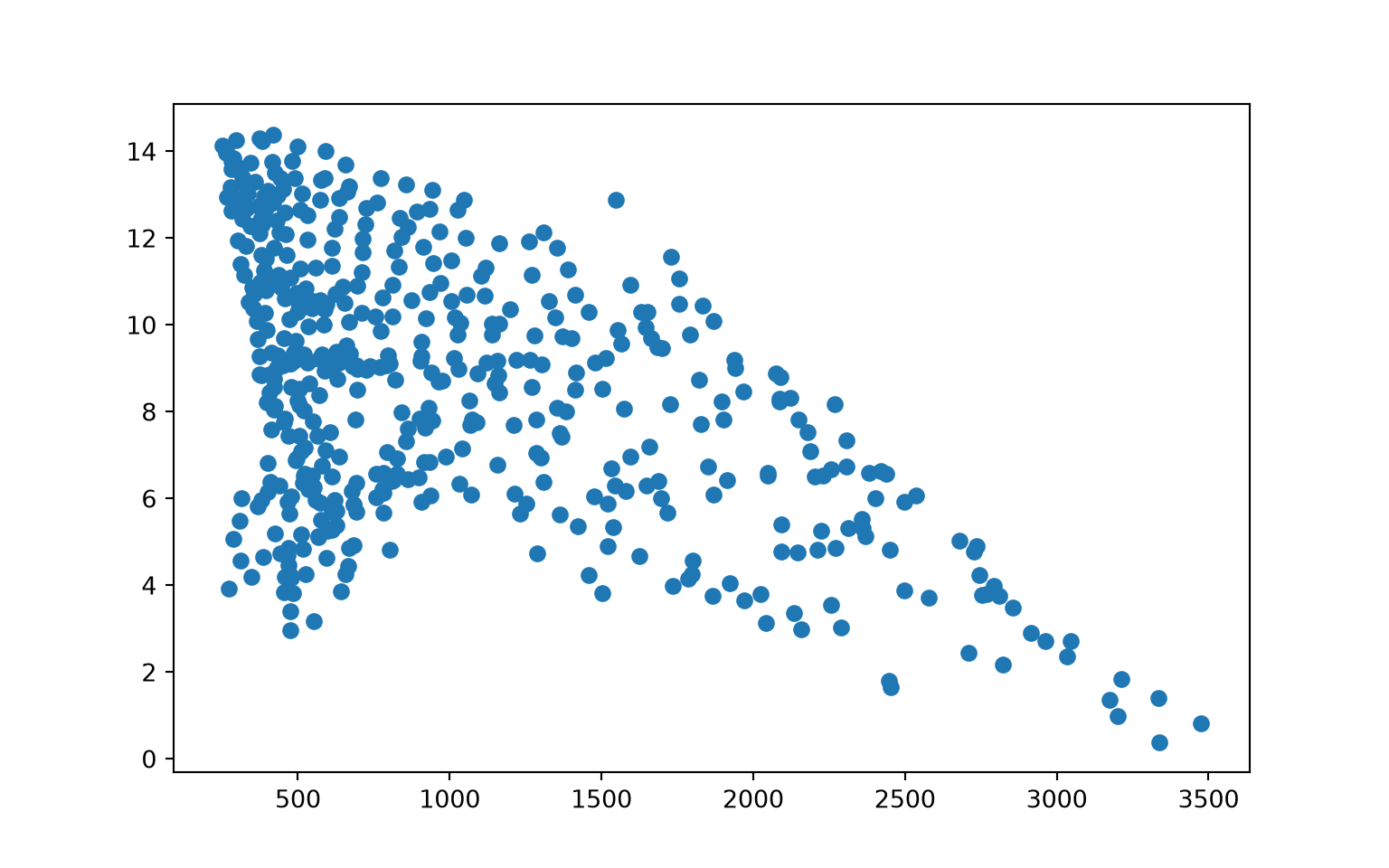
In the next example, we generate a histogram from Matt’s movie ratings. Since a histogram is a univariate graph, only one variable has to be provided.
hist1 = plt.hist(mov.My_Rating)
plt.show()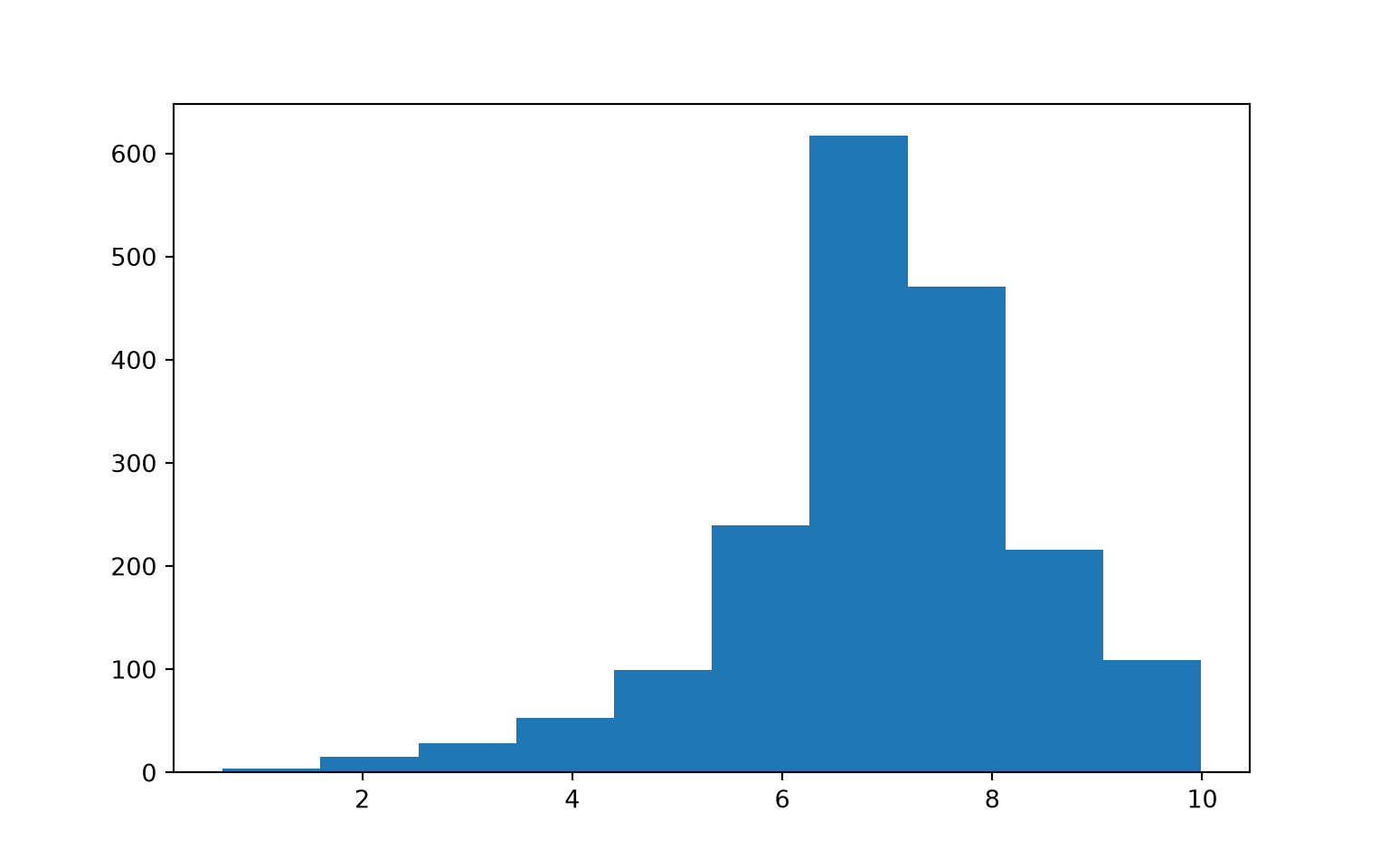
Histograms accept an additional, optional bins parameter to specify the number of data bins to include.
We use this as an opportunity to discuss the concepts of subplots or axes in matplotlib. A figure represents the entire space in which graphs are generated. Figures are further divided into subplots or axes, which allow you to place multiple plots in the same graph space. There are multiple ways to implement this. In the example, we create a figure called fig1 that contains two rows and two columns. The positions of the subplots within the figure are defined relative to the rows and columns using indexes relative to axs, or the subplots.
So, in this example, we place a separate graph, representing a different number of bins, in each of the four available row/column combinations.
If you do not define multiple subplots, a plot will take up the entire graph or figure space by default.
fig1, axs = plt.subplots(2,2)
axs[0,0].hist(mov.My_Rating, bins=5)
axs[1,0].hist(mov.My_Rating, bins=10)
axs[0, 1].hist(mov.My_Rating, bins=15)
axs[1, 1].hist(mov.My_Rating, bins=20)
plt.show()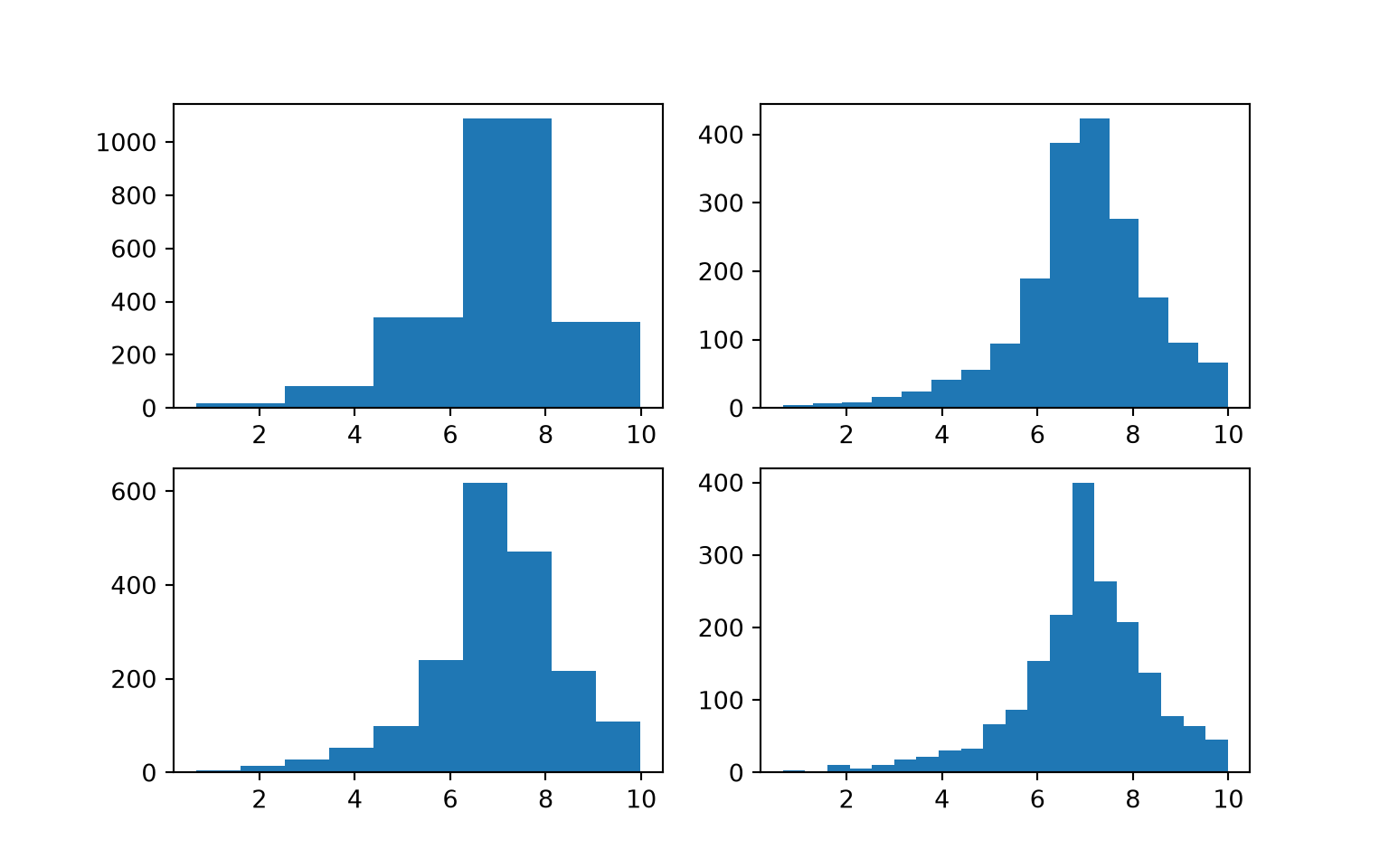
The example below shows how to generate a boxplot to visualize the distribution of a continuous variable, in this case median income by county.
bp1 = plt.boxplot(x=cnty.med_income)
plt.show()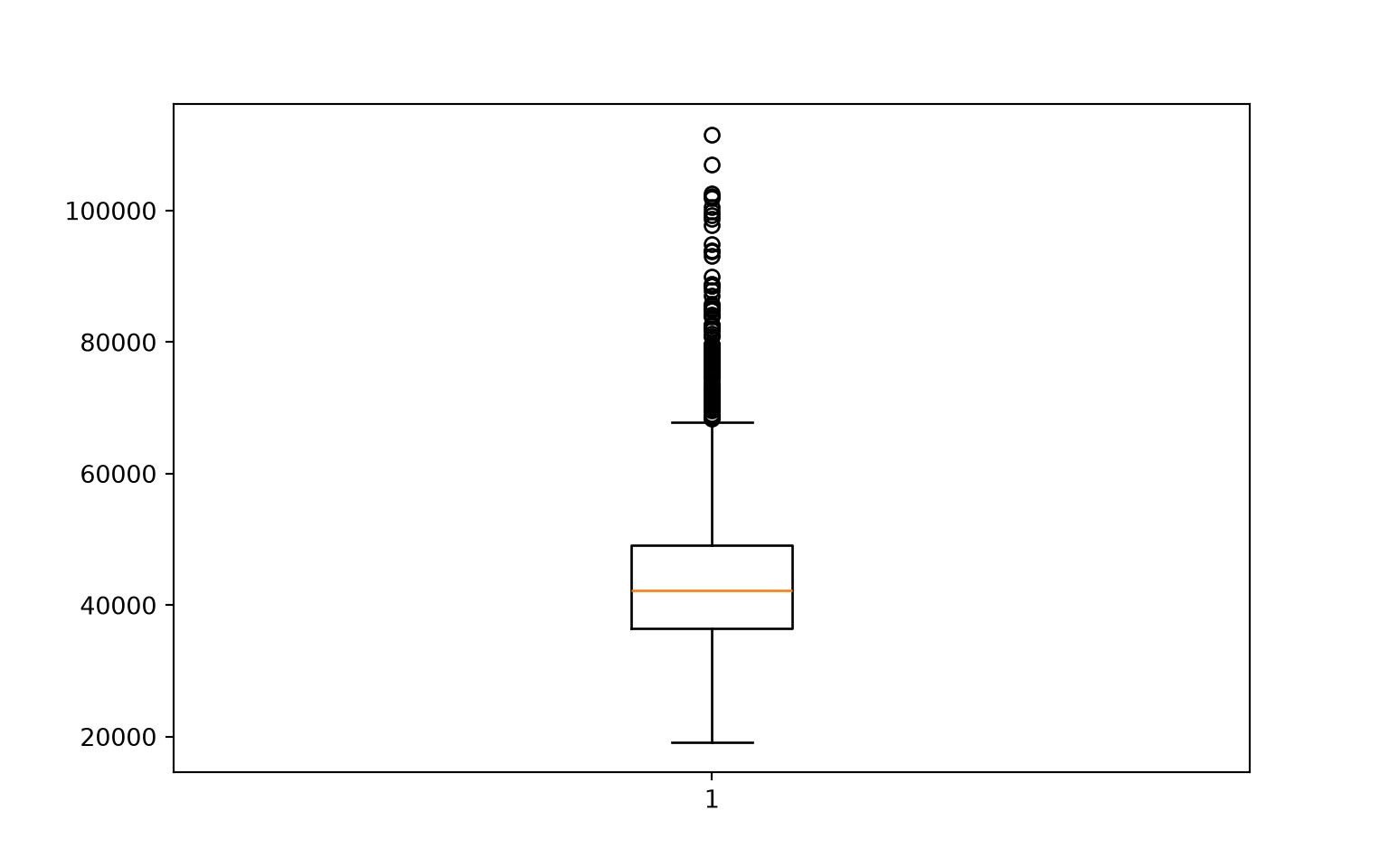
Now, let’s combine a set of different graphs as a single figure using multiple subplots. Make sure you understand how indexes are used to reference each subplot within the figure.
fig1, axs = plt.subplots(3,3)
axs[0,0].boxplot(hp.per_for)
axs[0,1].boxplot(hp.precip)
axs[0,2].boxplot(hp.elev)
axs[1,0].boxplot(hp.temp)
axs[1,1].scatter(hp.elev, hp.temp)
axs[1,2].scatter(hp.elev, hp.per_for)
axs[2,0].hist(hp.per_for)
axs[2,1].hist(hp.elev)
axs[2,2].hist(hp.temp)
plt.show()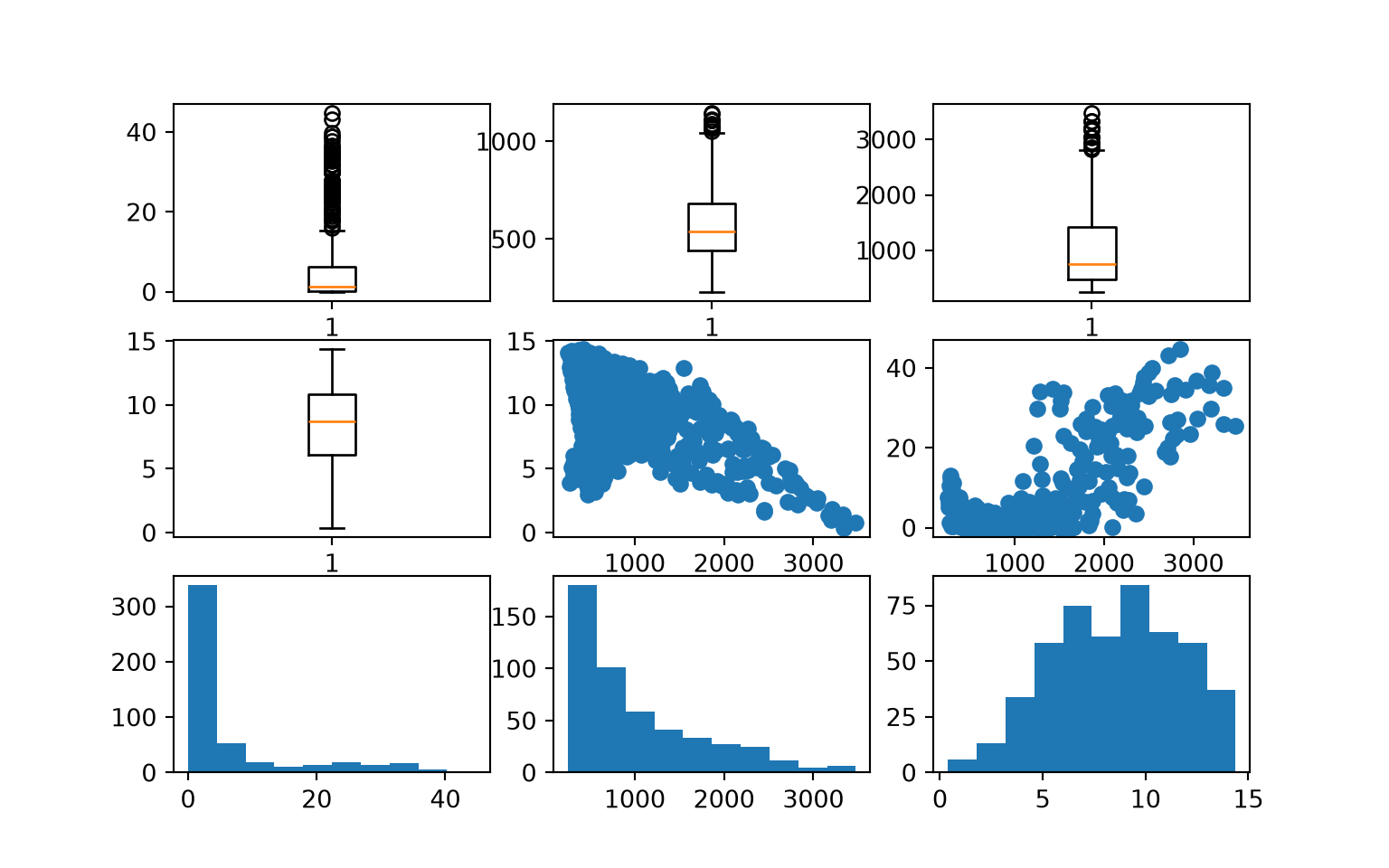
5.3.3 Cleaning Up Graphs
You should now have a basic understanding of how to generate simple plots using matplotlib and how to include subplots within a figure. We now demonstrate how to improve graphs and make them suitable for presentation. There are far too many customization options to cover in detail. Instead, we focus on some common tasks. For more details and to investigate specific options, please consult the matplotlib documentation.
In this first example, we make a spectral reflectance curve from the maple leaf data. Here are some notes on how this result was obtained.
- Using the
subplots()function, we define a size for the figure. We also assign variable names to the figure and subplot. - We generate the plot using the
plot()method applied to the subplot variable, which generates a line graph by default. We provide the desired x and y variables, set a line color using a hex code, set a line width, and set the markers to an empty string so that no point markers are included. - The main title, x-axis title, and y-axis title are defined and a font size and color are selected using the appropriate
set_methods applied to the subplot as opposed to the entire figure. - The x-axis and y-axis ticks are set using the appropriate
set_method. Next, labels are defined as a list, and the font size and color are set for the tick labels using anotherset_method. - The limits for the x-axis are defined using
set_xlim(). We do not set the limits for the y-axis since the defaults are adequate. - The x-axis tick labels are rotated by 45 degrees to minimize overprinting.
- We want to highlight the spectral ranges using different fill colors. To accomplish this, we use the
axvspan()method and set the range and desired color. Thealphaparameter is used to add transparency. Note thataxhspan()can be used to fill ranges of y. - We add separate x- and y-grids using the
grid()method. These grids are customized by changing the color, transparency, line style, and line width. - We change the figure background color using the
patch.set_facecolor()method.
The documentation for matplotlib and associated methods explains what style parameters are available for customization. We suggest experimenting with this code to further manipulate and change the figure.
fig, ax = plt.subplots(figsize=(18, 8))
ax.plot(maple.wav, maple.reflec, color="#f55d42", linewidth=2, marker="")
ax.set_title("Spectral Reflectance Curve for Maple Leaf", fontsize=24, color="#ffffff")
ax.set_xlabel("Wavelength (nm)", fontsize= 21, color="#ffffff")
ax.set_ylabel("% Reflectance", fontsize=21, color="#ffffff")
ax.set_yticks([0, .1, .2, .3, .4, .5, .6, .7])
ax.set_yticklabels(["0%", "10%", "20%", "30%", "40%", "50%", "60%", "70%"], fontsize=14, color="#ffffff")
ax.set_xlim(0.4, 2.5)
ax.set_xticks([0.4, 0.5, 0.6, 0.7, 1.3, 2.5])
ax.set_xticklabels(["400 nm", "500 nm", "600 nm", "700 nm", "1,300 nm", "2,500 nm"], fontsize=14, rotation=45, color="#ffffff")
ax.axvspan(.4, .5, color='blue', alpha=0.3)
ax.axvspan(.5, .6, color='green', alpha=0.3)
ax.axvspan(.6, .7, color='red', alpha=0.3)
ax.axvspan(.7, 1.3, color='#91482D', alpha=0.3)
ax.axvspan(1.3, 3, color='#BA943C', alpha=0.3)
ax.grid(color='#79818f', alpha=0.6, linestyle='solid', linewidth=0.7, axis='x')
ax.grid(color='#2B2A27', alpha=0.6, linestyle='dashed', linewidth=0.7, axis='y')
fig.patch.set_facecolor('#515459')
plt.show()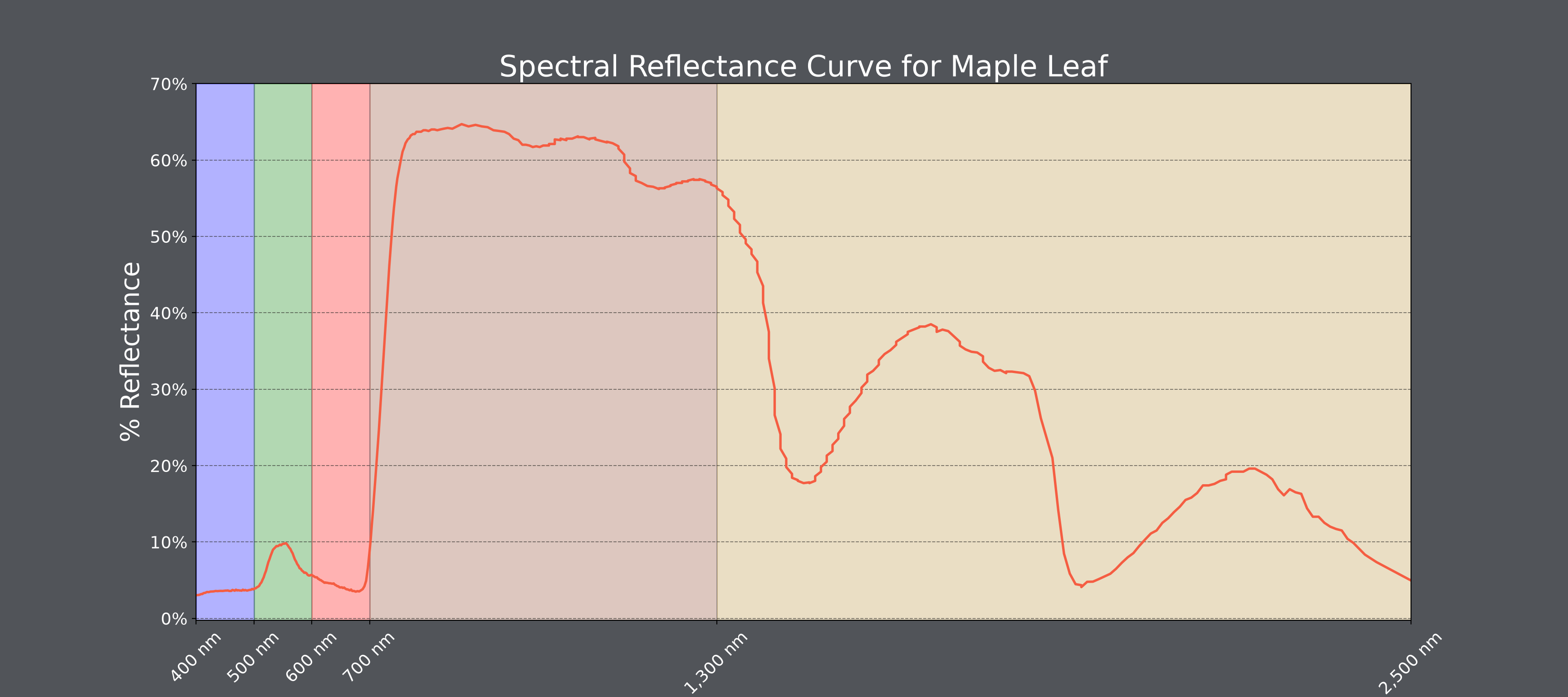
Below is another example. Have a look at the code and make sure you understand how the figure and subplots were generated.
One change we make here is to provide arguments for the zorder parameter so that the data points plot above the grid lines. In matplotlib, zorder is commonly used to define a custom drawing order.
fig1, axs = plt.subplots(2,1, figsize=(18,16))
fig1.suptitle('High Plains Analysis', fontsize=28, color="#ffffff")
axs[0].scatter(hp.elev, hp.temp, color="#3f48eb", marker="P", zorder=10)
axs[0].set_title("Elevation vs. Temperature", fontsize=24, color="#ffffff")
axs[0].set_xlabel("Elevation (meters)", fontsize= 21, color="#ffffff")
axs[0].set_ylabel("Temperature (Celsius)", fontsize=21, color="#ffffff")
axs[0].set_yticks([0, 3, 6, 9, 12, 15])
axs[0].set_yticklabels([0, 3, 6, 9, 12, 15], fontsize=14, color="#ffffff")
axs[0].set_xlim(250, 3500)
axs[0].set_xticks([500, 1000, 1500, 2000, 2500, 3000, 3500])
axs[0].set_xticklabels(["500 m", "1,000 m", "1,500 m", "2,000 m", "2,500 m", "3,000 m", "3,500 m"], fontsize=14, color="#ffffff")
axs[0].grid(True, zorder=0)
axs[1].scatter(hp.elev, hp.per_for, color="#4b871c", marker="d", zorder=10)
axs[1].set_title("Elevation vs. Percent Forest", fontsize=24, color="#ffffff")
axs[1].set_xlabel("Elevation (meters)", fontsize= 21, color="#ffffff")
axs[1].set_ylabel("Percent Forest", fontsize=21, color="#ffffff")
axs[1].set_yticks([0, 10, 20, 30, 40, 50, 60])
axs[1].set_yticklabels(["0%", "10%", "20%", "30%", "40%", "50%", "60%"], fontsize=14, color="#ffffff")
axs[1].set_xlim(0, 3500)
axs[1].set_xticks([500, 1000, 1500, 2000, 2500, 3000, 3500])
axs[1].set_xticklabels(["500 m", "1,000 m", "1,500 m", "2,000 m", "2,500 m", "3,000 m", "3,500 m"], fontsize=14, color="#ffffff")
axs[1].grid(True, zorder=0)
fig1.patch.set_facecolor('#515459')
plt.show()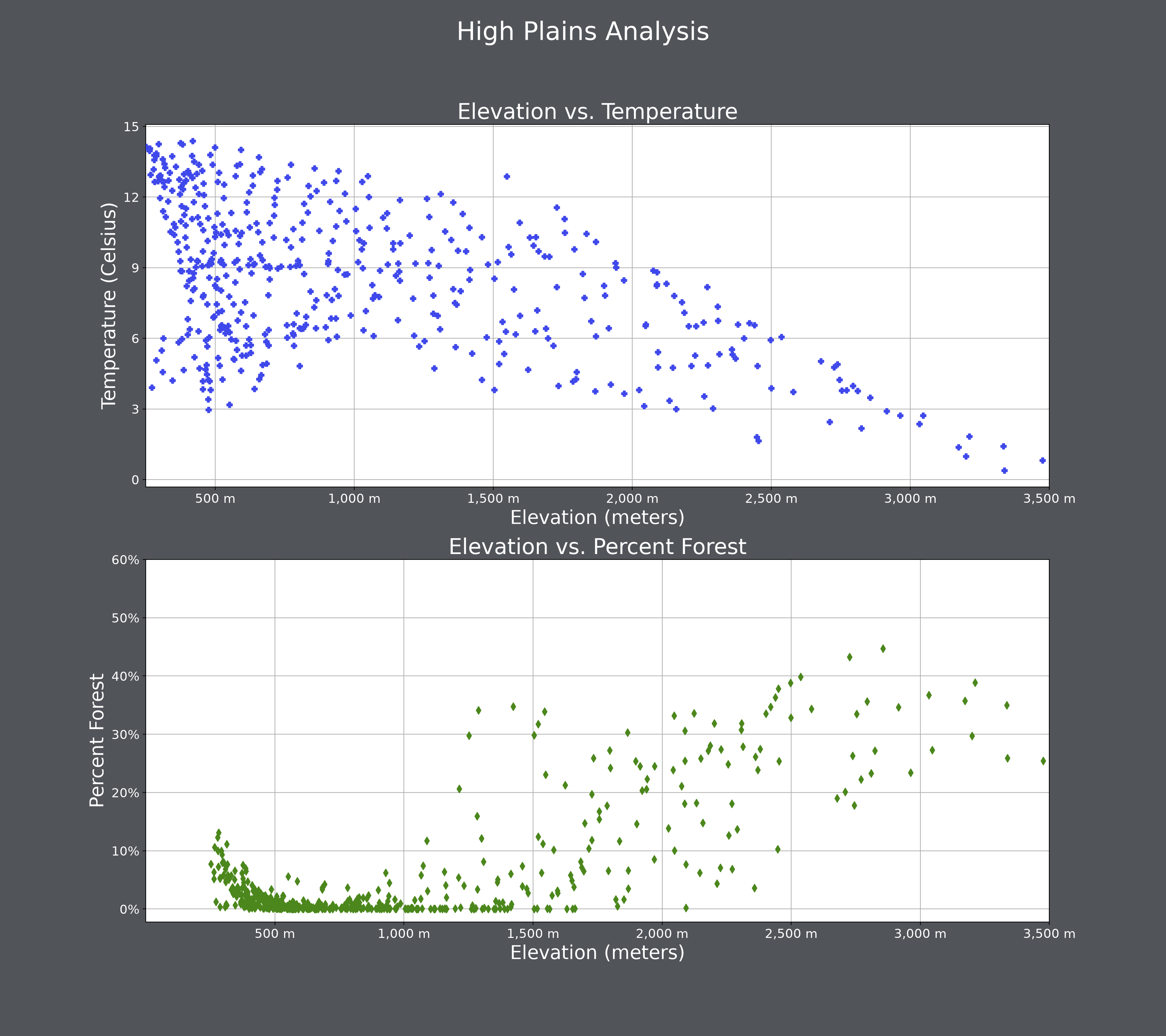
Spacing within the figure and between subplots can be manipulated using a variety of methods. subplots_adjust() is used to add space between the subplots and the margin of the figure while tight_layout() is used to change the spacing between subplots.
As already mentioned, the background color of the figure can be changed with patch.set_facecolor().
fig1, axs = plt.subplots(2,1, figsize=(18,16))
fig1.suptitle('High Plains Analysis', fontsize=28, color="#000000")
axs[0].scatter(hp.elev, hp.temp, color="#3f48eb", marker="P")
axs[0].set_title("Elevation vs. Temperature", fontsize=24, color="#000000")
axs[0].set_xlabel("Elevation (meters)", fontsize= 21, color="#000000")
axs[0].set_ylabel("Temperature (Celsius)", fontsize=21, color="#000000")
axs[0].set_yticks([0, 3, 6, 9, 12, 15])
axs[0].set_yticklabels([0, 3, 6, 9, 12, 15], fontsize=14, color="#000000")
axs[0].set_xlim(250, 3500)
axs[0].set_xticks([500, 1000, 1500, 2000, 2500, 3000, 3500])
axs[0].set_xticklabels(["500 m", "1,000 m", "1,500 m", "2,000 m", "2,500 m", "3,000 m", "3,500 m"], fontsize=14, color="#000000")
axs[0].grid(True)
axs[1].scatter(hp.elev, hp.per_for, color="#4b871c", marker="d")
axs[1].set_title("Elevation vs. Percent Forest", fontsize=24, color="#000000")
axs[1].set_xlabel("Elevation (meters)", fontsize= 21, color="#000000")
axs[1].set_ylabel("Percent Forest", fontsize=21, color="#000000")
axs[1].set_yticks([0, 10, 20, 30, 40, 50, 60])
axs[1].set_yticklabels(["0%", "10%", "20%", "30%", "40%", "50%", "60%"], fontsize=14, color="#000000")
axs[1].set_xlim(0, 3500)
axs[1].set_xticks([500, 1000, 1500, 2000, 2500, 3000, 3500])
axs[1].set_xticklabels(["500 m", "1,000 m", "1,500 m", "2,000 m", "2,500 m", "3,000 m", "3,500 m"], fontsize=14, color="#000000")
axs[1].grid(True)
fig1.patch.set_facecolor('#bcd1bc')
fig1.tight_layout(h_pad = 5)
fig1.subplots_adjust(left=0.15, right=.85, bottom=0.15, top=0.90);
plt.show()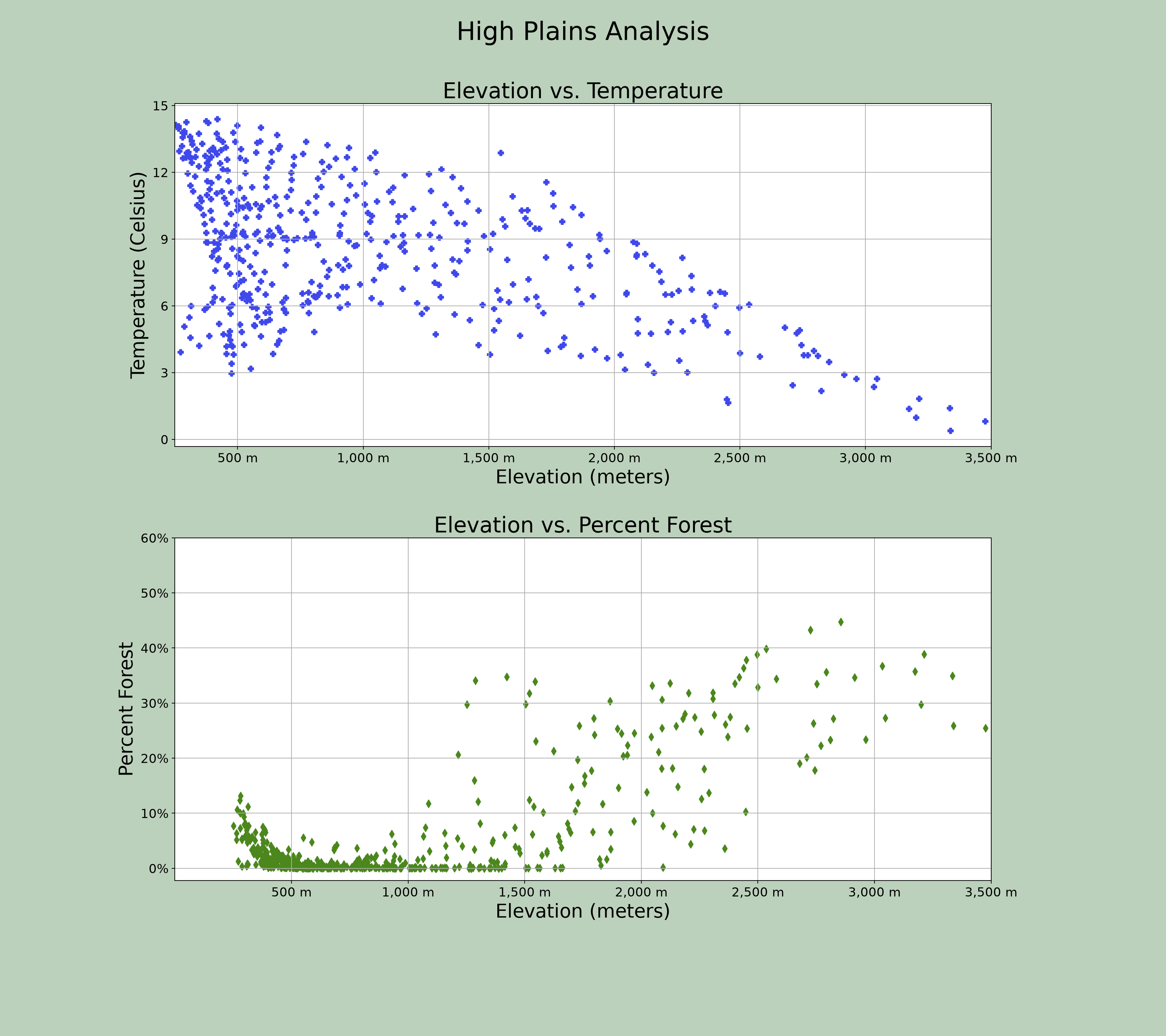
What if you want to design a grid of subplots that don’t use regularly spaced rows and columns? This can be accomplished using the GridSpec class from the gridspec module of the matplotlib library.
The example below was modified from the matplotlib documentation at this link. Here is an explanation of this figure:
- A function is defined to label each subplot.
- A figure is generated using the
figure()function, and a title is added usingsuptitle(). - The figure is broken into two grids.
gs1is the left part of the figure from 0.05 to 0.48. Also, awspaceof 0.05 has been defined to add space between subplots.gs2is the right side of the figure from 0.55 to 0.98. Horizontal space between subplots has been defined usinghspace. - Both grids have been divided into subplots, with the position defined using bracket notation.
-
ax1: All 3 columns, first 2 rows ofgs1 -
ax2: First two columns, last row ofgs1 -
ax3: Last column, last row ofgs1 -
ax4: First two columns, all rows ofgs2 -
ax5: Last column, first two rows ofgs2 -
ax6: Last column, last row ofgs2
-
import matplotlib.pyplot as plt
from matplotlib.gridspec import GridSpec

def annotate_axes(fig):
    for i, ax in enumerate(fig.axes):
        ax.text(0.5, 0.5, "ax%d" % (i+1), va="center", ha="center", fontsize=32)
        ax.tick_params(labelbottom=False, labelleft=False)

fig = plt.figure()
fig.suptitle("Controlling spacing around and between subplots", fontsize=32, color="#ffffff")

gs1 = GridSpec(3, 3, left=0.05, right=0.48, wspace=0.05)
ax1 = fig.add_subplot(gs1[0:2, :])
ax2 = fig.add_subplot(gs1[2, 0:2])
ax3 = fig.add_subplot(gs1[2, 2])

gs2 = GridSpec(3, 3, left=0.55, right=0.98, hspace=0.05)
ax4 = fig.add_subplot(gs2[:, 0:2])
ax5 = fig.add_subplot(gs2[0:2, 2])
ax6 = fig.add_subplot(gs2[2, 2])

annotate_axes(fig)
fig.patch.set_facecolor('#515459')
plt.show()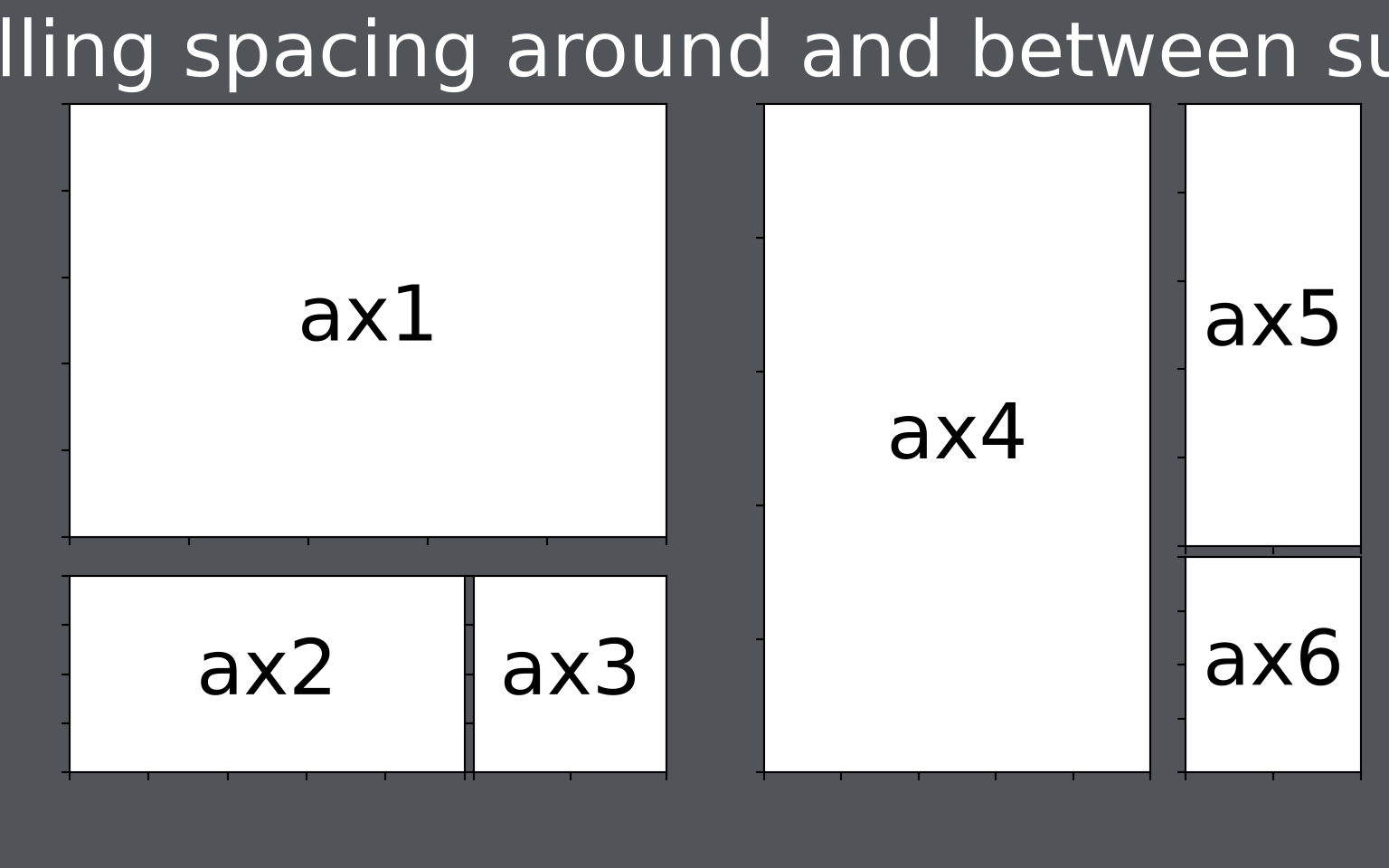
You can also change the height and width ratios of the grids using the height_ratios and width_ratios parameters.
import matplotlib.pyplot as plt
from matplotlib.gridspec import GridSpec

def annotate_axes(fig):
    for i, ax in enumerate(fig.axes):
        ax.text(0.5, 0.5, "ax%d" % (i+1), va="center", ha="center", fontsize=32)
        ax.tick_params(labelbottom=False, labelleft=False)

fig = plt.figure()
fig.suptitle("Subplots with different widths", fontsize=32, color="#ffffff")

gs1 = GridSpec(2, 2, width_ratios=[2,1], height_ratios=[1, 3])
ax1 = fig.add_subplot(gs1[0:1, :])
ax2 = fig.add_subplot(gs1[1, 0:1])
ax3 = fig.add_subplot(gs1[1, 1])

annotate_axes(fig)
fig.patch.set_facecolor('#515459')
plt.show()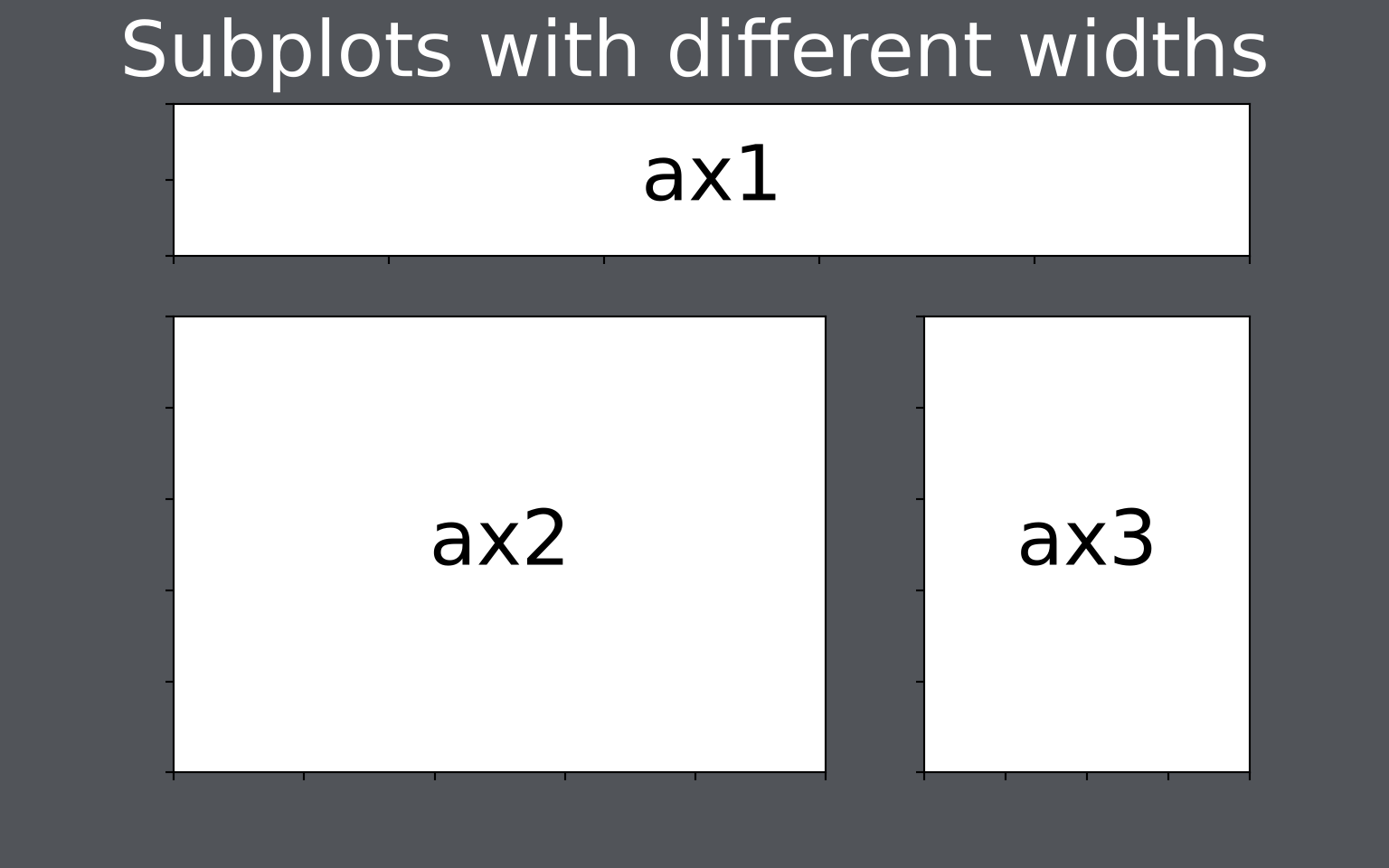
In the code below, we fill the grids with some subplots. These don’t look great; they are just meant as an example.
import matplotlib.pyplot as plt
from matplotlib.gridspec import GridSpec

fig = plt.figure()
fig.suptitle("Using the Grids", fontsize=32, color="#ffffff")

gs1 = GridSpec(3, 3, left=0.05, right=0.48, wspace=0.05)
ax1 = fig.add_subplot(gs1[0:2, :])
ax2 = fig.add_subplot(gs1[2, 0:2])
ax3 = fig.add_subplot(gs1[2, 2])

gs2 = GridSpec(3, 3, left=0.55, right=0.98, hspace=0.05)
ax4 = fig.add_subplot(gs2[:, 0:2])
ax5 = fig.add_subplot(gs2[0:2, 2])
ax6 = fig.add_subplot(gs2[2, 2])

ax1.boxplot(hp.per_for)
ax2.boxplot(hp.precip)
ax3.boxplot(hp.elev)
ax4.boxplot(hp.temp)
ax5.scatter(hp.elev, hp.temp)
ax6.scatter(hp.elev, hp.per_for)
fig.patch.set_facecolor('#515459')
plt.show()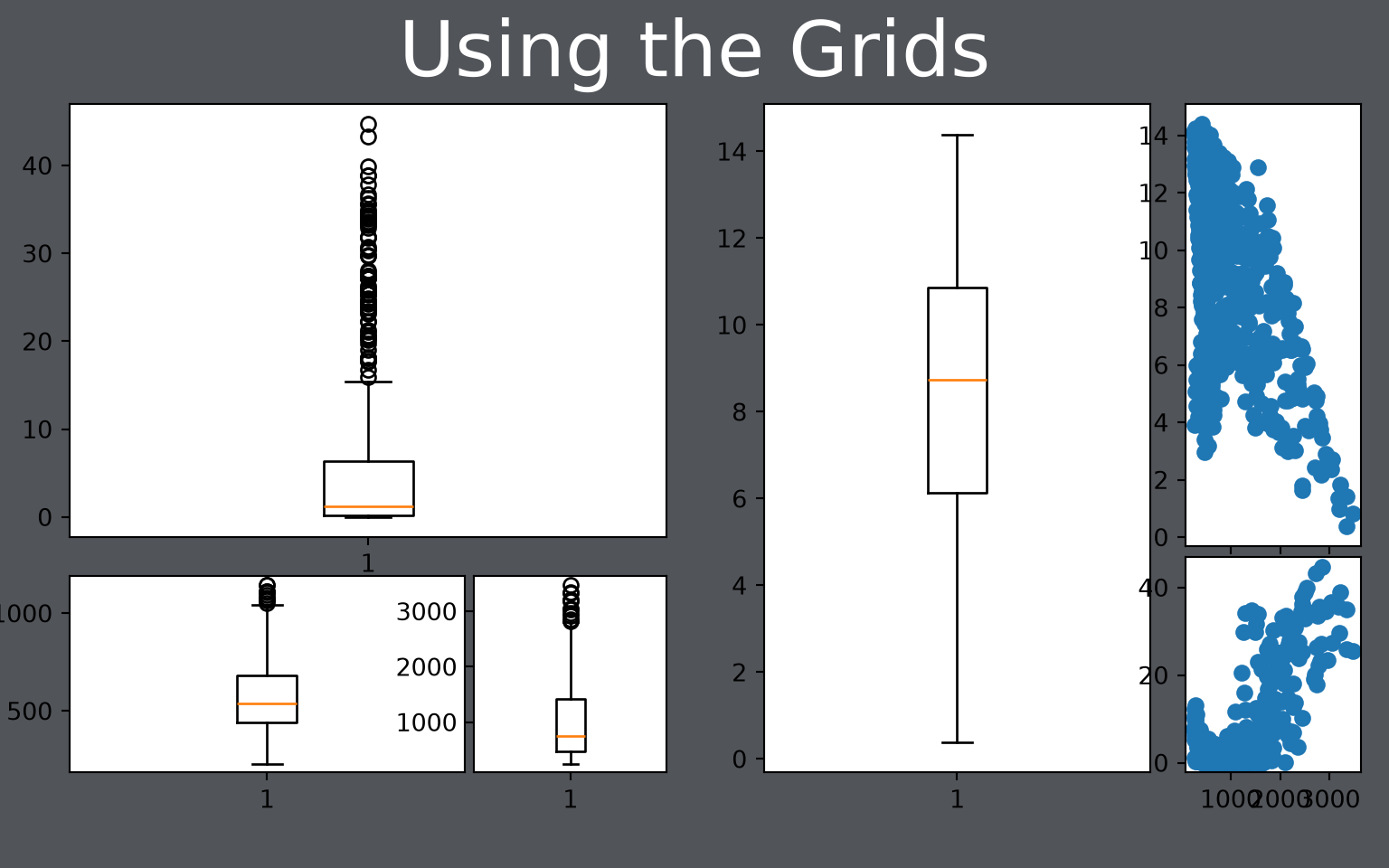
5.3.4 Plotting Images
matplotlib can also be used to display or plot images using the imshow() function. In the example below, we read in an image using the OpenCV (cv2) library. Since this library reads the image in using a different band order than matplotlib expects, we use the cvtColor() function to change the band order. We also turn off the axes and tick labels.
from matplotlib import pyplot as plt
import cv2

img = cv2.imread("datasets/Water Valve.jpg")
plt.imshow(cv2.cvtColor(img, cv2.COLOR_BGR2RGB))
plt.axis("off")
plt.show()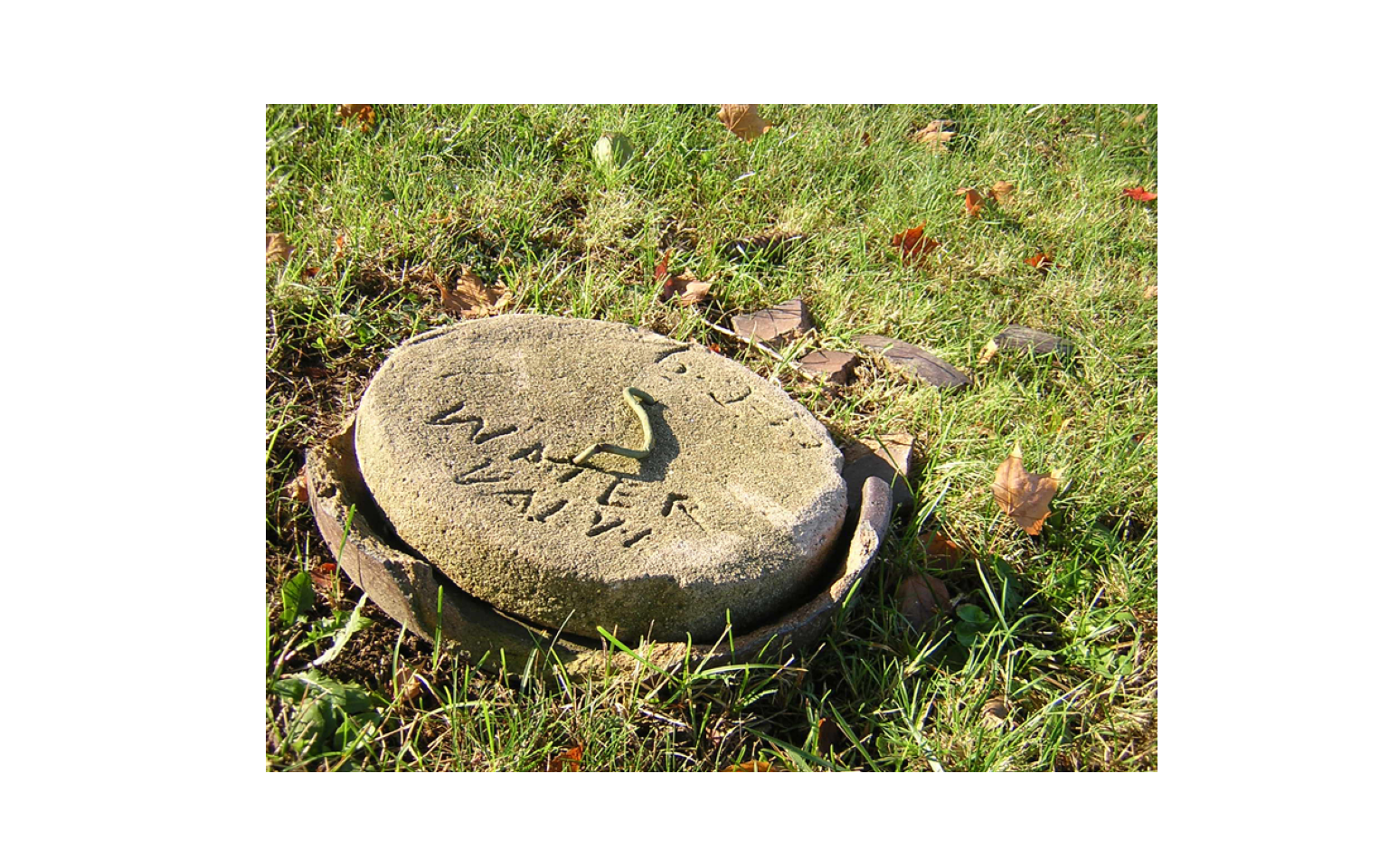
Below, we use subplots to display copies of the image within a figure.
You will see more examples of reading in and plotting image data in later chapters.
from matplotlib import pyplot as plt
import cv2

img = cv2.imread("datasets/Water Valve.jpg")

plt.rcParams['figure.figsize'] = [10, 8]
fig1, axs = plt.subplots(2,2)
axs[0,0].imshow(cv2.cvtColor(img, cv2.COLOR_BGR2RGB))
axs[0,0].axis("off")
axs[1,0].imshow(cv2.cvtColor(img, cv2.COLOR_BGR2RGB))
axs[1,0].axis("off")
axs[0,1].imshow(cv2.cvtColor(img, cv2.COLOR_BGR2RGB))
axs[0,1].axis("off")
axs[1,1].imshow(cv2.cvtColor(img, cv2.COLOR_BGR2RGB))
axs[1,1].axis("off")
fig1.tight_layout(h_pad = .5, w_pad = .5)
fig1.patch.set_facecolor('#515459')
plt.show()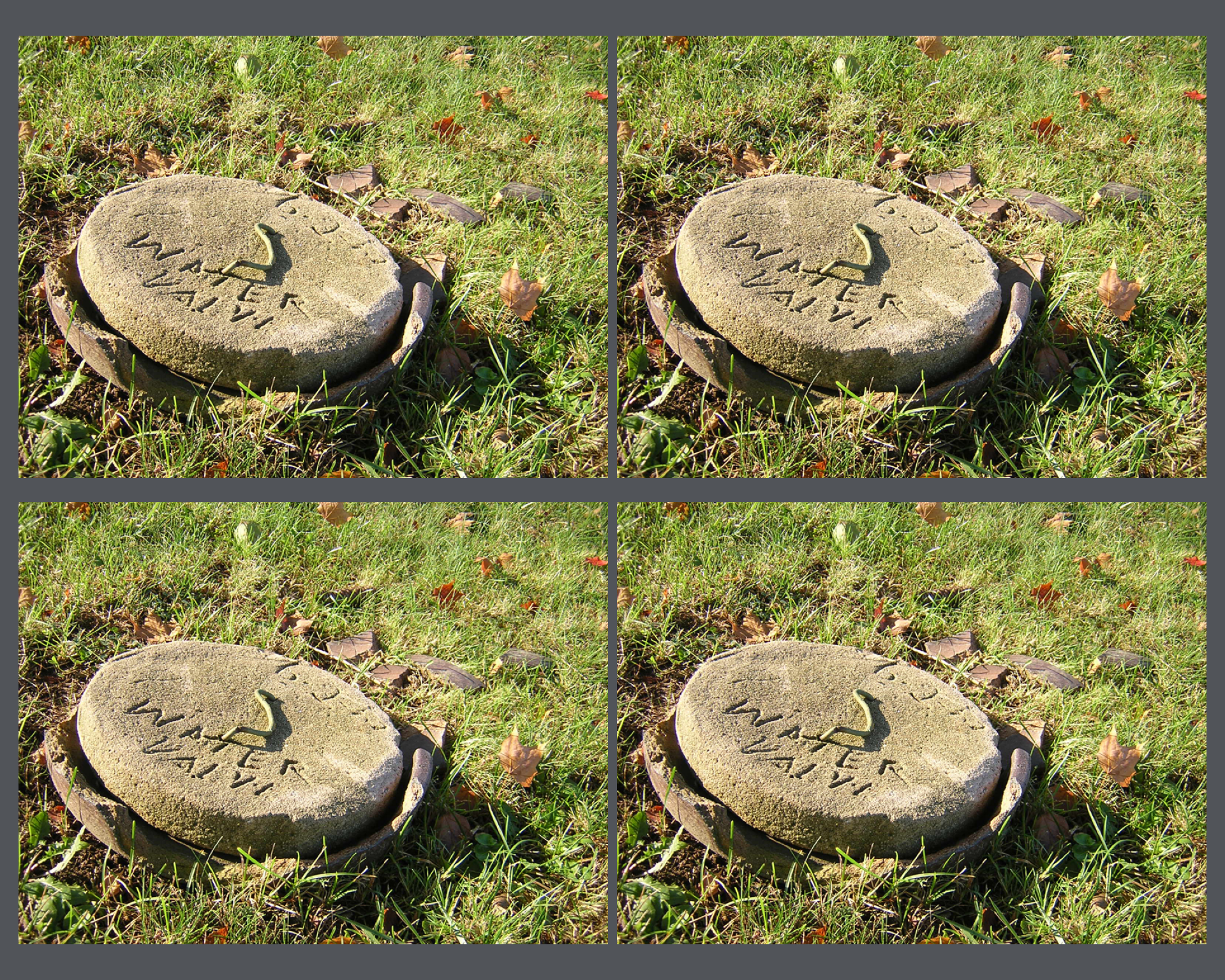
5.4 Seaborn
Seaborn is a Python library that is based on matplotlib and simplifies the generation of a variety of graph types and data visualizations. It also offers an easier means to interact with matplotlib. The goal of this section is to demonstrate the generation of a variety of different graph types using Seaborn. Here is a link to the Seaborn documentation.
To use Seaborn, you will need to install it into your Python environment; it is included in the pybook environment. You will then need to import it into your script.
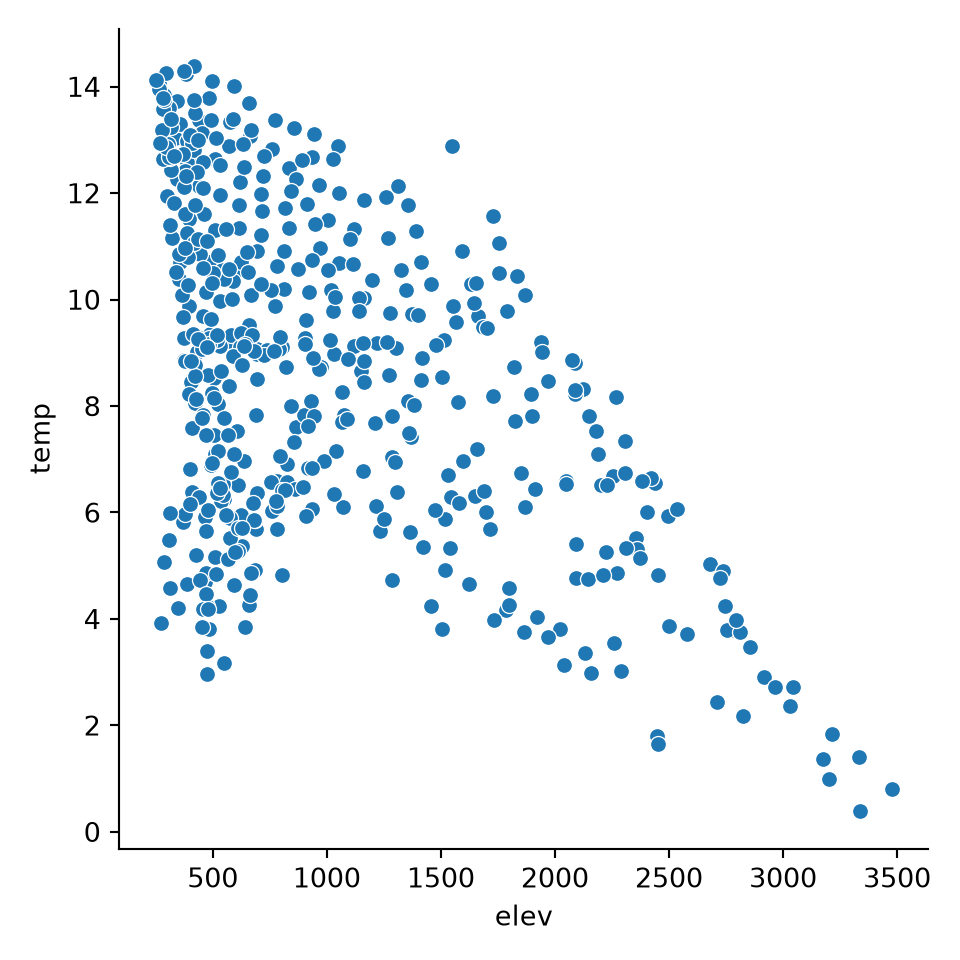
import seaborn as snsThe relplot() function can be used to generate a scatterplot. Values are mapped to variables relative to a data argument.
sns.relplot(x="elev", y="temp", data=hp)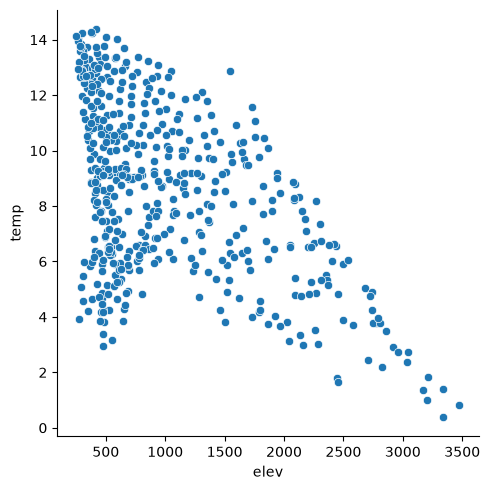
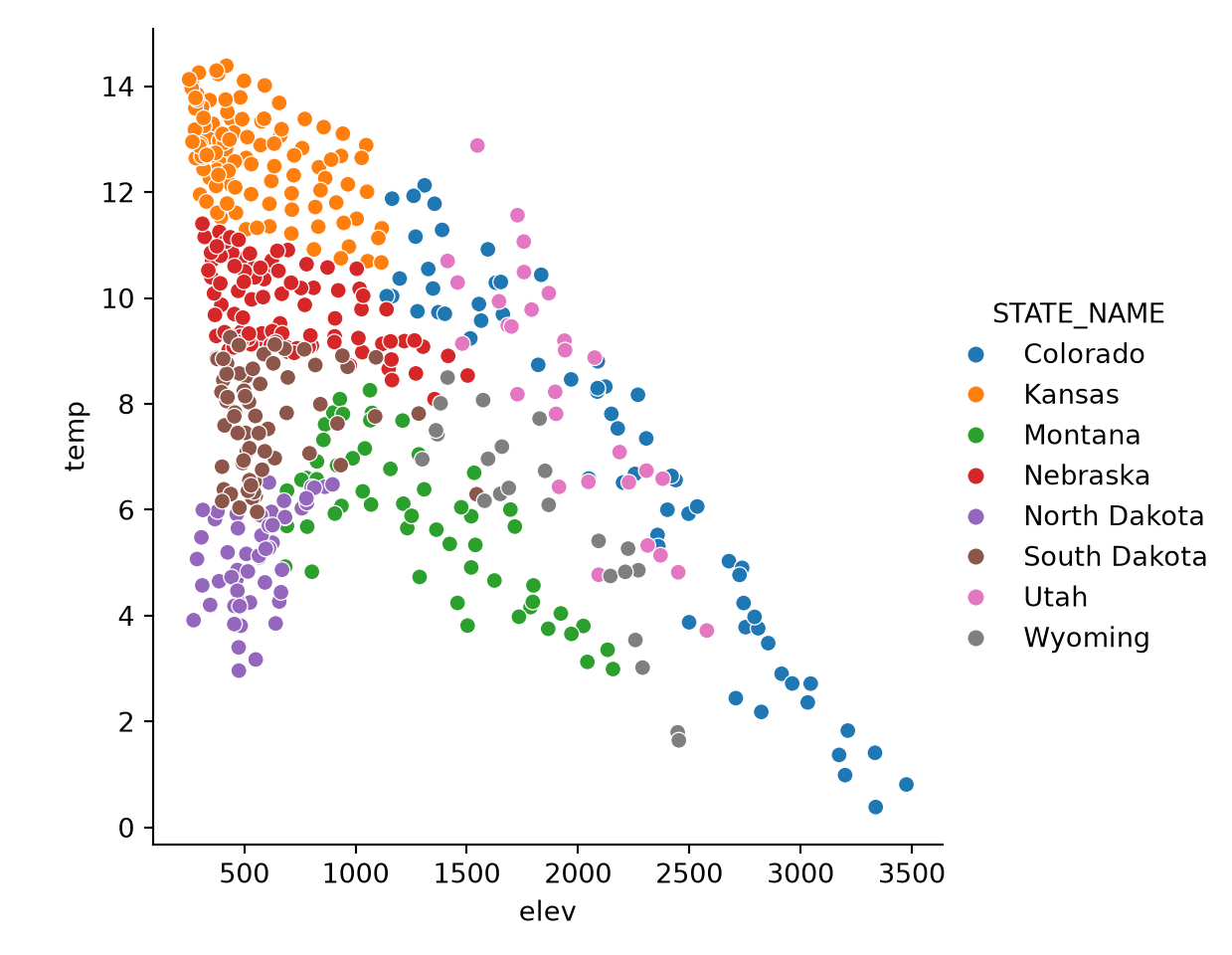
It is possible to map variables to other graphical parameters, other than just the position along the x-axis and y-axis. In this example, we map the state to the point color as a nominal or categorical variable using the hue parameter. Seaborn automatically chooses unordered colors, or a qualitative color scheme.
sns.relplot(x="elev", y="temp", hue="STATE_NAME", data=hp)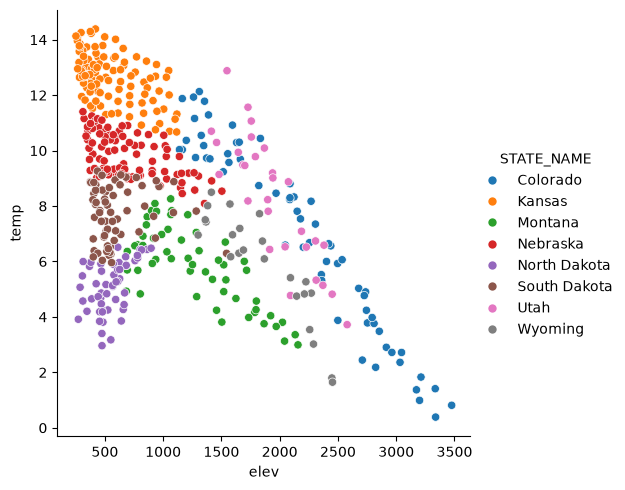
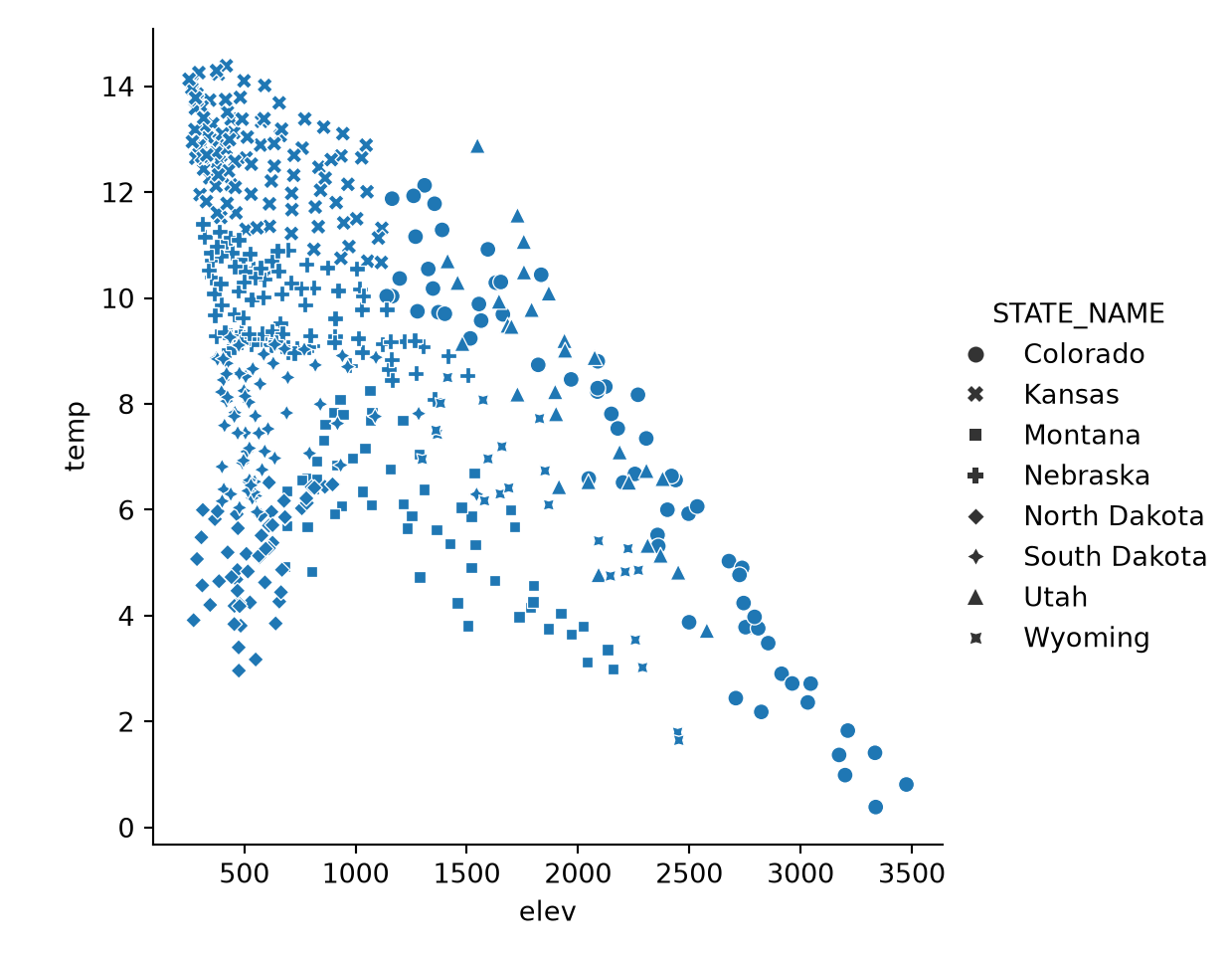
In contrast to the last example, we now map the state name to the point symbol or style as opposed to the color or hue. Mapping to the point symbol would not make sense for a continuous variable since there is no implied order for symbols. However, a continuous variable could be mapped to the symbol color or size.
sns.relplot(x="elev", y="temp", style="STATE_NAME", data=hp)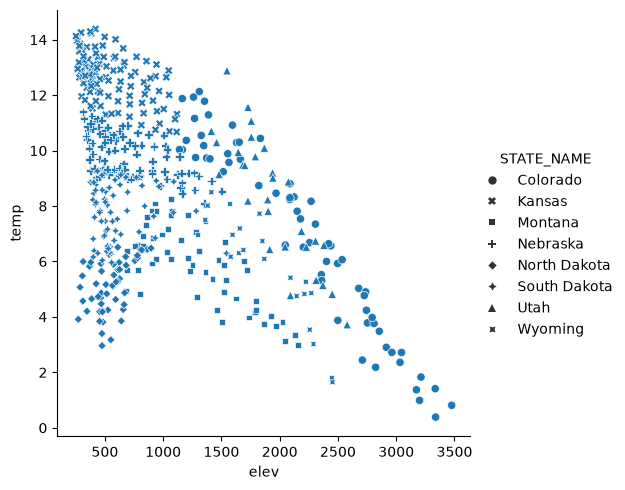
In order to refine or improve Seaborn plots, you can use methods made available by Seaborn and/or methods made available by matplotlib, since Seaborn is built on top of matplotlib. Here, we mainly focus on using matplotlib since we have already discussed these methods above.
One complexity is that some Seaborn graphs are produced as a FacetGrid object and cannot be placed into a subplot within a figure. relplot() is an example. Other plotting functions generate the graph at an axes or subplot level, such as scatterplot(). Here, we focus on manipulating graphs that can be treated as subplots. To accomplish this, a figure is generated and a Seaborn graph is then mapped to one of the axes. Then, matplotlib can be used to alter the Seaborn graph.
How do you place a Seaborn graph into a subplot within a figure? This is accomplished using the ax parameter and assigning the Seaborn graph to a named axis or by using bracket notation. In the example, there is only one subplot in the figure, so we can just use the subplot name.
fig, axs = plt.subplots(1, 1)
sns.scatterplot(ax=axs, x="elev", y="temp", hue="STATE_NAME", data=hp)
axs.set_title("Elevation vs. Temperature", fontsize=24, color="#000000")
handles, labels = axs.get_legend_handles_labels()
axs.legend(handles=handles, labels=labels, title="State", title_fontsize=21)
axs.set_title("Elevation vs. Temperature", fontsize=24, color="#000000")
axs.set_xlabel("Elevation (meters)", fontsize= 21, color="#000000")
axs.set_ylabel("Temperature (Celsius)", fontsize=21, color="#000000")
axs.set_yticks([0, 3, 6, 9, 12, 15])
axs.set_yticklabels([0, 3, 6, 9, 12, 15], fontsize=14, color="#000000")
axs.set_xlim(250, 3500)
axs.set_xticks([500, 1000, 1500, 2000, 2500, 3000, 3500])
axs.set_xticklabels(["500 m", "1,000 m", "1,500 m", "2,000 m", "2,500 m", "3,000 m", "3,500 m"], fontsize=14, color="#000000")
axs.grid(True)
fig.patch.set_facecolor('#adb7c7')
plt.show()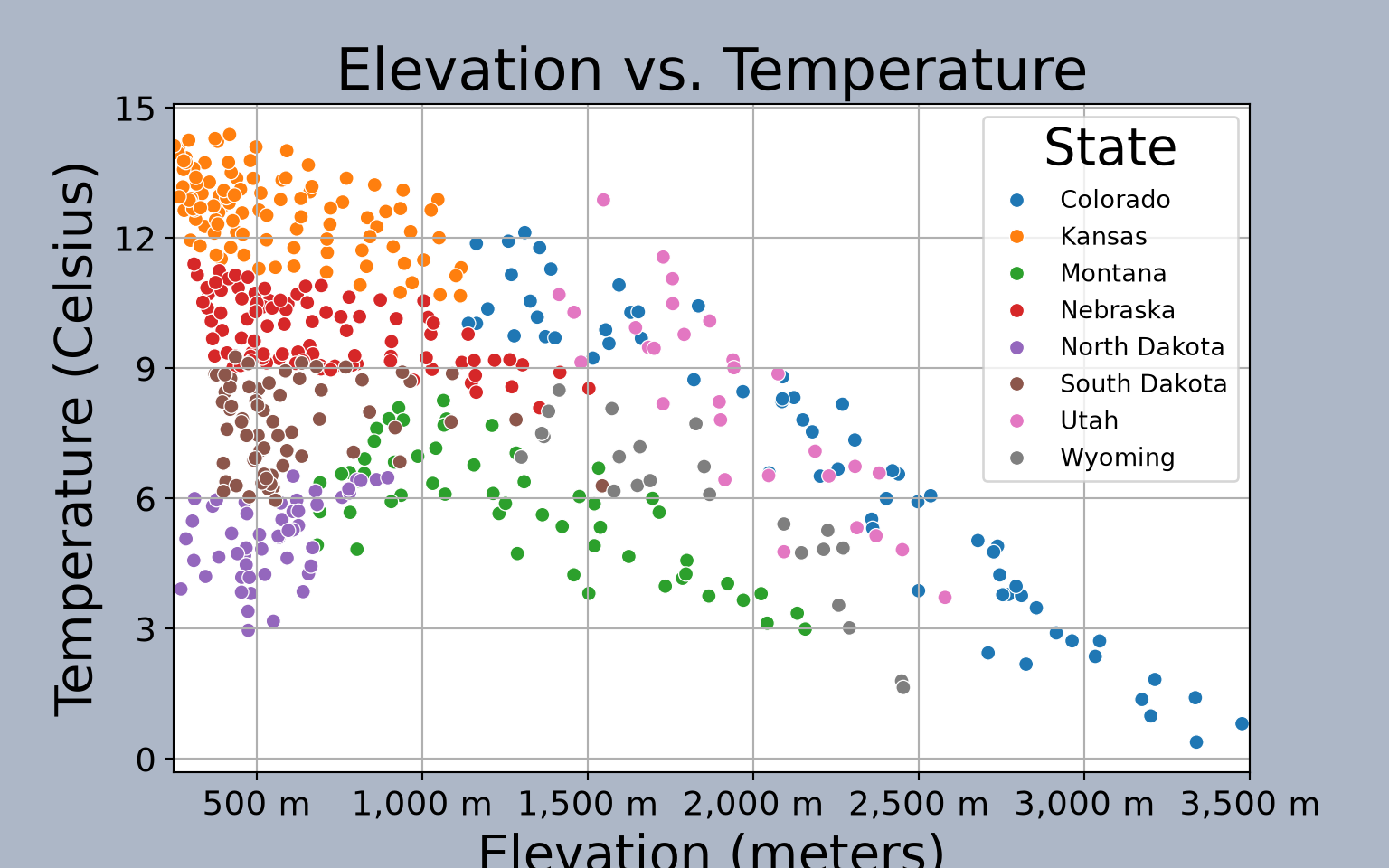
This is another example of graph editing using matplotlib methods applied to a Seaborn graph stored as a subplot in a figure. Again, the graph is assigned to a subplot within the figure. Here, we specifically produce a boxplot broken into groups defined by a categorical or nominal variable.
fig, axs = plt.subplots(1, 1)
sns.boxplot(ax=axs, x="SUB_REGION", y="med_income", data=cnty)
axs.set_title("County Median Income by Sub-Region", fontsize=32, color="#000000")
axs.set_xlabel("Sub-Region", fontsize= 21, color="#000000")
axs.set_ylabel("Median Income (US Dollars)", fontsize=21, color="#000000")
axs.set_ylim(10000, 115000)
axs.set_yticks([10000, 20000, 30000, 40000, 50000, 60000, 70000, 80000, 90000, 100000])
axs.set_yticklabels(["$10,000", "$20,000", "$30,000", "$40,000", "$50,000", "$60,000", "$70,000", "$80,000", "$90,000", "$100,000"], fontsize=14, color="#000000")
axs.set_xticklabels(["East-South Central", "Mountain", "West-South Central", "Pacific", "New England", "South Atlantic", "East-North Central",
                     "West-North Central", "Mid-Atlantic"], fontsize=14, color="#000000", rotation=45)
axs.grid(color='#2B2A27', alpha=0.6, linestyle='dashed', linewidth=0.7, axis='y')
fig.patch.set_facecolor('#adb7c7')
plt.show()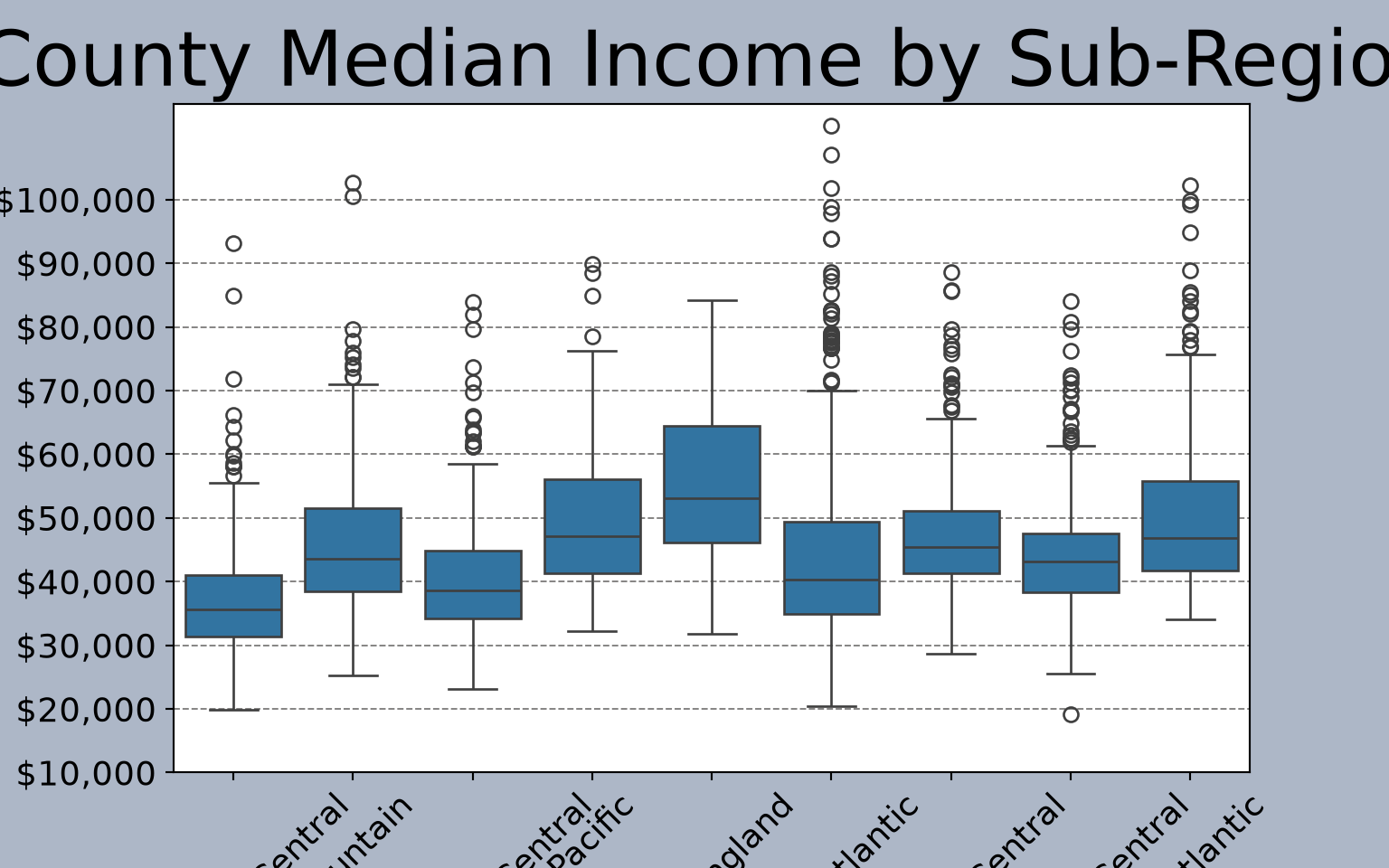
This is another example of comparing groups. However, we use a violin plot as opposed to a boxplot.
fig, axs = plt.subplots(1, 1)
sns.violinplot(ax=axs, x="SUB_REGION", y="med_income", data=cnty)
axs.set_title("County Median Income by Sub-Region", fontsize=32, color="#000000")
axs.set_xlabel("Sub-Region", fontsize= 21, color="#000000")
axs.set_ylabel("Median Income (US Dollars)", fontsize=21, color="#000000")
axs.set_ylim(10000, 115000)
axs.set_yticks([10000, 20000, 30000, 40000, 50000, 60000, 70000, 80000, 90000, 100000, 110000])
axs.set_yticklabels(["$10,000", "$20,000", "$30,000", "$40,000", "$50,000", "$60,000", "$70,000", "$80,000", "$90,000", "$100,000", "$110,000"], fontsize=14, color="#000000")
axs.set_xticklabels(["East-South Central", "Mountain", "West-South Central", "Pacific", "New England", "South Atlantic", "East-North Central",
                     "West-North Central", "Mid-Atlantic"], fontsize=14, color="#000000", rotation=45)
axs.grid(color='#2B2A27', alpha=0.6, linestyle='dashed', linewidth=0.7, axis='y')
fig.patch.set_facecolor('#adb7c7')
plt.show()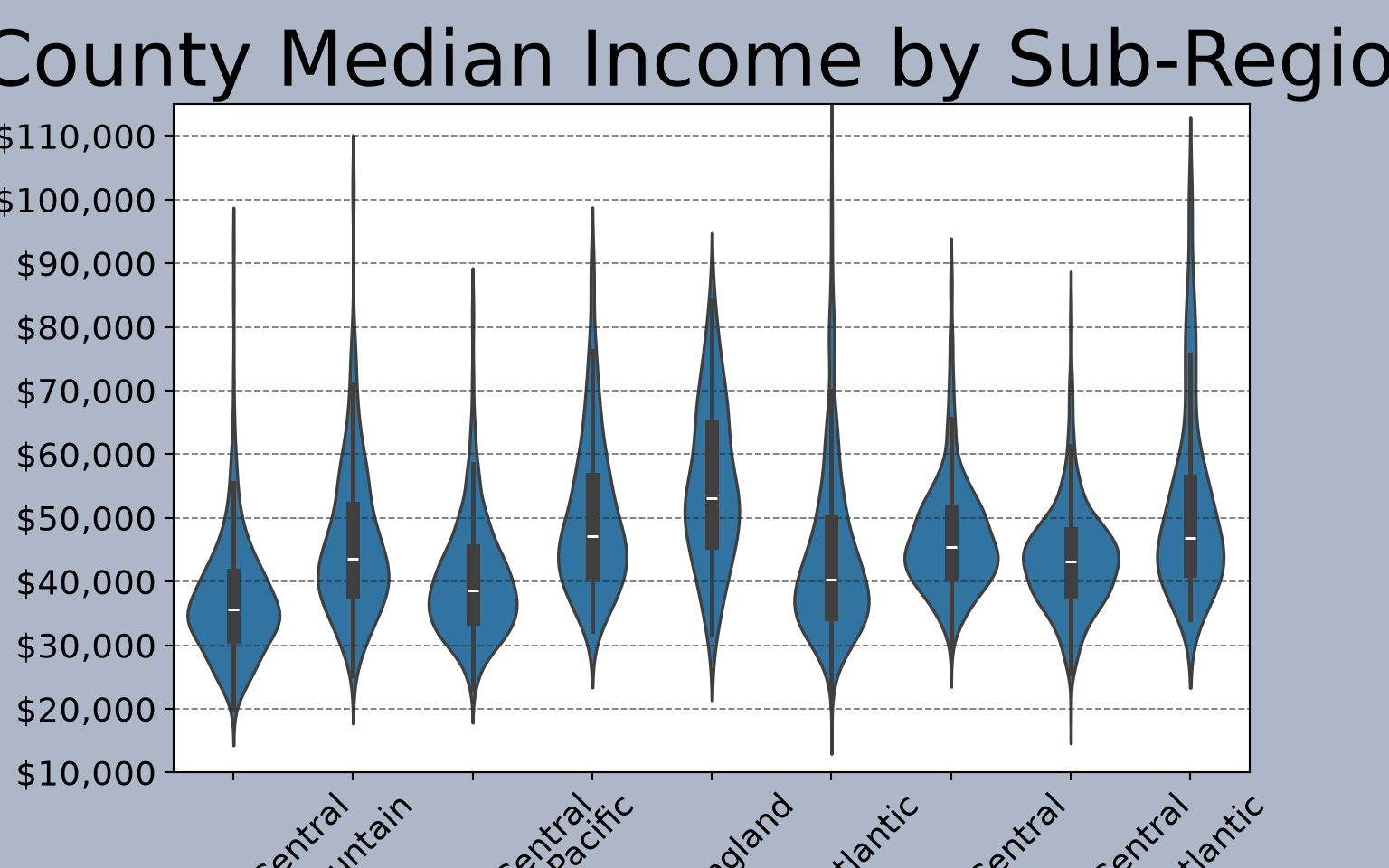
This example shows a histogram and a kernel density plot produced side-by-side as two separate subplots within a figure. Make sure you understand how each plot was assigned to the specific subplot.
fig1, axs = plt.subplots(1,2)
axs[0].hist(mov.My_Rating, bins=5)
sns.kdeplot(ax=axs[1], data=mov.My_Rating, fill=True, legend=False)
fig1.patch.set_facecolor('#adb7c7')
plt.show()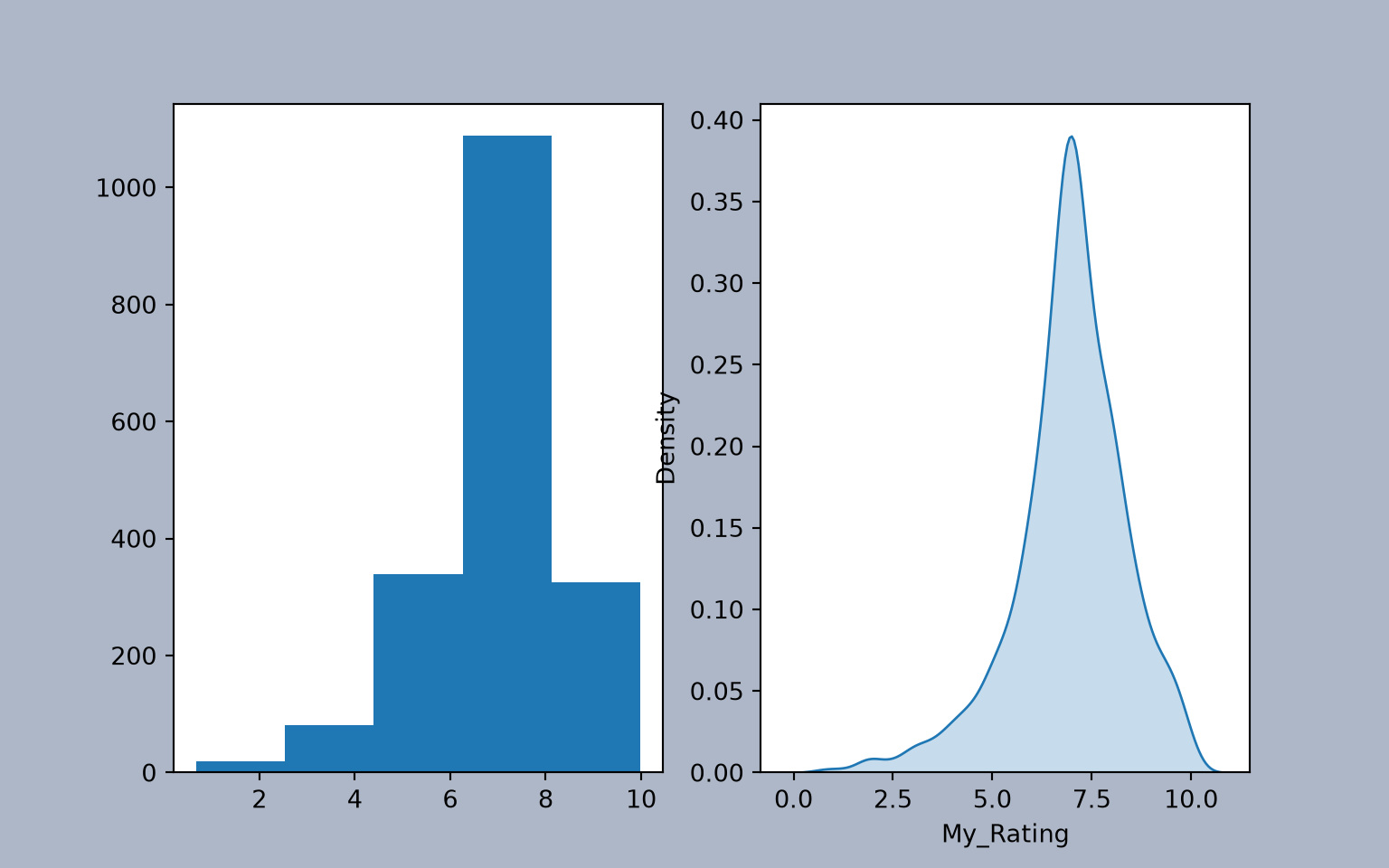
Seaborn has some built-in color palettes and styles that can be applied. Here, we use the “bright” palette and the “darkgrid” style.
sns.set_palette("bright")
sns.set_style("darkgrid")
fig, axs = plt.subplots(1, 1)
sns.boxplot(ax=axs, x="SUB_REGION", y="med_income", data=cnty)
axs.set_title("County Median Income by Sub-Region", fontsize=32, color="#000000")
axs.set_xlabel("Sub-Region", fontsize= 21, color="#000000")
axs.set_ylabel("Median Income (US Dollars)", fontsize=21, color="#000000")
axs.set_ylim(10000, 115000)
axs.set_yticks([10000, 20000, 30000, 40000, 50000, 60000, 70000, 80000, 90000, 100000])
axs.set_yticklabels(["$10,000", "$20,000", "$30,000", "$40,000", "$50,000", "$60,000", "$70,000", "$80,000", "$90,000", "$100,000"], fontsize=14, color="#000000")
axs.set_xticklabels(["East-South Central", "Mountain", "West-South Central", "Pacific", "New England", "South Atlantic", "East-North Central",
                     "West-North Central", "Mid-Atlantic"], fontsize=14, color="#000000", rotation=45)
axs.grid(color='#2B2A27', alpha=0.6, linestyle='dashed', linewidth=0.7, axis='y')
fig.patch.set_facecolor('#adb7c7')
plt.show()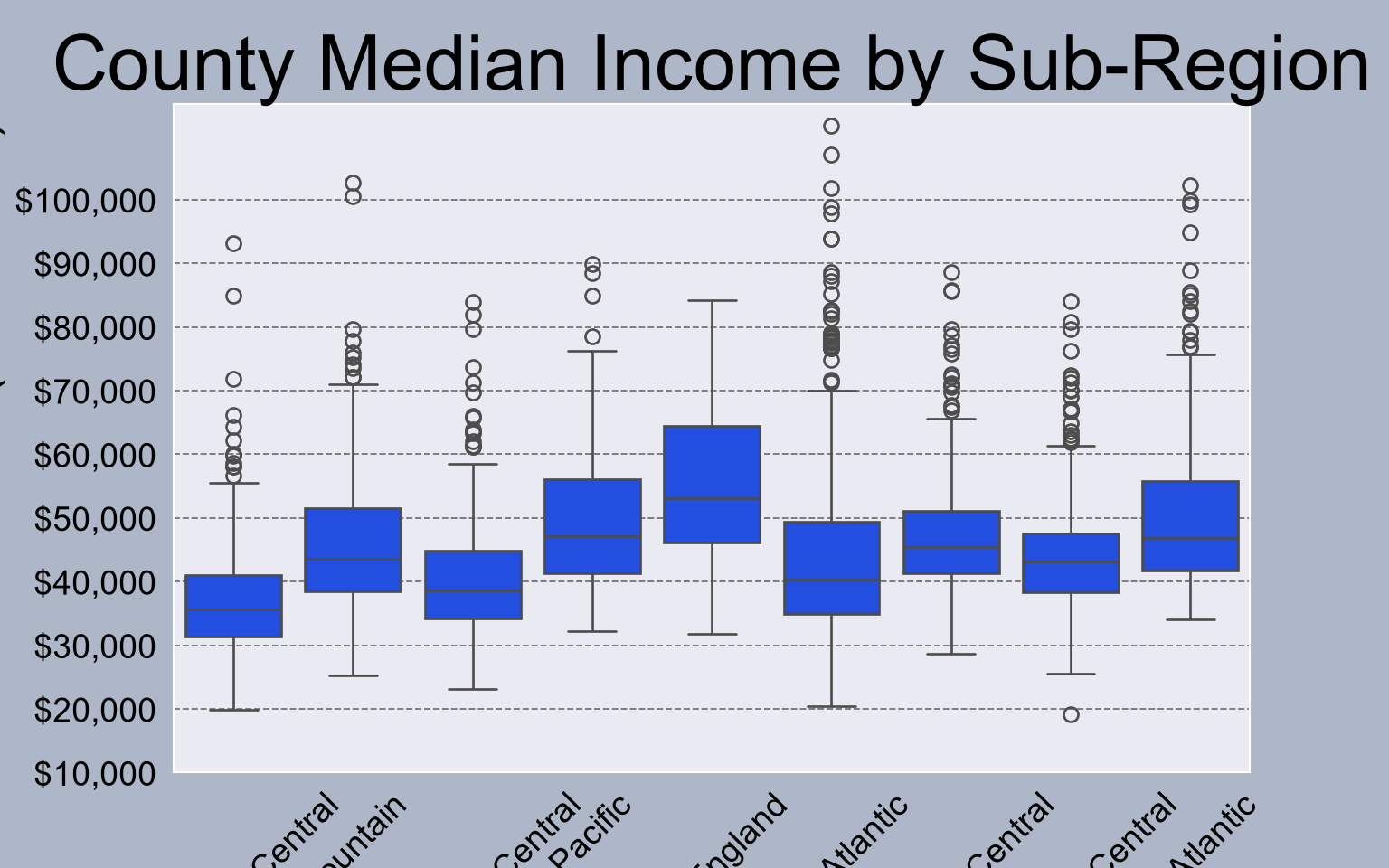
You can also define your own color palettes or access existing color palettes, as demonstrated below. In this example, we specify colors to use to fill the boxplots.
fig, axs = plt.subplots(1, 1)
sns.boxplot(ax=axs, x="SUB_REGION", y="med_income", data=cnty, hue="SUB_REGION", palette=sns.color_palette("Set1", n_colors=9, desat=.5), width=.6, dodge=False, legend=False)
axs.set_title("County Median Income by Sub-Region", fontsize=32, color="#000000")
axs.set_xlabel("Sub-Region", fontsize= 21, color="#000000")
axs.set_ylabel("Median Income (US Dollars)", fontsize=21, color="#000000")
axs.set_ylim(10000, 115000)
axs.set_yticks([10000, 20000, 30000, 40000, 50000, 60000, 70000, 80000, 90000, 100000])
axs.set_yticklabels(["$10,000", "$20,000", "$30,000", "$40,000", "$50,000", "$60,000", "$70,000", "$80,000", "$90,000", "$100,000"], fontsize=14, color="#000000")
axs.set_xticklabels(["East-South Central", "Mountain", "West-South Central", "Pacific", "New England", "South Atlantic", "East-North Central",
                     "West-North Central", "Mid-Atlantic"], fontsize=14, color="#000000", rotation=45)
axs.grid(color='#2B2A27', alpha=0.6, linestyle='dashed', linewidth=0.7, axis='y')
fig.patch.set_facecolor('#adb7c7')
plt.show()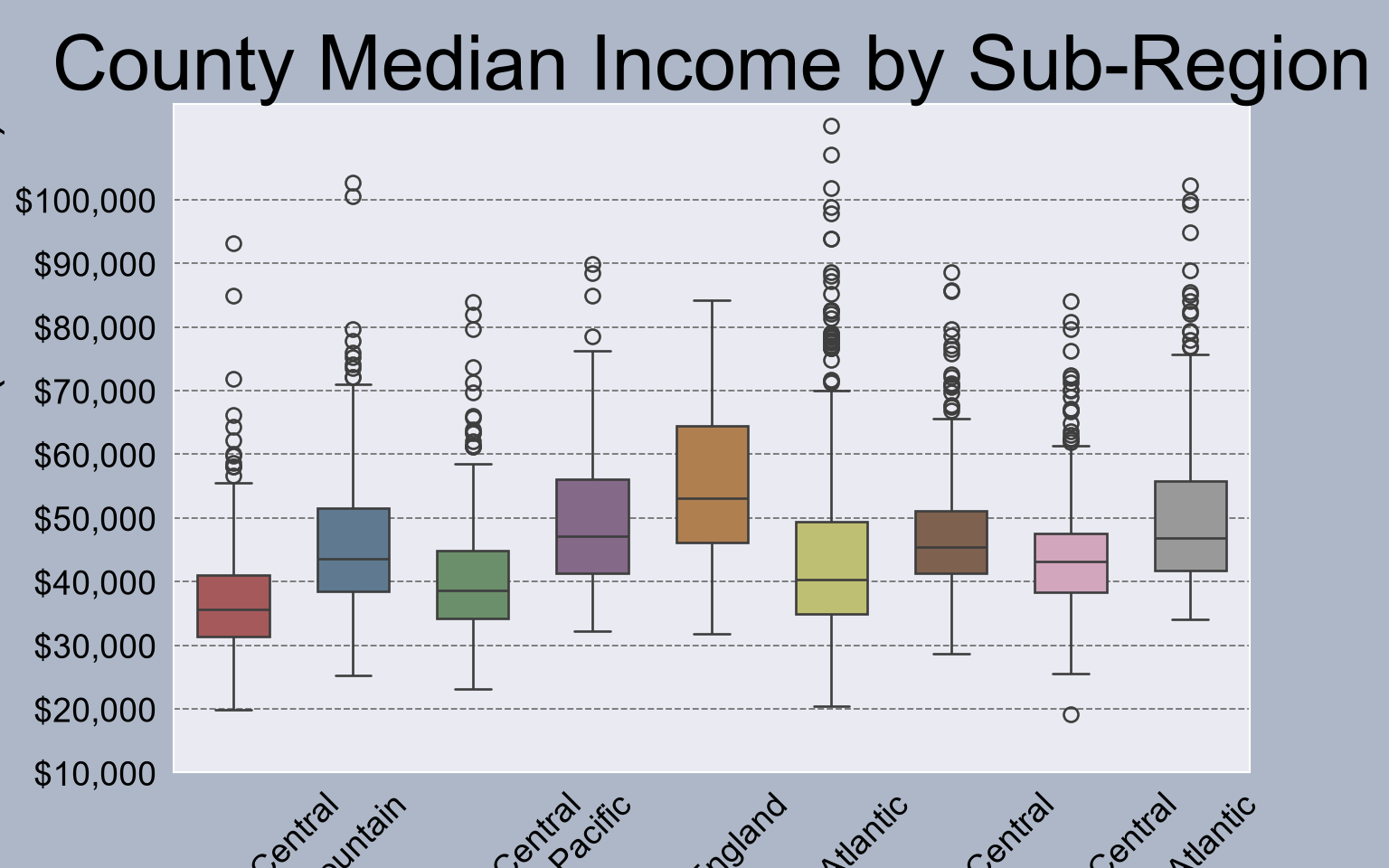
5.5 Pandas
Another option for generating graphs is to make use of the graphing functionality built into Pandas. Similar to Seaborn, this is based on matplotlib. We do not discuss graphing with Pandas in detail. However, we do want to introduce it.
In the example below, we create a simple histogram for the high plains percent forest data. We define the number of bins and a transparency. Note the use of methods in the syntax.
The documentation for the data visualization components of Pandas can be found here.
hp.per_for.plot.hist(alpha=0.5,bins=25)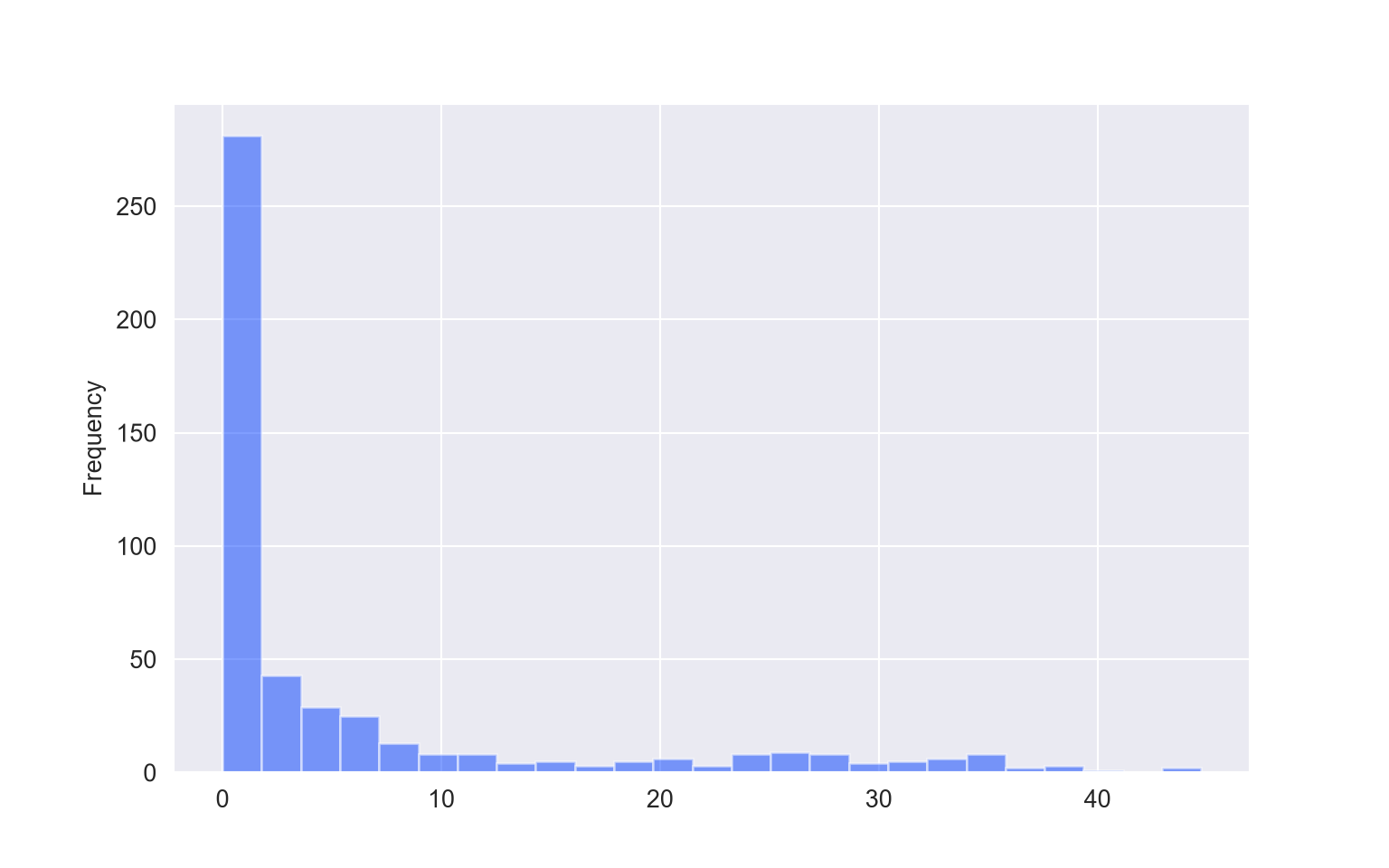
Pandas and matplotlib include some default styles. In the example below, we use the “ggplot” style based on the ggplot2 R package. Note that the default style can be restored using “default”.
plt.style.use("ggplot")
hp.per_for.plot.kde()
plt.style.use('default')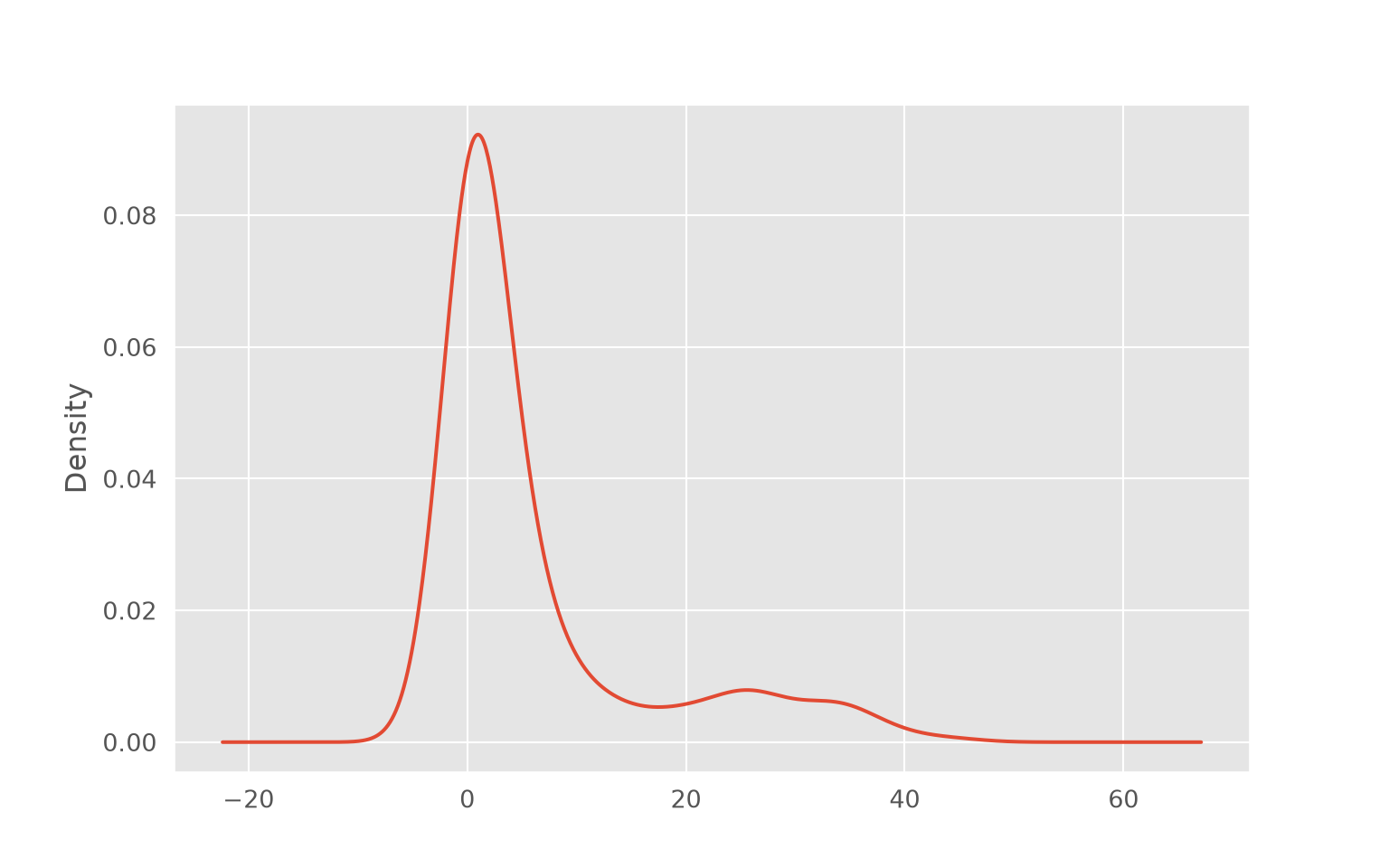
This is an example of a scatterplot. Instead of calling a method relative to a specific variable, the x and y values are defined relative to variables stored in a DataFrame.
hp.plot.scatter(x='elev',y='temp')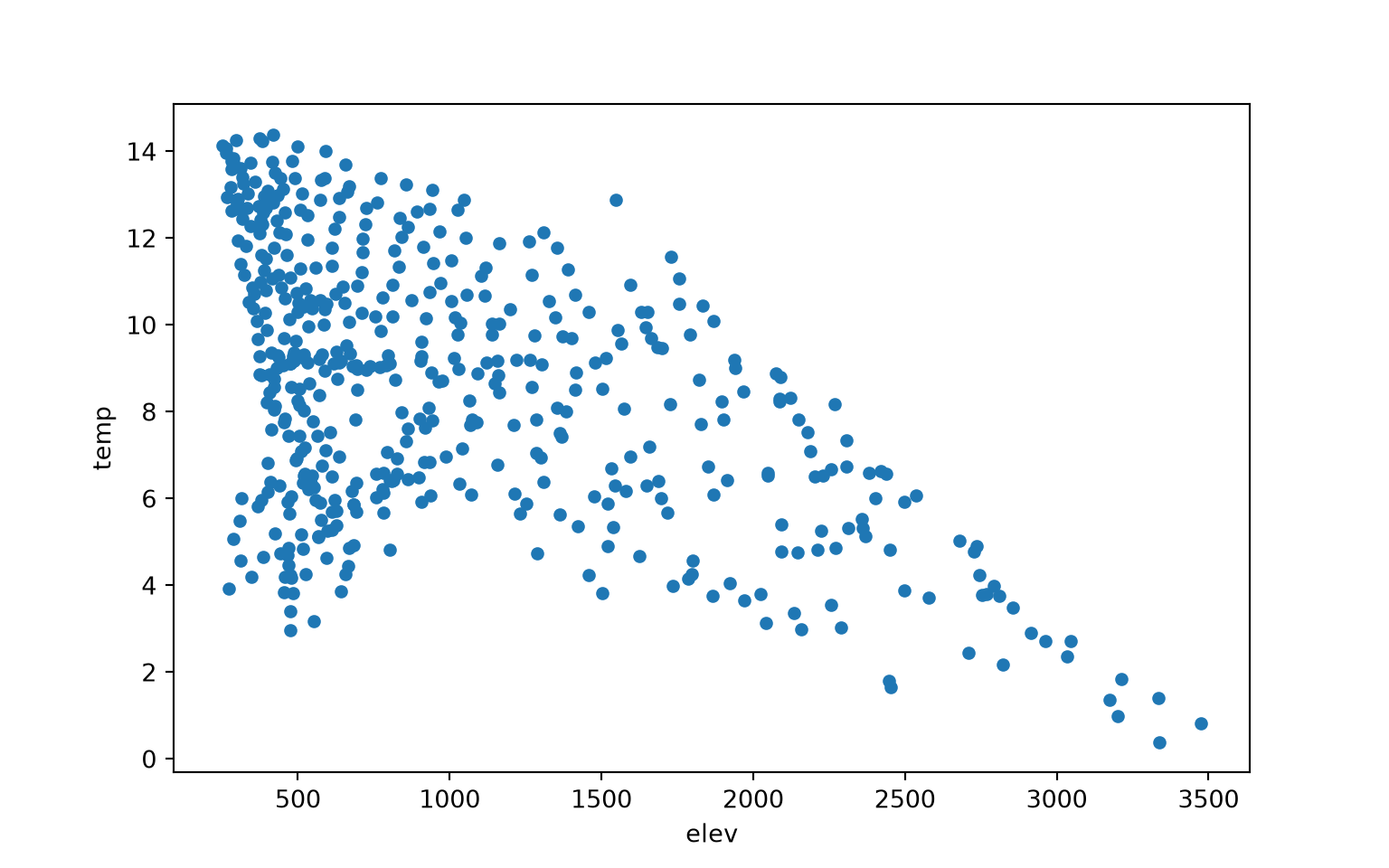
This is an example of a boxplot generated using Pandas. The by argument defines the grouping variable (the sub-region of the country in this case).
cnty.boxplot(column='med_income', by='SUB_REGION')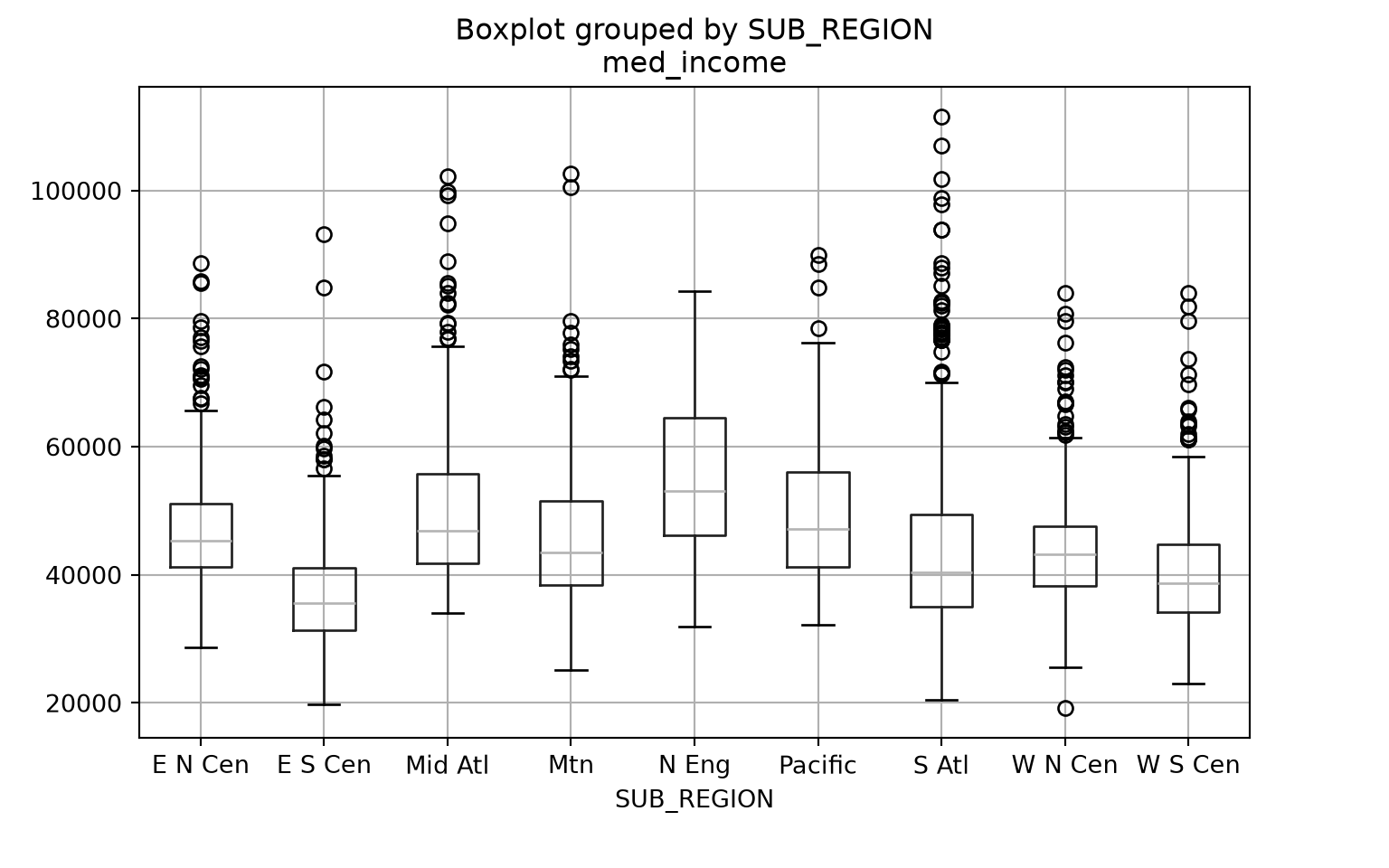
Similar to Seaborn, Pandas plots can be customized and edited using matplotlib. In the example below, we generate a figure with one subplot. We then save the Pandas boxplot to the subplot to perform and apply the edits. You can also customize using Pandas, but we stick with matplotlib here for consistency.
plt.rcParams['figure.figsize'] = [14, 10]
fig, axs = plt.subplots(1, 1)
axs = cnty.boxplot(ax=axs, by="SUB_REGION", column="med_income")
axs.set_title("County Median Income by Sub-Region", fontsize=32, color="#000000")
axs.set_xlabel("Sub-Region", fontsize= 21, color="#000000")
axs.set_ylabel("Median Income (US Dollars)", fontsize=21, color="#000000")
axs.set_ylim(10000, 115000)
axs.set_yticks([10000, 20000, 30000, 40000, 50000, 60000, 70000, 80000, 90000, 100000])
axs.set_yticklabels(["$10,000", "$20,000", "$30,000", "$40,000", "$50,000", "$60,000", "$70,000", "$80,000", "$90,000", "$100,000"], fontsize=14, color="#000000")
axs.set_xticklabels(["East-South Central", "Mountain", "West-South Central", "Pacific", "New England", "South Atlantic", "East-North Central",
                     "West-North Central", "Mid-Atlantic"], fontsize=14, color="#000000", rotation=45)
axs.grid(color='#2B2A27', alpha=0.6, linestyle='dashed', linewidth=0.7, axis='y')
plt.suptitle("")
plt.show()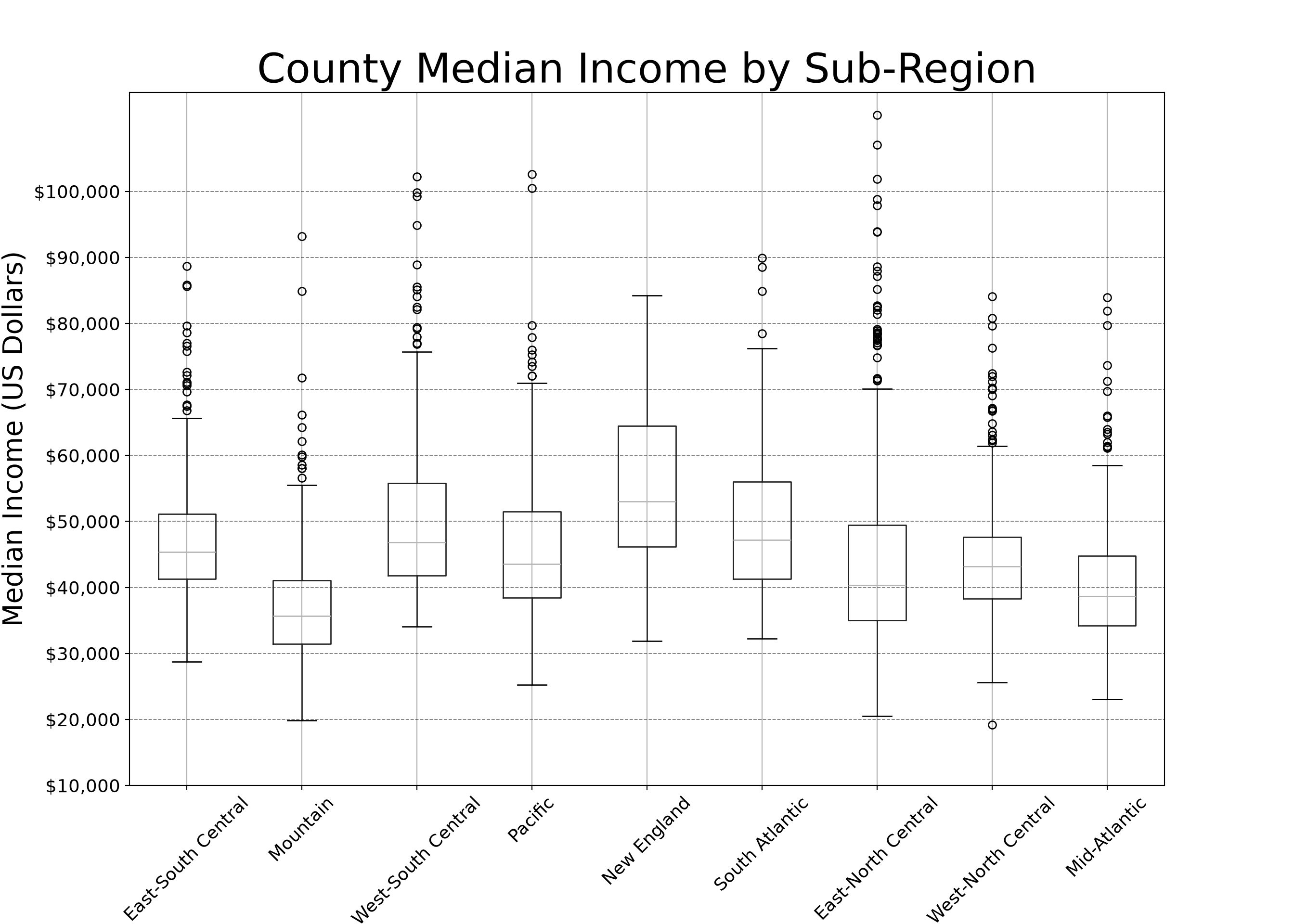
5.6 Export Graphics
Once a graph is produced using matplotlib, Seaborn, and/or Pandas, it can be exported using the savefig() function from matplotlib. In the example below, we demonstrate exporting to a vector format (SVG) and a raster format (PNG). The files are written to the output folder. You may find that you need to do additional editing to further refine a graph. This can best be accomplished using vector graphics editing software, such as Adobe Illustrator or the free and open-source Inkscape software. If you do plan on doing such editing, it is generally best to save to a vector graphic file as opposed to a raster format. PDF files can also be imported into vector graphics software.
We have generally found that it is best to save the figure before using plt.show() to display it on the screen, as displaying the figure first can impact the saved output.
There are a variety of export options. We recommend reading through the documentation for savefig().
fig, ax = plt.subplots(figsize=(18, 8))
ax.plot(maple.wav, maple.reflec, color="#f55d42", linewidth=2, marker="")
ax.set_title("Spectral Reflectance Curve for Maple Leaf", fontsize=24)
ax.set_xlabel("Wavelength (nm)", fontsize= 21)
ax.set_ylabel("% Reflectance", fontsize=21)
ax.set_yticks([0, .1, .2, .3, .4, .5, .6, .7])
ax.set_yticklabels(["0%", "10%", "20%", "30%", "40%", "50%", "60%", "70%"], fontsize=14)
ax.set_xlim(0.4, 2.5)
ax.set_xticks([0.4, 0.5, 0.6, 0.7, 1.3, 2.5])
ax.set_xticklabels(["400 nm", "500 nm", "600 nm", "700 nm", "1,300 nm", "2,500 nm"], fontsize=14, rotation=45)
ax.axvspan(.4, .5, color='blue', alpha=0.3)
ax.axvspan(.5, .6, color='green', alpha=0.3)
ax.axvspan(.6, .7, color='red', alpha=0.3)
ax.axvspan(.7, 1.3, color='#91482D', alpha=0.3)
ax.axvspan(1.3, 3, color='#BA943C', alpha=0.3)
ax.grid(color='#79818f', alpha=0.6, linestyle='solid', linewidth=0.7, axis='x')
ax.grid(color='#2B2A27', alpha=0.6, linestyle='dashed', linewidth=0.7, axis='y')
fig.patch.set_facecolor('#bcd1bc')

plt.savefig("output/maple_src.svg", dpi=300, format="svg")
plt.savefig("output/maple_src.png", dpi=300, format="png")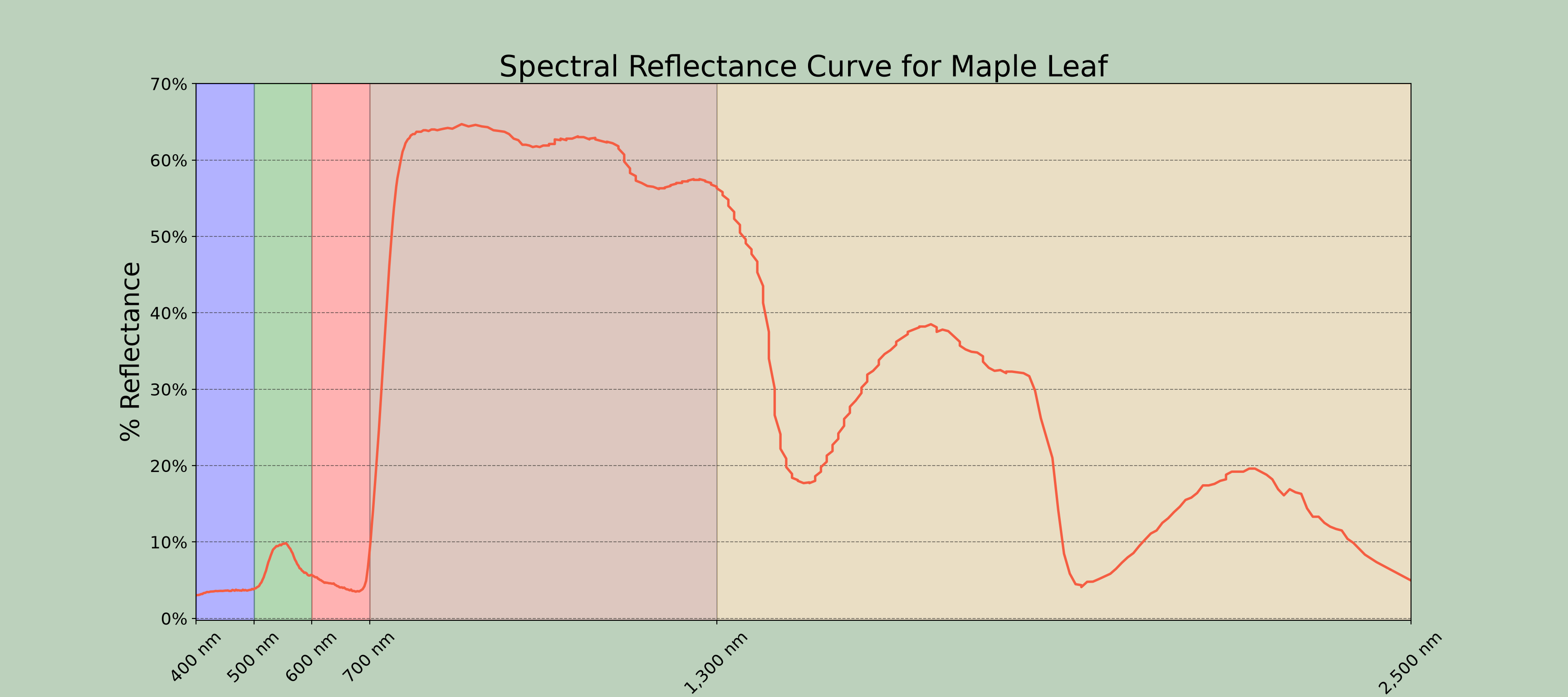
5.7 Concluding Remarks
Data visualization and graphing using Python is a broad topic. Our goal here was to provide an introduction and demonstrate how to produce a variety of different graph types and edit them to obtain the desired output. If you would like to experiment further with data visualization in Python, have a look at the matplotlib, Seaborn, and Pandas documentation. There are a wide variety of examples and tutorials available online.
In Chapter 6, we explore statistical inference, including confidence intervals and hypothesis tests.
5.8 Questions
- Explain the difference between a figure and an axes in matplotlib.
- Explain the difference between a univariate and a bivariate graph. Give an example of each.
- Explain when you might use a histogram, a kernel density plot, a boxplot, or a violin plot to explore the distribution of a variable.
- How can multiple graphs be included in a single figure using matplotlib? What does the
GridSpecclass add to this capability? - How does a hex code define a color?
- How is Seaborn related to matplotlib? What is one advantage of using Seaborn?
- What is faceting, and how is it implemented in Seaborn?
- Explain the difference between saving a graph as a vector graphic (e.g., SVG or PDF) and a raster graphic (e.g., PNG). Which is generally preferred if the graph will be edited further?
5.9 Exercises
Exercise 5.1: US County Graphing
30 Points scaled to 20 Points
Introduction
This assignment asks you to generate a series of graphs relating to county-level data for the contiguous United States. You will make use of the us_counties_data.csv dataset. Make sure to read the associated description of the data (us_counties_data_ DESCRIPTION.pdf) prior to undertaking the assignment. The description file explains the fields available and also provides the data source. This exercise will also require you to subset and query the data as not all graphs will use all of the data points.
Objectives
Query, filter, and summarize data
Use a variety of graphical parameters to visualize and compare variables
Generate effective and informative graphics
Deliverables
- Jupyter Notebook (Python) or R Markdown file (R) with all code and graphs embedded. Files can be rendered to HTML webpages if your instructor requires this. Graph prompts should be stated within Markdown cells.
Graphs
This assignment can be conducted using either Python (matplotlib, seaborn, and pandas) or R (ggplot2), whichever you prefer or whichever your instructor requires. Generate code to create the following graphs.
Graph 1: Generate a box plot showing the distribution of county-level median income (“med_income”) for all counties in the dataset. (2 Points)
Graph 2: Generate a grouped box plot showing the distribution of county-level median income (“med_income”) grouped by subregion of the country (“SUB_REGION”) for all counties in the dataset. (2 Points)
Graph 3: Generate a histogram showing the distribution of county-level median income (“med_income”) for all counties in the dataset. (2 Points)
Graph 4: Generate a kernel density plot showing the distribution of county-level median income (“med_income”) for all counties in the dataset. (2 Points)
Graph 5: Generate a histogram showing the distribution of county-level percent forest cover (“per_for”) for only counties occurring in the West North Central (“W N Cen”) subregion (“SUB_REGION”). (2 Points)
Graph 6: Generate grouped kernel density plots showing the distribution of county-level percent cropland (“per_crop”) for only counties occurring in the West North Central (“W N Cen”), Pacific (“Pacific”), and Mountain (“Mtn”) subregions (“SUB_REGION”). Each subregion should have a separate density plot in the graph space. (2 Points)
Graph 7: Generate a dot plot showing the mean percent crop land (“per_crop”) for only counties occurring in the West North Central (“W N Cen”), Pacific (“Pacific”), and Mountain (“Mtn”) subregions (“SUB_REGION”). Three data points should be provided: one for each subregion. (2 Points)
Graph 8: Add error bars to Graph 7 showing 1 standard deviation above and below the mean for each subregion separately. (2 Points)
Graph 9: Create a scatter plot showing the relationship between mean elevation (“dem”) and mean county-level average annual temperature (“tempmn”) for all counties in the country. (2 Points)
Graph 10: Replicate Graph 9 but now differentiate the subregions (“SUB_REGION”) by using different colors or point symbols. In other words, all counties in the same subregion should have the same color or symbol applied. (2 Points)
Graph 11: Create a scatter plot showing the relationship between mean elevation (“dem”) and mean county-level average annual temperature (“tempmn”) for only counties occurring in the West North Central (“W N Cen”), Pacific (“Pacific”), and Mountain (“Mtn”) subregions. Differentiate the subregions (“SUB_REGION”) by using different colors or point symbols. In other words, all counties in the same subregion should have the same color or symbol applied. (2 Points)
Graph 12: Generate a grouped box plot showing the distribution of mean county elevation (“dem”) grouped by state (“STATE_NAME” or “STATE_ABBR”) for only counties occurring in Florida, Colorado, Montana, and Nebraska. (2 Points)
Graph 13: Generate a scatterplot for only counties occurring in Vermont to compare the population density (“POP_SQMI”) and mean county-level average annual temperature (“tempmn”). Label each point in the plot with the county name. (2 Points)
Graph 14: Generate a scatterplot showing the relationship between the density of railroads (“rail_den”) and roads (“road_den”) for just counties occurring in the New England (“N Eng”) subregion (“SUB_REGION”). Also, use the size of the point symbol to display percent developed land (“per_dev”). (2 Points)
Graph 15: Generate a scatterplot showing the relationship between the density of railroads (“rail_den”) and roads (“road_den”) for just counties occurring in the New England (“N Eng”) subregion (“SUB_REGION”). Also, use the point color or point symbol to differentiate counties by state. (2 Points)
Exercise 5.2: Video Game Graphs
30 Points scaled to 20 Points
Introduction
This assignment asks you to generate a series of graphs relating to weapon stats within the open world games Skyrim and Elden Ring. The Skyrim dataset (Skyrim_Weapons.csv) and the Elden Ring dataset (elden_ring_weapon.csv) were both obtained from Kaggle. Please visit the links below to learn more about the datasets.
Skyrim Data: https://www.kaggle.com/datasets/elmartini/skyrim-weapons-dataset
Elden Ring Data: https://www.kaggle.com/datasets/l3llff/-elden-ring-weapons
The datasets have been provided in the datasets folder of the book download (the links above may no longer be active).
Objectives
Query, filter, and summarize data
Recode nominal data
Use a variety of graphical parameters to visualize and compare variables
Generate effective and informative graphs
Deliverables
- Jupyter Notebook (Python) or R Markdown file (R) with all code and graphs embedded. Files can be rendered to HTML webpages if your instructor requires this. Graph prompts should be stated within Markdown cells.
Graphs
This assignment can be conducted using either Python (matplotlib, seaborn, and pandas) or R (ggplot2), whichever you prefer or whichever your instructor requires. Generate code to generate the following graphs.
Skyrim Graphs
You will first need to subset records from the dataset. Extract out only weapons of type (“Type”) Bow, Mace, Sword, War Axe, or Warhammer.
Graph 1: Create a scatterplot for all weapons to compare weight (“Weight”) and damage (“Damage”). (2 Points)
Graph 2: Create a scatterplot for all weapons to compare cost (“Gold”) and damage (“Damage”). (2 Points)
Graph 3: Create a scatterplot for all weapons to compare weight (“Weight”) and damage (“Damage”). Differentiate the type of weapon (“Type”) using the point color. (2 Points).
Graph 4: Create a grouped box plot to show the distribution of damage (“Damage”) grouped by weapon type (“Type”). (2 Points)
Graph 5: Create a grouped box plot to show the distribution of weapon weight (“Weight”) grouped by weapon type (“Type”). (2 Points)
Graph 6: Create a grouped violin plot to show the distribution of damage (“Damage”) grouped by weapon type (“Type”). (2 Points)
Graph 7: Create a grouped violin plot plus grouped box plot to show the distribution of damage (“Damage”) grouped by weapon type (“Type”). (2 Points)
Graph 8: Create a grouped violin plot plus grouped box plot to show the distribution of damage (“Damage”) grouped by weapon Category (“Category”). (2 Points)
Graph 9: Create a scatterplot with weapon weight (“Weight”) mapped to the x-axis position, damage (“Damage”) mapped to the y-axis position, type (“Type”) mapped to the point color, and weapon category (“Category”) mapped to the point symbol. (2 Points)
Elden Ring Graphs
You will first need to subset records from the dataset. Extract out only weapons of type (“Type”) Axe, Colossal Sword, Curved Greatsword, Curved Sword, “Greataxe”, Greatsword, Hammer, Heavy Thrusting Sword, Katana, Straight Sword, or Warhammer. Next, recode all swords to “Sword” (including Katanas), all hammers to “Hammer”, and all axes to “Axe”.
Graph 10: Create a grouped box plot to show the distribution of physical damage (“Phy”) grouped by recoded weapon types (“Type”). (2 Points)
Graph 11: Create a grouped box plot to show the distribution of weapon weight (“Wgt”) grouped by recoded weapon types (“Type”). (2 Points)
Graph 12: Create a scatterplot with weight (“Wgt”) mapped to the x-axis position, physical damage (“Phy”) mapped to the y-axis position, and recoded weapon type (“Type”) mapped to the point color. (2 Points)
Graph 13: Create a histogram for just the swords (“Type”) showing the distribution of weapon weight (“Wgt”). (2 Points)
Graph 14: Create a kernel density plot for just the swords (“Type”) showing the distribution of weapon weight (“Wgt”). (2 Points)
Graph 15: Create a kernel density plot for all weapons grouped by type (“Type”) showing the distribution of weapon weight (“Wgt”). In other words, each weapon type should have its own density curve. (2 Points)
Exercise 5.3: Time Series Graphs
80 Points scaled to 20 Points
Introduction
In this assignment, you will work with time series data of monthly average temperatures in Rio de Janeiro, Brazil and COVID-19 cases aggregated to the state-level.
The temperature data (station_rio.csv) were obtained from Kaggle: https://www.kaggle.com/datasets/volpatto/temperature-timeseries-for-some-brazilian-cities.
The COVID-19 data were also obtained from Kaggle: https://www.kaggle.com/datasets/sudalairajkumar/covid19-in-usa.
The datasets have been provided in the datasets folder of the book download (the links above may no longer be active).
Objectives
Clean data to prepare for graphing
Generate and interpret time series graphs
Deliverables
- Jupyter Notebook (Python) or R Markdown file (R) with all code and graphs embedded. Files can be rendered to HTML webpages if your instructor requires this. Graph prompts should be stated within Markdown cells.
Tasks and Graphs
This assignment can be conducted using either Python (matplotlib, seaborn, and pandas) or R (ggplot2), whichever you prefer or whichever your instructor requires.
Rio de Janeiro Temperature Graphs
The temperature data represent monthly average temperature from January 1973 to October 2019. Some monthly data points are missing. Also, the table is in the wrong shape to perform the analyses.
Task 1: Reshape the data so that the year, month, and temperature measurements are presented in three columns. In other words, reshape the data so that each month is not represented in a separate column. (5 Points)
Task 2: Remove any rows that have missing data. The missing code in the datasets is 999.9. (5 Points)
Task 3. Create a new column to recode the months into seasons. DEC, JAN, and FEB should be recoded to “SUMMER”; MAR, APR, and MAY, should be coded to “FALL”; JUN, JUL, and AUG should be coded to “WINTER”; and SEP, OCT, and NOV should be coded to “SPRING”. (5 Points).
Task 4: Aggregate the data to obtain yearly median temperatures from the monthly data. (5 Points)
Task 5: Aggregate the data to obtain seasonal medians for each year from the monthly data. (5 Points)
Task 6: Generate a grouped box plot to summarize the monthly data. Make sure the months are in calendar as opposed to alphabetical order. (5 Points).
Task 7: Generate a grouped box plot to summarize the seasonal data. Make sure the seasons are in calendar order as opposed to alphabetical order. (5 Points)
Task 8: Create a line graph or time series of yearly median temperature. (5 Points)
Task 9: Create a line graph or time series of seasonal median temperatures where each line represents a different time series for each season. (5 Points)
Task 10: Summarize your results in a paragraph. Discuss both the seasonal central tendency and seasonal variability in the data. Do these data suggest a warming trend in the city over the decades included? (5 Points)
COVID-19 by State
The COVID-19 data consist of cumulative counts of cases (“cases”) on a daily basis from January 21, 2020 to December 5, 2020. Each row consists of a date (“date”), the county name (“county”), the state in which the county occurs (“state”), the county FIPS code (“fips”), the number of cumulative cases (“cases”), and the number of cumulative deaths (“deaths”).
Task 11: Aggregate the county-level data to obtain the total cumulative number of cases in the state per day. (5 Points)
Task 12: Aggregate the county-level data to obtain the total cumulative cases for the entire United states per day. (5 Points)
Task 13: From the data aggregated by state per day, extract out only the records for New York, North Dakota, and Washington. (5 Points)
Task 14: Create a time series graph of cumulative cases for the entire United States over the provided time period. (5 Points)
Task 15: Create a time series graph of cumulative cases for the three selected states with three separate lines to differentiate the states. (5 Points)
Task 16: Write a paragraph to compare the three states that were graphed in regards to when COVID-19 became prominent and how fast the number of cases grew. (5 Points)
Exercise 5.4: Graph Editing
40 Points scaled to 20 Points
Introduction
The last three assignments focused on making simple graphs. In this exercise, you will now clean up some of the graphs created in the prior assignments plus produce a graph using data of your own choosing. The goal is to generate polished graphs that are ready to be shared with others.
Objectives
Use a variety of graphical parameters to visualize and compare variables
Generate effective and informative graphics
Edit graphs for sharing with others or for publication
Deliverables
- Jupyter Notebook (Python) or R Markdown file (R) with all code and graphs embedded. Files can be rendered to HTML webpages if your instructor requires this. Graph prompts should be stated within Markdown cells.
Tasks
This assignment can be conducted using either Python (matplotlib, seaborn, and pandas) or R (ggplot2), whichever you prefer or whichever your instructor requires.
Graphs 1-3. Pick three of the graphs you created in the prior three exercise. Clean up these graphs to share with others or for publication. The final results should be polished and professional. For each graph, also include a figure caption to further explain the graph. Feel free to also further edit the graphs outside of code using a vector graphics editing software (e.g., Inkscape or Adobe Illustrator). Each graph and caption combination will be graded out of 10 points based on the following criteria.
Appropriate use of color, symbols, and positioning within the graph space.
You must define your own colors and/or symbols to use within the code.
Formatting of axes and associated labels. You must manually define axes labels.
Axes scaling, limits, tick mark interval, and tick mark labeling. These should be manually defined.
Legend design. Make sure the legend is interpretable. Don’t just use the default field names if they are not meaningful. Not all graphs will have or need a legend.
Use of space and positioning. Try to avoid overcrowding elements but also make use of the available space.
Interpretability and noting of measurement units. The figure and the associated caption should be stand-alone and not require additional information or text to explain them.
Graph 4: Create a new graph using your own data or data not used in this book. It will be graded out of 10 points using the same criteria noted above for the first three graphs. Also include a caption and make sure to cite the data source in the caption.
Exercise 5.5: Coal Quality
45 Points scaled to 20 Points
Introduction
In this assignment you will explore the correlation between the concentration of different elements or substances in coal samples. These data are form the United States Geological Survey Coal Quality (COALQUAL) database (https://ncrdspublic.er.usgs.gov/coalqual/). The data was prepared and provided by Geology PhD student Rachel Yesenchak.
Objectives
Prepare data for analyses
Assess correlation using correlation coefficients
Deliverables
- Jupyter Notebook (Python) or R Markdown file (R) with all code and graphs embedded. Files can be rendered to HTML webpages if your instructor requires this. Questions or prompts should be stated and answered within Markdown cells.
Background Questions
Question 1. Explain the difference between a linear correlation and a monotonic correlation. (5 Points)
Question 2. Explain the difference between the Pearson and Spearman correlation coefficients? (5 Points)
Questions and Tasks
This assignment can be conducted using either Python or R, whichever you prefer or whichever your instructor requires. Generate code to perform the following tasks and answer the associated questions.
Task 1. The data are in the wrong shape for the analysis. The rows should be the columns and the columns should be the rows. Reshape the data so that the columns, which represent different coal samples, are converted to the rows, and the rows, which represent the different chemical measurements, are the columns. (5 Points)
Task 2. Extract out just the measurements associated with Ash (“Ash”), Silicon (“Si”), Aluminum (“Al”), Calcium (“Ca”), Magnesium (“Mg”), Sodium (“Na”), Potassium (“K”), Mercury (“Hg”), Phosphorous (“P”), and Lead (“Pb”). (5 Points)
Task 3. Calculate all Pearson correlation coefficients for all pairs of chemical measurements. Present the results in a table. (5 Points)
Task 4. Calculate all Spearman correlation coefficients for all pairs of chemical measurements. Present the results in a table. (5 Points)
Task 5. Create three scatterplots to compare two of the measurements. For each of the scatterplots, write a short paragraph describing the relationship between the variables. In the paragraph, also include a discussion of the Pearson and Spearman correlation coefficients for the pair. (15 Points)
Exercise 5.6: Periodic Table
81 Points scaled to 20 Points
Introduction
To explore the correlation between variables using scatterplots and correlation metrics (e.g., Pearson and Spearman correlation coefficients), in this assignment you will analyze the Periodic Table of the Elements. As the name suggests, there are patterns in the elements’ properties and characteristics, resulting in periodic trends. The Periodic Table can be viewed at this website: https://pubchem.ncbi.nlm.nih.gov/periodic-table/. This dataset (periodic_table.csv) was obtained from Kaggle: https://www.kaggle.com/datasets/psycon/periodic. The dataset has been provided in the datasets folder of the book download (the link above may no longer be active).
Objectives
Prepare data for analyses
Create graphs and generate correlation metrics when some values are missing
Create scatterplots and/or line graphs to compare variables
Use correlation metrics to assess correlation
Deliverables
- Jupyter Notebook (Python) or R Markdown file (R) with all code and graphs embedded. Files can be rendered to HTML webpages if your instructor requires this. Questions or prompts should be stated and answered within Markdown cells.
Background Questions
Question 1. Explain the difference between a linear correlation and a monotonic correlation. (2 Points)
Question 2. Explain the difference between the Pearson and Spearman correlation coefficients? (2 Points)
Question 3. Relating to the Periodic Table, explain the following terms: Period, Group, Atomic Number, Atomic Mass, and Atomic Radius. (4 Points)
Question 4. Relating to the Periodic Table, explain the following terms: Proton, Neutron, Electron, Valence Electron, Electron Shell, and Isotope. (4 Points)
Question 5. Relating to the Periodic Table, explain the following terms: First Ionization Energy and Electronegativity. (4 Points)
Questions and Tasks
This assignment can be conducted using either Python or R, whichever you prefer or whichever your instructor requires. Generate code to perform the following tasks and answer the associated questions. Note that there are some missing values in the data that may impact your analysis, so some data cleaning/preparation is required.
Task 1. Create a scatterplot to compare the Period in which an element occurs (“Period”) to its Number of Electron Shells (NmberofShells”). Calculate the Pearson correlation coefficient for these two variables. Explain the relationship between Period and Number of Electron Shells. (5 Points)
Task 2. Create a scatterplot to compare how the Number of Valence Electrons (“NumberofValence”) varies by group (“Group”). Explain the observed pattern. (5 Points)
Task 3. Create a scatterplot to compare the Number of Protons (“NumberofProtons”) and the Number of Neutrons (“NumberofNeutrons”) in the nucleus of the atom. Calculate the Pearson and Spearman correlation coefficients for these variables. Explain the relationship between the Number of Protons and Number of Neutrons in the nucleus of an atom. Why is this relationship not perfectly linear? (5 Points)
Task 4. Create a scatterplot to compare the Atomic Number of an element (“AtomicNumber”) with its Atomic Mass (“AtomicMass”). Calculate the Pearson and Spearman correlation coefficients for these variables. Explain the relationship between Atomic Number and Atomic Mass? Why is the relationship not perfectly linear? (5 Points)
Task 5. Create a scatterplot to compare the Atomic Number (“AtomicNumber”) and Atomic Radius (“AtomicRadius”) for just elements in Period 5 (“Period”). Explain the observed relationship. (5 Points)
Task 6. Create a scatterplot to compare the Atomic Number (“AtomicNumber”) and Atomic Radius (“AtomicRadius”) for just elements in Group 1 (“Group”). Explain the observed relationship. Describe and compare how Atomic Radius generally changes within a Group and across a Period. (5 Points)
Task 7. Create a scatterplot to compare the Atomic Number (“AtomicNumber”) and Number of Isotopes (“NumberofIsotopes”) for all elements. Explain the observed relationship. Calculate the Pearson and Spearman correlation coefficients. Which correlation metric is higher and why? (5 Points)
Task 8. Create a scatterplot to compare how the First Ionization Energy (“FirstIonization”) varies based on Atomic Number (“AtomicNumber”) across Period 5 (“Period”). Explain the observed relationship. (5 Points)
Task 9. Create a scatterplot to compare how the First Ionization Energy (“FirstIonization”) varies based on Atomic Number (“AtomicNumber”) within Group 1 (“Group”). Explain the observed relationship. (5 Points)
Task 10. Create a scatterplot to compare how Electronegativity (“Electronegativity”) varies based on Atomic Number (“AtomicNumber”) across Period 5 (“Period”). Explain the observed relationship. (5 Points)
Task 11. Create a scatterplot to compare how Electronegativity (“Electronegativity”) varies based on Atomic Number (“AtomicNumber”) within Group 1 (“Group”). Explain the observed relationship. (5 Points)
Task 12. Create a scatterplot to compare how Density (“Density”) changes with Atomic Number (“AtomicNumber”) for only Metals (Metal == “yes”). Explain the observed pattern. Calculate the Pearson and Spearman correlation coefficients for these variables. Explain the relationship between Density and Atomic Number for metals? (5 Points)
Task 13: Create a scatterplot to compare how Electronegativity (“Electronegativity”) varies by Atomic Number (“AtomicNumber”) for all elements in the periodic table. Explain the observed, nonlinear patterns. (5 Points)
Exercise 5.7: Exoplanets
60 Points scaled to 20 Points
Introduction
In this exercise you will explore a dataset of exoplanets that have been detected using different methods. Exoplanets are those outside of our solar system. This dataset is made available on Kaggle: https://www.kaggle.com/datasets/shivamb/all-exoplanets-dataset. The dataset has been provided in the datasets folder of the book download (the link above may no longer be active).
Objectives
Prepare data for analyses
Generate plots to visualize data
Make inferences from plots
Deliverables
- Jupyter Notebook (Python) or R Markdown file (R) with all code and graphs embedded. Files can be rendered to HTML webpages if your instructor requires this. Questions or prompts should be stated and answered within Markdown cells.
Background Questions
Question 1. Explain how Imaging is used to detect exoplanets. (5 Points)
Question 2. Explain how Microlensing is used to detect exoplanets. (5 Points)
Question 3. Explain how Radial Velocity is used to detect exoplanets. (5 Points)
Question 4. Explain how Transit measurements are used to detect exoplanets. (5 Points)
Questions and Tasks
This assignment can be conducted using either Python or R, whichever you prefer or whichever your instructor requires. Generate code to perform the following tasks and answer the associated questions.
Task 1. Extract out only rows associated with a single planet as opposed to multiple planets (“Num.Planets”). (5 Points)
Task 2. Extract out only records that were detected using one of the following methods (“Discovery.Method”): “Imaging”, “Microlensing”, “Radial Velocity”, “Transit”. (5 Points).
Task 3. Create a grouped boxplot showing the distribution of the estimated mass (“Mass”) of the planets detected using each of the four methods. On this scale, the Earth has a mass of 1. Does it appear that certain methods are better at detecting smaller planets than others? (5 Points).
Task 4. Create a grouped boxplot showing the distribution of the estimated mass (“Mass”) of the planets detected each year. Does it appear that the average sizes or masses of the planets being detected have changed over time? (5 Points)
Task 5. Create a grouped boxplot showing the distribution of the estimated mass (“Mass”) of the planets detected each year with the four types broken into separate boxplots per year. Does it appear that the sizes or masses of the planets being detected have changed over time? Is a trend more obvious when the detection methods are differentiated? (5 Points)
Task 6: Create a line graph showing the estimated mass of the least massive planet detected each year. Discuss the trend observed. Note that there are some missing values. (5 Points)
Task 7: Create a line graph showing the estimated mass of the least massive planet detected each year with separate lines for each of the four detection methods. Discuss the trend observed. Note that there are some missing values. (5 Points)
Task 8: Create a grouped bar graph showing the count of planets detected using each of the four methods per year. Discuss the trends observed. (5 Points)